Last Updated: October 18, 2026
If you spend four hours a day in Zoom, Teams, or Meet, your webcam is work equipment, not an accessory. Most built-in laptop cameras are still 720p with tiny sensors, which is why you look soft and noisy even on good Wi-Fi. You do not need a studio setup to fix it, but you do need to buy for your actual room and meeting style.
📄 In This Review
What actually matters for online meetings
Resolution gets all the marketing, but sensor size, lens, autofocus, and microphone handling matter more in a home office. A good 1080p webcam with a larger sensor and clean processing will beat a cheap 4K webcam in a dim spare bedroom every time. Look for solid auto-exposure that does not blow out your face when a window is behind you, autofocus that does not hunt when you lean forward to type, and a field of view around 78 to 90 degrees. Wider than 90 degrees is useful only if two people share one camera.
Audio is the second failure point. Even decent webcam mics pick up keyboard clatter, fan noise, and room echo. If your meetings are mostly talking, not presenting, a webcam with dual noise-reducing mics is fine. If you type while unmuted or sit in a hard-floor room, plan on a separate USB headset or desktop mic. No webcam mic fixes a bad room.
Compatibility is simple but worth checking. For Macs and most work laptops, get a UVC-compliant webcam that works without drivers. That means plug it into Zoom, Teams, Webex, or Meet and it just appears. Avoid cameras that require a Windows-only app for basic focus or exposure control. You want that app to be optional, not mandatory.
The three options that cover most people
See also: Best Monitor for MacBook Air: Two USB-C 4K Screens and Six Adapter-Dependent Alternatives • Best Monitor for MacBook Pro: Eight Listings Sorted by Cable, Sharpness and Scaling
Almost every office worker fits into one of three buckets: basic 1080p for calls, mid-range 1080p/1440p with better autofocus and light correction, or premium 4K with framing features. This is how they trade off:
| Category | Best for | Strengths | Weaknesses |
|---|---|---|---|
| Budget 1080p, fixed focus | Daily standups, 1:1s, laptop upgrade | Cheap, simple, no driver issues | Soft in low light, no real background blur, fixed focus can be blurry if you sit very close |
| Mid-range 1080p/1440p, autofocus | Client calls, managers, teachers | Sharper face detail, better low-light, steadier exposure | Autofocus can pulse on some models, needs decent USB port power |
| Premium 4K with auto-framing | Presenters, trainers, small huddle rooms | Crops without losing sharpness, follows you if you stand, better dynamic range | Costs more, auto-framing can be distracting, needs good light to see full benefit |
When a basic 1080p webcam is enough
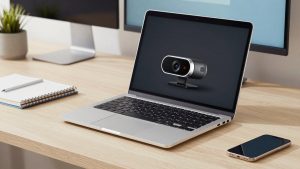
If you sit 2 to 3 feet from the screen in a reasonably lit room and just need to look clear on a 13-inch Teams tile, the cheaper option is fine. A basic 1080p business webcam for meetings will be a visible step up from a 2019-2022 laptop camera, especially for skin tone and noise.
The trade-off is fixed focus and small sensors. Most budget models are fixed focus set to about 2 to 6 feet. If you sit outside that range you will look slightly soft no matter what you do. They also struggle with backlight. If your desk faces a wall and your window is behind you, expect a white halo unless you close blinds or add a $20 desk lamp in front of you. For many home offices, that lamp does more than spending another $80 on a camera.
Who it suits: individual contributors with internal calls, students, and anyone on a locked-down work laptop where you cannot install camera software. Get one with a physical privacy shutter and a standard tripod thread so you can put it on a small stand at eye level. Top-of-monitor mounting is convenient but often points up your nose on low desks.
The sweet spot: autofocus 1080p or 1440p
For client-facing work, this is where most people should buy. A mid-range autofocus model keeps your face sharp when you lean in to share a screen or lean back to think, and it handles mixed office light far better. Look for HDR or backlight compensation called out specifically, not just 1080p on the box.
Failure modes to know: autofocus hunting is real. Some cameras refocus every time you lift a coffee mug or gesture. If reviews mention pumping or breathing, take it seriously for all-day calls because it is fatiguing to watch. Also check cable length and USB-A versus USB-C. A short, captive USB-A cable is annoying on a MacBook dock setup and forces you to buy an adapter or hub that can add lag.
An autofocus 1080p webcam with microphone suits managers, sales, recruiters, therapists doing telehealth intake, and teachers. You get consistent sharpness without needing perfect lighting. If you wear glasses, this tier also handles reflections better because exposure does not spike as hard when light bounces off lenses.
When 4K and auto-framing are worth it
4K is not about your coworkers seeing every pore. On Zoom and Teams you are usually compressed to 720p or 1080p anyway. The benefit is cropping. A 4K sensor lets the camera zoom and follow you with less quality loss, which helps if you stand to whiteboard or pace while teaching.
Do not buy it for a dark room. 4K sensors with small pixels can look worse than good 1080p in low light, with more grain and smeared motion. You need a key light or a bright window in front of you to see the difference. Auto-framing is also divisive. In our research, center-stage style tracking is great for one presenter, distracting for a formal interview where the crop drifts mid-sentence. Buy a model where you can turn it off permanently.
Consider a 4K webcam for video conferencing if you run workshops, record Loom-style updates where you crop to vertical, or cover a two-person desk with one camera. For solo head-and-shoulders calls in a small apartment, save the money and fix lighting and mic placement first.
Laptops, Macs, and setup mistakes to avoid
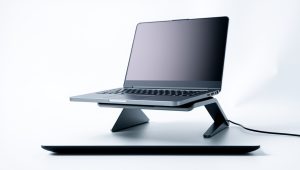
For laptops, height matters more than specs. A webcam sitting six inches below eye level makes you look tired and makes double chins out of everyone. Put the external camera at eye level on a monitor shelf or mini tripod, about arm’s length away. On Macs, specifically check that the camera supports 1080p at 30fps over USB without a driver, and that any privacy shutter does not trigger macOS thinking the camera disconnected.
Three mistakes we see repeatedly: leaving overhead ceiling lights as the only source, which creates harsh shadows; sitting with a bright window directly behind, which turns you into a silhouette; and using digital background blur to hide a messy room while on a weak laptop, which causes stutter and flickering edges. A plain wall, a lamp at 45 degrees in front of you, and no blur will look more professional than a struggling blur effect.
Wired internet or sitting close to your router also helps more than a camera upgrade if your video freezes. Check that first. If your IT department locks USB devices, confirm an external webcam is allowed before you buy.
FAQ
Is 4K worth it for Zoom and Teams?
Usually no for basic calls, because the platforms compress video heavily. 4K helps if you want digital zoom, auto-framing, or cleaner recordings. For everyday meetings, a good 1080p camera with good lighting looks the same to other people.
Why do I still look grainy with a new webcam?
Almost always low light. Webcams raise gain to compensate, which creates noise. Add a lamp in front of you, raise screen brightness, and avoid sitting with your back to a window. That fixes 80 percent of grain.
Do I need a separate microphone?
If others say you sound distant or echoey, yes. Webcam mics are 2 to 3 feet away and pick up the whole room. A USB headset or a close desktop mic will improve clarity more than any camera upgrade.
Will an external webcam work with my MacBook and work laptop?
In most cases yes, if it is UVC-compliant. Plug it in and select it in Zoom, Teams, or Meet settings. Avoid cameras that need special drivers for basic use, especially on managed work laptops where you cannot install software.