Last Updated: October 28, 2026
- Quick comparison
- The real cost of extra pixels
- Sharpness depends on size and distance
- Match the monitor to the graphics card
- Upscaling changes the math
- Ports, cables and refresh rate
- A four-step way to decide at your desk
- Common mistakes to avoid
- When to stop and rethink the purchase
- Frequently asked questions
Pick 1440p if your graphics card is mid-range or you care about frame rate above all, and pick 4K if you own a strong GPU, play detailed single-player games and sit close to a larger screen. The gap is one of workload: a 4K frame holds 8.29 million pixels against 3.69 million at 1440p, which is 2.25 times as many for the graphics card to draw. Everything else in this decision follows from that ratio, from sharpness at your seating distance to the cable you need. The guide uses published specifications and manufacturer documentation, and the editorial team did not run benchmarks of its own.
📄 In This Review
- Quick comparison
- The real cost of extra pixels
- Sharpness depends on size and distance
- Match the monitor to the graphics card
- Upscaling changes the math
- Ports, cables and refresh rate
- A four-step way to decide at your desk
- Common mistakes to avoid
- When to stop and rethink the purchase
- Frequently asked questions
Quick comparison
| Factor | 1440p (2560 x 1440) | 4K (3840 x 2160) |
|---|---|---|
| Pixels per frame | About 3.69 million | About 8.29 million |
| Sharpness at 27 inches | About 109 ppi | About 163 ppi |
| Sharpness at 32 inches | About 92 ppi | About 138 ppi |
| GPU demand | Moderate to high | High to very high |
| High refresh rate (144 Hz and up) | Reachable on many mid-range and up cards | Usually needs a high-end card or upscaling |
| Monitor cost tier | Budget to mid-range | Mid-range to premium |
| Cable and port demand | Modest | Higher; check DisplayPort or HDMI version |
The ppi values are calculated from the diagonal pixel count divided by the screen diagonal. They give a fair comparison between sizes but say nothing about panel quality, brightness or response speed.
The real cost of extra pixels
See also: Best Monitor for MacBook Air: Two USB-C 4K Screens and Six Adapter-Dependent Alternatives • Best Monitor for MacBook Pro: Eight Listings Sorted by Cable, Sharpness and Scaling
When a game is limited by the graphics card, frame rate falls roughly in proportion to the pixel count, though not perfectly. Some parts of a frame, such as geometry and physics, do not grow with resolution, so the drop is often smaller than the worst case. Still, the worst case is a useful planning number.
Here is a worked example with stated assumptions. Suppose a game holds 100 frames per second at 1440p on your card with the settings you like, and the game is fully GPU-limited. Divide by 2.25 and you get about 44 frames per second at native 4K as a floor. Real results would usually land higher, perhaps in the 50s, but the floor warns you that 4K can turn a smooth experience into a borderline one.
| Assumed 1440p frame rate | Worst-case native 4K (divide by 2.25) | Likely feel at 4K |
|---|---|---|
| 60 fps | About 27 fps | Needs lower settings or upscaling |
| 100 fps | About 44 fps | Playable, below 60 |
| 144 fps | About 64 fps | Comfortable, but far from 144 |
| 200 fps | About 89 fps | Smooth, for a high-end build |
These numbers are arithmetic, not readings from a specific graphics card. Substitute your own 1440p frame rate from a game you play and see where it lands.
Sharpness depends on size and distance
Pixel density tells you how fine the grid is, and viewing distance tells you whether your eyes can resolve it. At a typical desk distance of about 60 to 80 centimeters, a 27-inch 1440p screen already looks crisp for most people, with fine UI elements readable. Moving to 4K at 27 inches yields a clearly sharper image with smoother text edges, but the gain is smaller than the jump from 1080p to 1440p.
At 32 inches, the picture changes. 1440p stretches to about 92 ppi, and individual pixels become easier to notice up close. A 32-inch 4K panel at roughly 138 ppi fixes that, which is why this combination is popular for players who want a large, immersive display. If your desk is shallow or you sit very close, remember that a bigger screen also means turning your head more during fast play.
- 24 to 27 inches, competitive play: 1440p is the common sweet spot.
- 27 inches, mixed use: either works; 4K adds sharpness for text and photos.
- 32 inches or larger: 4K is generally the better fit to avoid visible pixels.
Match the monitor to the graphics card
A simple rule is to choose the resolution your card can drive at the settings and frame rate you want, then buy the monitor for that. A monitor you cannot feed will either run below native, where it can look soft, or force you to cut quality settings.
| Your priority | Better fit | Why |
|---|---|---|
| Esports and fast shooters | 1440p, high refresh | Frame rate and responsiveness matter most |
| Cinematic single-player games | 4K | Detail and image quality shine with enough GPU power |
| Mid-range card, balanced use | 1440p | Leaves headroom for settings and refresh rate |
| Strong card plus upscaling | 4K | Upscaling recovers speed while keeping the sharp output |
| Work and gaming on one screen | 4K at 27 to 32 inches | Extra sharpness helps text, spreadsheets and photos |
| Tight total budget | 1440p | Monitor and GPU together cost less |
If you are shopping for the faster option, the roundup of 1440p gaming monitor deals compares refresh rates and panels. For the sharper route, the comparison of 4K gaming monitors by refresh rate, panel and ports shows what to expect from each tier.
Upscaling changes the math
Upscaling technologies render the game at a lower internal resolution and reconstruct the image at your output resolution. That makes a 4K monitor easier to feed, because the graphics card may render closer to 1440p internally while the display shows a 4K image. Image quality differs by game and by mode, and artifacts such as ghosting or shimmer can appear in some titles.
Support depends on your graphics card and the game. Not every game offers every upscaler, and some older titles offer none. Before basing a 4K purchase on upscaling, check that the games you play support it on your hardware.
Ports, cables and refresh rate
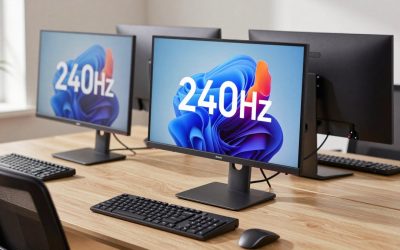
4K at high refresh rates needs a lot of bandwidth. A 4K image at 120 Hz with 8-bit color needs about 23.9 Gbit/s of raw pixel data before overhead, which is near the limit of DisplayPort 1.4 without compression. 1440p at 165 Hz needs only about 14.6 Gbit/s. If you want 4K at 144 Hz or more, look for HDMI 2.1, a newer DisplayPort version, or support for display stream compression on both the monitor and the graphics card.
Consoles and other devices matter too. If the same monitor serves a console, check which port carries the high refresh mode, since many monitors limit it to a single HDMI input.
A four-step way to decide at your desk
- Name your three most-played games and decide the frame rate you want in each. A slow strategy game and a fast shooter need very different targets.
- Estimate your 1440p frame rate in those games from your current card, then divide by 2.25 as in the table above. If the result stays above your target, 4K is realistic.
- Pick the size. Choose 27 inches if your desk is shallow or you want speed, 32 inches if you want immersion and have the depth to sit back.
- Check the connection. Confirm the monitor’s refresh rate at 4K or 1440p over the port your graphics card actually has, not only the headline figure.
If step two fails, the cheaper and usually happier choice is 1440p now, with the option to step up to 4K when you replace the graphics card.
Common mistakes to avoid
- Buying a 4K monitor for a card that can only manage 60 fps at 1440p.
- Choosing a 32-inch 1440p screen and then noticing the pixels up close.
- Assuming any 4K monitor does high refresh; check ports and the listed refresh rate.
- Running a non-native resolution and blaming the panel for softness.
- Ignoring Windows scaling, which may be needed for readable text at 27-inch 4K.
- Paying for resolution when a faster panel or better contrast would feel better in play.
When to stop and rethink the purchase
If you cannot say which games you play most and at what frame rate, pause before choosing. If your graphics card is more than a few generations old, a 1440p monitor is a safer match and leaves room for a GPU upgrade later. And if a 4K listing gives no clear refresh rate, port version or panel type, ask the seller or manufacturer before buying. Mounting also matters: a larger 4K screen is heavier, so check your arm’s weight rating, as covered in the guide to gas spring versus fixed-tension monitor arms.
Frequently asked questions
Is 4K worth it over 1440p for gaming?
It is worth it when you have a strong graphics card, sit close to a larger screen, and play visually rich single-player games. 4K shows finer detail but costs more GPU power, so frame rates drop unless you use upscaling. For competitive play at very high refresh rates, 1440p is usually the more practical balance of speed, cost and clarity.
Can a mid-range graphics card run 4K?
It can in lighter or older games, and in demanding games when you accept lower settings or use upscaling such as DLSS, FSR or XeSS. Native 4K at high settings asks for roughly 2.25 times the pixels of 1440p. A mid-range card will often feel better on a 1440p monitor and keep more headroom for higher refresh rates.
What screen size suits 1440p and 4K?
A 27-inch panel is the usual match for 1440p, giving about 109 pixels per inch. At 27 inches, 4K reaches about 163 ppi, which looks very fine but may need Windows scaling for readable text. A 32-inch 4K screen, near 138 ppi, is a popular compromise. Your viewing distance changes how much of the extra detail you perceive.
Does upscaling make 4K practical on lower-end hardware?
Often, yes. Upscalers render the game at a lower internal resolution and reconstruct it to 4K, which cuts GPU load. Image quality depends on the game and the upscaler mode, and results are not identical to native rendering. Check which technologies your graphics card supports before buying a 4K monitor on the assumption that upscaling will be available.
Will a 1440p monitor look blurry on a 4K-capable setup?
Not if it runs at its native resolution. A 1440p monitor shows a sharp image at 1440p, and a 27-inch size keeps pixels small enough for most players. It only looks soft if you feed it a non-native resolution. The reverse case is worth knowing: 1440p shown on a 4K screen does not divide evenly into the pixel grid, so it can look softer than a true 1440p panel.