Last Updated: October 18, 2026
If you use a desktop PC, you do not have a webcam until you buy one. That is the whole decision. Laptops get away with a mediocre built-in camera. Desktop users start from zero, which means cable length, mounting, microphones, and lighting matter more than the resolution number on the box.
I have tested cheap and expensive webcams on desktop towers, all-in-ones, and multi-monitor setups. For most office work, the cheapest option is fine once it is mounted right and lit right. Pay more only if you present, record, or stream all day.
📄 In This Review
What actually matters on a desktop PC
Resolution is the least important spec for Zoom and Teams. Those apps compress you to 720p or 1080p anyway. What you see on the other end is mostly sensor size, lens quality, autofocus behavior, and light handling.
On a desktop, three practical things cause more failures than resolution ever does. First is cable length. Towers often sit on the floor or to the side, and a 3-foot cable will not reach a rear USB port. Look for at least 5 feet, or plan to use a powered extension. Second is the mount. A clip made for a thin laptop lid will wobble or slide on a thick gaming monitor or curved ultrawide. Third is USB ports. Front-panel ports on cheap cases are noisy and underpowered. If your image freezes or goes black, plug directly into the back of the motherboard before you blame the camera.
Microphones are the other trap. Almost every webcam mic will pick up your mechanical keyboard, PC fans, and room echo. If you work alone in a quiet room, it is acceptable. If you type while talking, get a cheap USB headset or desktop mic. No webcam upgrade fixes that.
Which type to buy
See also: Best Monitor for MacBook Air: Two USB-C 4K Screens and Six Adapter-Dependent Alternatives • Best Monitor for MacBook Pro: Eight Listings Sorted by Cable, Sharpness and Scaling
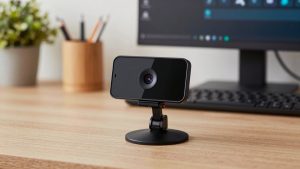
For most office workers, a basic 1080p webcam for desktop PC is enough. You get fixed focus or simple autofocus, dual mics, a privacy shutter, and a clip mount. On a work call in a lit room, you will look clear and normal. Where it fails is low light. Expect grain, soft edges, and grey skin tones after 6pm without a lamp on.
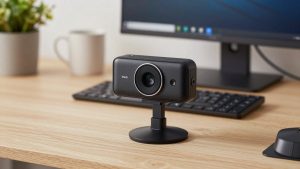
Step up to a better 1080p or 1440p camera with a larger sensor and autofocus if you are on camera 4+ hours a day. The difference is not sharpness, it is stability. Better auto-exposure means you do not blow out when sun hits the window behind you. Better autofocus means it does not hunt in and out when you lean back. This is the sweet spot for managers, teachers, therapists, sales calls, and anyone who presents.
A 4K webcam with autofocus only makes sense for a small group: you record training videos, you crop in for a head-and-shoulders framing, or you want digital zoom without turning to mush. For live calls, no one sees the 4K. You are paying for better lenses and processing, not for them seeing more pixels. It also needs more light and more CPU. On older desktops, 4K at 30fps can stutter if you are also screen sharing.
| Type | Typical resolution | Best for | Common failure mode | Price range |
|---|---|---|---|---|
| Basic 1080p | 1080p/30 | Daily Zoom, Teams, remote office work | Noisy in low light, narrow field of view can feel tight on ultrawide setups | $30-$60 |
| Better 1080p / 1440p with large sensor | 1080p/60 or 1440p/30 | All-day calls, teaching, presenting | Autofocus hunting if you gesture a lot; needs USB 3.0 port for 60fps | $70-$130 |
| 4K with autofocus | 2160p/30 | Recording, streaming, cropping | Overheats in long sessions, stutters on old CPUs, looks worse than 1080p in dim rooms | $130-$200 |
| 1080p kit with light/tripod | 1080p/30 | Dark home offices, basement desks | Bulky on desk; cheap ring lights create glass glare | $60-$100 |
Mounting and framing on a desktop
Put the camera at eye level on your main monitor, centered. On desktops with two or three monitors, people usually clip it to the monitor they look at when talking, not the biggest one. If you look at notes on the left screen while the camera is on the right, you will look distracted the whole call.
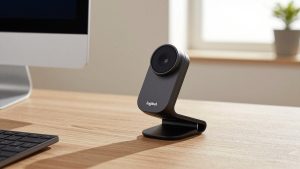
Curved and thick-bezel monitors are a real problem. Test the clip before the return window closes. It should grip without you holding it, and it should not tip forward when the cable pulls. If it slips, do not tape it. Use a small mini tripod for webcam behind your keyboard or on top of a monitor shelf. That is more stable and gives you better eye-level height than perching on top of a 32-inch panel.
Set field of view to 65-78 degrees if the software allows it. Wider angles show your messy office, second monitor glow, and doorway. Narrower looks more professional and hides a lot. Fixed-focus budget cameras usually sit around 70 degrees, which is ideal for one person at a desk.
Lighting matters more than the camera
A $40 webcam with a $20 lamp in front of you beats a $180 webcam backlit by a window. Face a window or put a soft white lamp behind your monitor, aimed at your face. Do not sit with a bright window or white wall directly behind you. No auto-exposure can save that; you will be a silhouette.
Turn off auto beauty filters, auto low-light boost, and auto framing for work calls unless you have tested them. Low-light boost just smears the image. Auto framing that follows you around is distracting in a 1-on-1 and can crop out shared whiteboards. Install the maker’s desktop app once, set exposure and white balance manually for your room, then leave it alone.
If you wear glasses, angle your monitor light down slightly and move the key light a foot to the side. Most glare complaints I see on desktops are not the webcam, it is a monitor light bar reflecting straight back into the lens.
Windows, drivers, and privacy
Almost all modern webcams are UVC plug-and-play on Windows 10 and 11. You plug in, Windows sees it, Teams sees it. Avoid cameras that require a always-on background app just to run at 1080p. That app will fight with Teams for control of exposure and focus.
Two desktop-specific checks: if you use Windows Hello facial login, confirm the camera you buy actually supports IR for Hello. Most regular webcams do not. And if privacy matters in a shared home office, get a physical shutter or lens cap. Software mute in Teams does not move the shutter, and tape leaves residue on the lens coating.
For Mac users running a desktop Mac mini or Mac Studio with a third-party display, the same advice holds, but test the companion software. Some webcam utilities are Windows-only, so you lose field-of-view and firmware updates on macOS. If you only use a Mac, stick to cameras that work fully without extra software.
FAQ
Is 4K worth it for a desktop work PC?
Usually no for live calls. Teams and Zoom compress you heavily. Buy 4K only if you record video locally or want to crop and zoom while staying sharp. For normal meetings, spend the difference on lighting.
Why does my new webcam freeze or go black?
On desktops this is almost always power or cable. Plug into a rear USB 3.0 port on the motherboard, not a front case port or unpowered hub. Use the included cable. If you need length, use one good powered extension, not three cheap ones chained together.
Do I need an external mic?
Not for quiet rooms. For mechanical keyboards, PC fans under the desk, or echoey rooms, yes. A basic USB headset will improve how you sound far more than any webcam upgrade.
Where should I mount it with two monitors?
On the monitor you stare at while talking. Centered at eye level, about arm’s length away. If you present slides on one screen and video on the other, put the camera on the video screen so your eye contact looks natural.