Last Updated: October 18, 2026
If you do video calls all day, a true Full HD webcam is still the sweet spot. 1080p looks sharp on Zoom, Teams, and Meet without demanding perfect lighting or a new computer, and the files are small enough that your calls don’t stutter. 4K sounds better on paper, but for most home offices it just adds heat, CPU load, and autofocus hunting.
The catch is that “Full HD” on the box doesn’t guarantee a good 1080p image. Many cheap webcams use a small 1080p sensor but aggressive sharpening and slow auto-exposure, so you look harsh in daylight and blurry at night. What matters is lens quality, autofocus behavior, microphone pickup pattern, and how it handles mixed office light.
📄 In This Review
What Full HD actually means for calls
Full HD means 1920 x 1080 pixels at 30 frames per second. Some models also do 60 fps at 720p, which looks smoother but less detailed. For work, 1080p30 is what you want. It matches what Zoom and Teams actually transmit, and it holds up when you share screen and stay in a small thumbnail.
Don’t shop on megapixels alone. A good 2MP sensor with a decent f/2.0 lens and real glass will beat an 8MP sensor with plastic optics. Look for autofocus, not fixed focus, if you move around, whiteboard, or hold products up to the camera. Fixed focus is fine if you sit 24-36 inches away and never move, and it’s one place you can save money without regret.
Field of view matters more than people expect. 65 to 78 degrees is ideal for one person at a desk. It frames head and shoulders without showing your whole room. 90 degrees and wider is useful for two people sharing a small office, but you will look smaller and background distractions become more obvious.
Quick comparison: which type suits you
See also: Best Monitor for MacBook Air: Two USB-C 4K Screens and Six Adapter-Dependent Alternatives • Best Monitor for MacBook Pro: Eight Listings Sorted by Cable, Sharpness and Scaling
Most Full HD work webcams fall into three buckets. This is more useful than comparing spec sheets, because the sensor size is similar across this price range.
| Type | Best for | Strengths | Trade-offs |
|---|---|---|---|
| Budget 1080p fixed-focus | Laptop calls, students, backup cam | Cheap, plug-and-play, lightweight | Soft in low light, no real background blur, harsh audio |
| Mid-range 1080p autofocus | Daily home office, managers, teachers | Sharper face tracking, better mics, usable privacy shutter | Needs USB-A port or adapter, bulkier clip |
| Business 1080p with noise reduction | Client calls, HR, Mac users | Better low-light, dual mics, Teams / Mac certification | Costs 2x budget models, software can be buggy |
If you only take two or three calls a week from a quiet room, the budget type is fine. If you present, interview, or teach daily, step up to autofocus and better microphones. That is where you will actually see and hear the difference.
Best for daily work calls
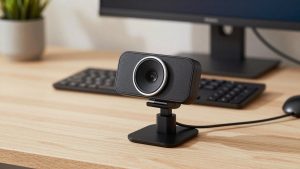
For a home office desk with a monitor, get a mid-range 1080p autofocus webcam with a physical privacy shutter and dual microphones. The classic example is the Logitech C920 series, which has been around for years because it gets the basics right: accurate skin tones, stable 1080p30, and a clip that actually grips a monitor.
In use, this type locks focus once and stays there. That sounds minor, but cheaper models pulse in and out when you lean forward, which is distracting on a client call. The mics also reject keyboard clatter better than single-mic budget cams. You will still sound better with a headset or USB mic, but you won’t sound hollow in a 10-minute standup.
Failure mode to know: autofocus can hunt in warm, dim rooms with a bright window behind you. If your face goes soft every time a cloud passes, turn off auto right-light correction in the vendor app and set exposure manually, or put a $20 daylight lamp behind your monitor. You can browse current options for a 1080p autofocus webcam for work to compare shutter and mic designs.
Best for laptops and Macs
Laptop users have a different problem: USB ports and CPU load. Most Full HD cams are still USB-A, so MacBook Air and newer XPS owners need a USB-C adapter or dock. Look for UVC plug-and-play with no driver required. That means it works in macOS, ChromeOS, and Linux without installing Logi Tune, Dell Peripheral Manager, or similar.
Mac users specifically should avoid webcams that require Windows software to turn off beautification or enable 1080p. Some default to 720p until you change a setting in the app. Check reviews from Mac users before buying. The sensor may be fine, but if you can’t access firmware updates on a Mac, you can get stuck with choppy 1080p on Apple Silicon.
If you travel, weight and mount matter. A compact 1080p cam that fits in a laptop sleeve and clamps to thin lids is better than a studio-style cam with a tripod thread. Expect more fan noise pickup because the mics sit close to the laptop. For frequent travel, a good headset matters more than upgrading the webcam. Start with a lightweight compact 1080p webcam for laptop and spend the savings on audio.
Low light and audio: where Full HD wins or fails
Full HD marketing hides low-light weakness. In a home office at 7 p.m. with one ceiling light, many 1080p webcams drop to 15 fps to gather more light. You look laggy even though your internet is fine. Models with larger pixels and temporal noise reduction hold 30 fps longer, but they smear fine detail like hair.
Practical test: record a 30-second clip in your actual call lighting with Teams or QuickTime, wave your hand, and watch for stutter. If it stutters, add light in front of you first. A webcam upgrade cannot fix backlight. Sit facing a window or lamp, not with it behind you.
On audio, dual omnidirectional mics are standard in this class. They pick up everything within 6-8 feet, including HVAC and typing. If you work in a shared space, use push-to-talk, a headset, or a webcam with adjustable pickup. Don’t expect noise cancellation to save a webcam mic in a kitchen with a dishwasher running. That’s a physics limit, not a defect.
What to avoid
Skip no-name 1080p cams that advertise 4K or 2K interpolation. They upscale a soft 720p or 1080p image and add heavy contrast. They also tend to have stiff focus rings, loose monitor mounts that droop during calls, and mics that clip on loud laughs.
Also be careful with wide-angle “conference” 1080p cams for solo use. A 110-degree lens makes you tiny at desk distance and bends bookshelves at the edges. They are meant for a huddle table, not a desk.
If you need a privacy shutter, get a built-in slider, not a stick-on cap you will lose. And if you mount on a 4K monitor with thin bezels, test the clamp. Some heavier business models need the included tripod or a separate webcam mount for monitor and tripod to sit level without wobbling when you type.
Bottom line: buy the cheapest 1080p autofocus model from a known webcam brand with a real warranty, then fix light and background. That will beat a more expensive Full HD cam in a dark, echoey room every time.
FAQ
Is 1080p enough for job interviews and client calls?
Yes. 1080p30 is the standard for Zoom, Teams, and Meet. Interviewers care about stable focus, clear audio, and even lighting. A mid-range Full HD cam with autofocus covers that without the CPU hit of 4K.
Why does my Full HD webcam look worse than my laptop cam?
Usually low light or wrong settings. External cams default to higher resolution, which exposes noise. Add frontal light, set the call app to HD, and turn off auto low-light boost if your image smears when you move.
Do I need 60 fps for work?
No for most desk work. 30 fps looks natural and uses less bandwidth. 60 fps helps only if you demo hand movements, whiteboard fast, or stream. It also needs much more light to avoid grain.
Will a Full HD webcam work on Mac without software?
Most will as plug-and-play UVC devices. You get basic 1080p video and mic in FaceTime, Zoom, and Teams. Advanced features like background blur, manual focus, and firmware updates may still need the vendor’s Mac app or a Windows PC.