Last Updated: October 18, 2026
If you are running live events from a laptop or Mac — a town hall, church service, workshop, DJ set, or small wedding stream — you probably do not need a broadcast camcorder. What you need is a camera that stays in focus for an hour, handles bad light, does not overheat, and works with Zoom, Teams, OBS, or YouTube Live without extra capture hardware.
That is where work webcams and USB-based video cameras win. They are plug-and-play, they are powered over USB, and they fail less often in the hands of volunteers or coworkers. Here is how to choose the right type.
📄 In This Review
What live events actually demand
Live is different from recorded video calls. You cannot re-take, you cannot fix focus later, and your subject moves. The three failure modes I see most are autofocus hunting, overheating shutdowns, and bad audio drowning out decent video.
A good event camera needs continuous autofocus that does not pulse, a wide enough field of view to cover 2-4 people without moving the tripod every five minutes, and clean USB output that your Mac or Windows laptop recognizes as a webcam. 4K is useful not because viewers watch in 4K — most watch in 1080p — but because it lets you crop in for a tighter shot without going soft.
Also consider runtime. Battery-powered cameras die at the worst time. For anything over 45 minutes, prioritize USB-powered operation or continuous AC power, and test it for a full hour before the event.
Your three realistic options
See also: Best Monitor for MacBook Air: Two USB-C 4K Screens and Six Adapter-Dependent Alternatives • Best Monitor for MacBook Pro: Eight Listings Sorted by Cable, Sharpness and Scaling
For laptop-based events, there are really three categories worth buying:
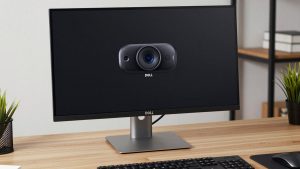
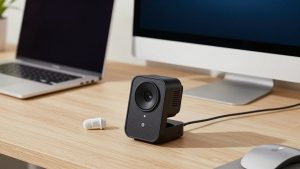
1. Premium 4K USB webcam on a tripod. This is fine for 80% of indoor events: panel discussions, live Q&As, classroom demos, small performances within 10-15 feet. Look for 4K30, autofocus, and a 78-90 degree field of view. Fixed to a tripod at eye height, it is stable and simple enough for anyone to run. Limitation: no optical zoom. If you need to pull a face from 40 feet away, digital zoom will look mushy.
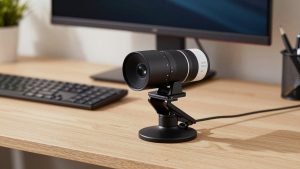
2. PTZ conference camera. PTZ means pan-tilt-zoom. You control it from a remote or app, which is ideal when one person is running slides and camera. A 10x-20x optical zoom model can cover a stage, sanctuary, or conference room from the back. Trade-off: cost, and image quality in low light is often worse than a good webcam or large-sensor camera. Colors can also look flat without tuning.
3. Large-sensor photo/video camera as a USB webcam. Many newer mirrorless cameras offer direct USB streaming — plug in USB-C and they show up as a webcam, no capture card needed. Image quality, low-light performance, and background blur are far better. Trade-off: complexity. You need dummy batteries for power, you need to disable auto-shutoff and sleep, and autofocus settings matter a lot. It is the best-looking option, but the easiest to misconfigure.
| Setup | Best for | Strength | Watch out for |
|---|---|---|---|
| 4K USB webcam + tripod | Meetings, workshops, demos under 15 ft | Simple, USB-powered, works with any laptop/Mac | No true zoom, struggles past 20 ft |
| PTZ USB camera | Churches, town halls, classrooms | Remote pan/zoom, covers whole room from back | Higher price, weaker low light, learning curve |
| Mirrorless with USB webcam mode | Music, weddings, premium streams | Best image and low light, lens choice | Overheating, battery limits, needs operator |
| Dual webcam (wide + tight) | Panels, interviews, fundraisers | Cut between shots in OBS without moving camera | More USB bandwidth, needs powered hub |
What to buy for your type of event
If you stream from a desk or small room: Get a high-resolution webcam with good autofocus and put the savings into light and audio. Mount it on a full-size tripod, not a mini tripod on a table — table vibration ruins live video. A search for 4K webcam for streaming will show you the current mainstream options; prioritize models with tripod threads, 4K30, and manual exposure control in software.
If you need to follow a speaker: A compact PTZ is worth it. You can lock it down at the back of the room, run USB to your laptop, and zoom with a remote. Look specifically for USB PTZ conference camera with 10x zoom rather than an HDMI-only broadcast PTZ, which will force you to buy a capture card. Test auto-tracking before you rely on it — tracking often loses the subject when two people cross, and manual presets are more reliable for live.
If image quality is the priority: Use a mirrorless camera you already own in USB webcam mode. Set it to 1080p30 or 4K30, continuous video AF with face detection, auto power off temperature to High if available, and power it with a USB-PD dummy battery. Keep a basic webcam as backup on a second USB port. When the main camera overheats or someone trips over HDMI, you can switch in OBS in two seconds.
Be honest about crew. If you have no dedicated camera operator, simpler wins. A locked-off 4K webcam with a clean crop looks better than a PTZ that no one pans correctly.
Audio, light, and laptop limits matter more than the camera
No viewer complains that a church stream is “only 1080p.” They leave because they cannot hear. For live events, budget for a wireless lav or a room mic near the speaker, not just the webcam’s built-in mics. Webcam mics are fine to 6 feet in a quiet office; beyond that they pick up echo and HVAC.
Light is second. Most halls and living rooms are dimmer than they look. Add one large soft light on the speaker’s face and turn off mixed-color overheads if you can. This does more for image quality than jumping from a $150 to a $400 camera.
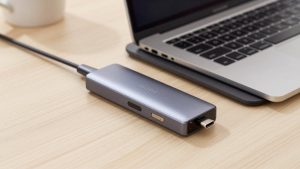
On laptops, watch USB bandwidth and heat. Two 4K webcams plus a USB mic on one unpowered hub will stutter. Use a powered USB 3 hub for laptop and plug directly into separate ports on a MacBook if possible. Close Dropbox, Chrome with 20 tabs, and anything else taxing the CPU. In OBS, stream at 1080p30 at 6,000-8,000 kbps — 4K live is rarely worth the dropped frames on hotel or office Wi-Fi. Wired Ethernet beats Wi-Fi every time.
Mac-specific notes
On newer Macs, most UVC USB webcams and PTZ cameras work without drivers in Zoom, Teams, OBS, and QuickTime. Mirrorless USB streaming support varies by brand — check that webcam mode is supported on macOS, not just Windows. Also confirm your software can select the camera’s mic versus an external mic; macOS will sometimes default to the camera mic after a reboot. Do a full restart test the day before, not the day of.
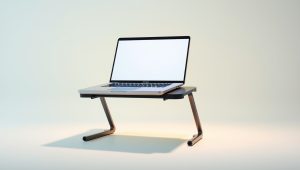
For long events on MacBook Air models, heat throttling is real. Elevate the laptop for airflow, run on power, and lower OBS preview scaling if fans spin up.
FAQ
Can I just use my laptop’s built-in webcam for a live event?
For a speaker who sits still 2 feet away, yes. For anything with movement, distance, or low light, no. An external webcam on a tripod gives you height, framing, and far better low-light performance for little extra complexity.
Do I need 4K for live events?
Not for delivery, but it helps for flexibility. Shooting in 4K and streaming in 1080p lets you crop to a tighter shot in OBS without losing sharpness. If your laptop is older, stick to 1080p capture to avoid dropped frames.
Is a PTZ camera overkill for small events?
Usually, yes. If your audience is within 15 feet and you have no operator, a fixed 4K webcam is cheaper and more reliable. PTZ pays off when you need to cover a large room from one position and have someone to run the remote.
What is the most common failure during live streams?
Power and audio, not resolution. Cameras shutting off from auto-sleep, batteries dying at 50 minutes, and USB mics disconnecting cause most failures. Disable sleep, use continuous power, and always have a backup webcam source ready in your streaming app.