Last Updated: October 18, 2026
If you own a Samsung Smart TV and want to add a webcam for video calls, you need to know one thing first: it doesn’t work like a laptop. You can’t just plug in any USB webcam and open Zoom. Samsung’s Tizen OS has very limited camera support, and what works depends entirely on your TV model year and which calling app you plan to use.
For most people, the TV itself is the worst part of the setup to rely on. Once you understand the limits, it’s easier to choose between Samsung’s own camera, a generic webcam for limited uses, or skipping the TV camera entirely and using an external device.
📄 In This Review
Samsung TVs don’t treat webcams like computers do
Laptops and Macs accept almost any UVC (USB Video Class) webcam. Samsung Smart TVs do not. On most 2020 and newer Samsung models, a USB webcam plugged directly into the TV will only be recognized by specific apps, primarily Samsung’s own video call features and Google Meet / Duo where supported.
Zoom, Microsoft Teams, Skype, and Webex do not have native Tizen apps that support USB cameras on Samsung TVs. Skype used to be supported on older Samsung TVs (pre-2016 with built-in Skype app), but that was discontinued years ago. If someone tells you any 1080p webcam will work for Zoom on a Samsung TV, that’s wrong.
The other failure mode is power and mounting. Samsung TVs have thin bezels and rear-facing USB ports. A bulky webcam with a large clip mount won’t sit securely, and a long USB cable draped down to the side USB port looks messy and can disconnect. Check your specific model in Samsung’s support pages before you buy anything – compatibility varies between Crystal UHD, QLED, and OLED lines.
Your three realistic options
See also: Best Monitor for MacBook Air: Two USB-C 4K Screens and Six Adapter-Dependent Alternatives • Best Monitor for MacBook Pro: Eight Listings Sorted by Cable, Sharpness and Scaling
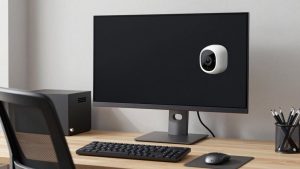
1. Samsung’s own camera for Samsung TVs. For 2022 and newer Samsung Smart TVs that support video calling, Samsung made the process simplest with its own magnetic pogo-pin camera, sold as the SlimFit Cam. It attaches to the back of compatible TVs without USB hassle and is recognized automatically for Google Meet and Samsung’s video features. Image quality is only 1080p and low-light performance is average, but compatibility is the reason to buy it. If your goal is sit-on-couch calls via Google Meet, this is the lowest-friction choice. You can check current availability via this Samsung SlimFit Cam search.
2. A standard USB webcam, with limits. Some Samsung TVs will recognize a generic UVC standard USB webcam for Google Meet only. A cheap 1080p fixed-focus model is fine here – don’t pay extra for 4K, high-end autofocus, or background blur, because the TV app won’t use those features. The trade-off is you get no pan-tilt control from the TV remote, no Windows-style settings app, and often no microphone selection. Expect the TV to default to the webcam mic even if you have a soundbar, which can sound echoey from 8-10 feet away.
3. Don’t use the TV for the call at all. This is what most home office users end up doing. Run the call on your laptop or Mac connected via HDMI, or cast from your phone, and use the laptop’s webcam or a dedicated desk webcam. You get full Zoom and Teams support, proper framing, and far better microphones. The TV just acts as a big display. If you go this way, invest in a good desk webcam for your computer instead of a TV-specific camera.
Quick comparison
| Setup | Works for | Cost | Best for | Biggest downside |
|---|---|---|---|---|
| Samsung SlimFit Cam (official) | Google Meet on supported 2022+ Samsung TVs | High | Couch calls, grandparents, hands-off use | Only fits select models, 1080p only, pricey for specs |
| Generic 1080p USB webcam | Google Meet on some Samsung models | Low | Occasional calls if your TV already supports it | No Zoom/Teams, no settings, mic often too far |
| Laptop + HDMI to TV | Zoom, Teams, Meet, FaceTime, everything | $0 if you own laptop | Work calls, interviews, multi-person meetings | More cables, need to manage laptop near TV |
| Phone casting + tripod | WhatsApp, FaceTime, Duo, Meet | Low | Family chats from living room | Awkward framing, battery drain |
What to buy for your situation
If you want simple living-room family calls: Get the official Samsung camera if your TV supports it. It’s overpriced for the image quality, but it eliminates the “camera not detected” problem that plagues third-party webcams on Tizen. Mounting is also cleaner – no clip hanging off the top bezel. Don’t buy it if you have a 2020 or older TV; check Samsung’s compatibility list first.
If you only call occasionally on Google Meet: The cheaper option is fine. A basic 1080p fixed-focus webcam with a wide 78-90 degree field of view is actually better on a TV than a narrow business webcam, because you’re sitting farther back. You don’t need autofocus, 60fps, or a privacy shutter with tripod mount. Save your money. Just keep the receipt – if your Samsung model doesn’t recognize it in Meet, return it rather than trying adapters and hubs.
If you work from home and need Zoom or Teams on a big screen: Do not buy a TV webcam. Connect your laptop via HDMI and place a 1080p webcam for laptop video calls on your media console or tripod closer to where you sit. TV-mounted cameras put you 9 feet away, which makes you look tiny and sound distant. For work, you want the camera 3-4 feet from your face, at eye level. Your TV can be the display while the laptop handles camera, mic, and app.
Setup tips that prevent bad calls
Light matters more than resolution on a TV. Living rooms are usually backlit, with windows behind the couch blowing out the picture. Close blinds behind you or add a lamp in front of you, behind the TV. No 4K sensor will fix strong backlight.
Audio is the usual failure. A webcam mic on top of a 55-inch TV cannot clearly pick up voices from a couch 10 feet away in a reverberant room. If your Samsung supports Bluetooth mics or you are using a laptop setup, put a USB or Bluetooth speakerphone on the coffee table. That single change improves calls more than upgrading from 1080p to 4K.
Keep cable length short. If you use USB, use the TV’s USB 2.0/3.0 port directly, not an unpowered hub. Many detection issues on Samsung TVs come from long extension cables or hubs that don’t supply enough power on boot.
FAQ
Can I use any Logitech or USB webcam with my Samsung Smart TV?
Physically you can plug it in, but most Samsung TVs will only use it inside supported apps like Google Meet. It won’t enable Zoom or Teams because those apps don’t exist with camera support on Tizen. Always test in the specific app you plan to use.
Does Samsung Smart TV support Zoom with a webcam?
No, not natively as of current models. The workaround is to run Zoom on a laptop, Fire TV Stick, or similar device connected via HDMI, and use that device’s webcam. The TV acts only as a monitor.
Where do I plug the webcam on a Samsung TV?
Use a rear or side USB-A port directly on the TV, not on a soundbar or hub. After plugging in, open the supported calling app – there is usually no system-wide camera preview in Samsung settings. If the app says no camera found, your model likely doesn’t support that camera.
Is the official Samsung camera worth it over a cheap webcam?
Only for compatibility and mounting. Image quality is similar to a $40-$60 1080p webcam. Buy it if you want guaranteed detection and a clean magnetic mount on a supported 2022+ model. For occasional use, a cheap 1080p webcam is fine if your TV already recognizes it.
Related Reviews & Guides
Best 1080p 60FPS Webcam
Best Branch Office Chairs in 2026: Compared and Ranked