Last Updated: October 18, 2026
If you are shopping for a laptop with webcam price in mind, the confusing part is this: the webcam itself barely changes the price. What you are really paying for is the screen, processor, and brand tier, and the webcam just comes along for the ride. A $350 Windows laptop and a $1,200 ultrabook might both list a 720p or 1080p camera, but they will look very different on Zoom.
I test laptops and external cameras for daily video calls. For most remote workers, the built-in camera is fine to start, then you add a $40-$80 external webcam only if you are on calls all day or you look washed out, grainy, or laggy. Here is how the pricing actually breaks down and when it makes sense to pay more.
📄 In This Review
What you actually pay for in a laptop webcam
Laptop makers do not sell the webcam as a separate line item. There is no $50 webcam upgrade option like there is for RAM. The camera module itself costs them a few dollars. What drives image quality is the sensor size, lens, placement, and especially the image processing.
That is why specs lie. Two laptops can both say HD 720p and produce completely different results. One will handle office backlight without blowing out your face, the other will turn you into a silhouette every time a window is behind you. Resolution matters less than low-light handling, auto-exposure, and microphone noise reduction.
The other hidden cost is placement. Thin-bezel budget laptops often put the camera in the bottom bezel or under the keyboard, giving that up-the-nose angle. Premium business laptops and Macs keep it centered on top with better microphones. You cannot fix bad placement with software.
Laptop with webcam price by tier
See also: Best Monitor for MacBook Air: Two USB-C 4K Screens and Six Adapter-Dependent Alternatives • Best Monitor for MacBook Pro: Eight Listings Sorted by Cable, Sharpness and Scaling
For work and video calls in 2026, here is what I consistently see hands-on:
| Laptop Price Tier | Typical Built-In Webcam | Real Call Quality | Who It Suits |
|---|---|---|---|
| Under $400 budget Windows / Chromebook | 720p, basic fixed focus | Soft, grainy in low light, weak mics | Students, occasional calls, always add light |
| $500-$800 mainstream work laptops | 720p to 1080p, better exposure | Usable for daily Zoom/Teams with good lighting | Most home office workers |
| $900-$1,400 business ultrabooks / MacBook Air | 1080p with improved processing | Sharp, better color, dual-array mics | Managers, client-facing calls, Mac users |
| $1,500+ premium / MacBook Pro tier | 1080p/12MP, advanced processing | Best built-in option, still struggles in dark rooms | Creators, executives who refuse dongles |
Notice the pattern: below $500, the camera is an afterthought. From $600 up, most laptops are good enough if your lighting is decent. Above $1,000, you are paying for consistency and microphones more than raw resolution.
Failure mode to watch for on cheap laptops: aggressive noise reduction that smears your face when you move, and auto-gain microphones that pump up keyboard clicks and fan noise. If your team complains they cannot hear you, it is usually the mics, not the video.
When a cheap laptop plus an external webcam wins
This is the honest math most buyers miss. A $550 laptop plus a separate 1080p camera often looks better on calls than a $1,000 laptop using its built-in camera.
Built-in cameras are stuck with tiny sensors because lids are 3-4mm thick. An external webcam is ten times thicker, so it gathers more light, focuses properly, and holds exposure steady when you lean back. For night calls, basement offices, or rooms with a single overhead light, the difference is night and day.
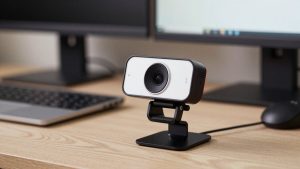
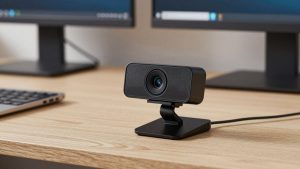
If you already own a workable laptop, do not replace it just for the camera. Sit facing a window or add a $20 desk lamp in front of you, and if that is not enough, get an 1080p webcam for laptop work calls that clips on top. It takes two minutes to plug in over USB and bypasses the built-in camera entirely.
The trade-off is desk clutter and one more thing to carry. If you take calls from cafes, airports, or client sites, you will not bring an external camera. In that case, prioritize a laptop with a centered 1080p camera and Windows Studio Effects or Mac Continuity Camera processing, which crops, blurs, and brightens more naturally.
Mac vs Windows laptops for webcam quality
Macs are the exception to laptop webcam pricing. An M-series MacBook Air around $999-$1,099 has one of the best built-in 1080p cameras I have used for work, mainly because of Apple’s image pipeline. Skin tones stay natural and backlight is handled well. The mics are also consistently good for small rooms.
Windows is more hit-or-miss. Lenovo ThinkPads, HP EliteBooks, and Dell XPS / Latitude models in the $800-$1,200 range tend to have usable 1080p cameras with physical privacy shutters, which Macs lack. Cheaper IdeaPads, Pavilions, and Aspires often still ship 720p with narrow field of view. Always check reviews for actual call samples, not just the spec sheet.
If privacy matters for work, Windows business laptops win. A physical shutter beats tape over the lens. If you use an iPhone, Macs also let you use your phone as a wireless 4K webcam, which is sharper than any built-in laptop camera. That alone can save you from buying an external camera.
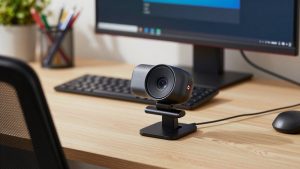
For hybrid workers who dock at home: consider a 4K webcam for home office docking setup at your desk and rely on the built-in camera only when traveling. That split setup gives you the best of both without overpaying for a laptop you only use half the time.
What to buy for work video calls
Buy for your call load, not the megapixels. If you do 1-2 calls per day in a bright room, any $600+ laptop from the last two years is fine. Spend the savings on lighting and a quiet keyboard. The cheaper option is genuinely fine here.
If you do 4-6 hours of calls daily, lead meetings, or record Loom-style videos, prioritize: 1) centered 1080p camera, 2) dual microphones with noise reduction, 3) a processor that can run background blur without fans screaming. That usually means $750 and up on Windows, or a MacBook Air.
Do not pay extra for gimmicks like privacy modes that turn the camera off in BIOS or IR cameras for Windows Hello unless you need face login. IR helps you log in faster, it does not make Zoom look better. And avoid laptops where the camera is under the screen to achieve thin bezels – you will look like you are looming over everyone.
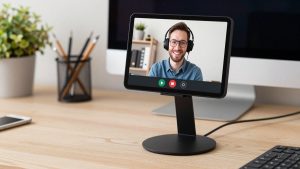
Before you buy, check three practical things: does it have a physical shutter or kill switch, does Teams/Zoom list background effects without lag in reviews, and can you plug in a USB headset without hiss. For most home offices, a midrange laptop plus a simple laptop stand with webcam mount for video calls to raise the lens to eye level will improve how you look more than jumping from 1080p to 4K.
FAQ
How much should I pay for a laptop with a good webcam?
For reliable daily video calls, expect $600-$900 for Windows and around $999 for a MacBook Air. Below that, plan to add a $50 external webcam and a light source. Above that, you gain better mics and processing, not a radically better sensor.
Is 720p or 1080p enough for Zoom and Teams?
Yes. Zoom and Teams compress video heavily, so 1080p is plenty and 720p is acceptable with good light. Lighting, lens height, and stable internet affect quality more than going to 4K on a built-in camera.
Should I replace my laptop just to get a better webcam?
Usually no. If your laptop is fast enough, an external USB webcam gives you a bigger upgrade for under $100. Replace the laptop only if the mics are bad, the fans are loud on calls, or the camera angle is unusable.
Are MacBook webcams better than Windows laptop webcams?
On average, yes for video processing and microphones at the same price, especially MacBook Air and Pro with 1080p cameras. Some $900+ Windows business laptops match them and add a physical privacy shutter, so check real call samples before deciding.