Last Updated: October 18, 2026
If you want a webcam that sits on top of your monitor and just works for calls, the choice is simpler than most roundups make it look. For a desk monitor, laptop lid, or Mac display, fit, framing, and light handling matter more than raw resolution.
I have tested clip-style webcams on thin laptop lids, thick curved gaming monitors, Dell and LG office monitors with deep bezels, and iMac-style all-in-ones. The failures repeat: the mount slips, the camera points at your forehead, autofocus hunts when you lean back, or the image looks washed out because of a window behind you. Get the mount and field of view right first, then worry about 1080p versus 4K.
📄 In This Review
What actually has to fit
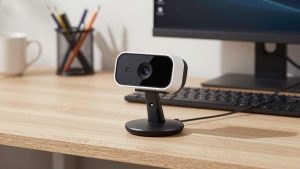
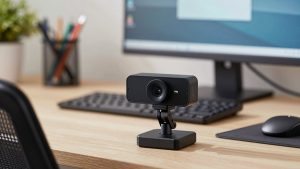
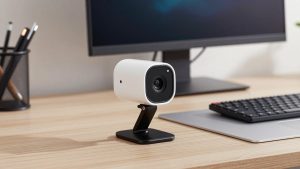
A “webcam for monitor screen” almost always means a small bar camera with a folding clip that grips the top bezel. That clip has two jobs: hold steady without wobbling when you type, and tilt down enough so you are centered, not cut off at the chin.
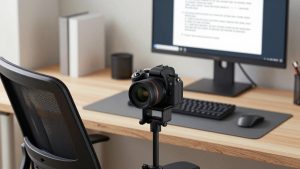
On laptops and most MacBooks, almost any clip works because the lid is thin. On desktop monitors it gets tricky. Curved ultrawides, monitors with a thick top hump for the backlight, and monitors with no bezel at all give the clip less to grab. If your monitor top is rounded or thicker than about 2.5 cm, look for a webcam with a wide, rubberized folding foot that sits on top rather than just pinching the front and back. A tripod thread on the bottom is also useful because you can move it to a small mini tripod for webcam when the clip angle is wrong.
Also check cable length and port. Most monitor webcams are USB-A with a 1.2 to 1.5 m cable, which is fine if your dock or PC is on the desk. For MacBooks with only USB-C, you will need an adapter or hub, and that is a common point of failure – loose adapters cause disconnects mid-call. A short USB-C adapter that stays plugged into the hub is more reliable than a dangling dongle.
The 3 types that work on monitors
See also: Best Monitor for MacBook Air: Two USB-C 4K Screens and Six Adapter-Dependent Alternatives • Best Monitor for MacBook Pro: Eight Listings Sorted by Cable, Sharpness and Scaling
There are really only three sensible categories for monitor use. Everything else is a variation in sensor, mic, or software.
First is the standard 1080p clip-on webcam with fixed focus or simple autofocus. This is the right pick for most office work. It is sharp enough at arm’s length, files are small, and Zoom, Meet, and Teams handle 1080p without taxing an older laptop. Failure mode: cheap fixed-focus models are often focused a little too far out, so if you sit very close to a 13-inch laptop you can look soft. Fixed focus is also unforgiving if you mount it high and lean in and out.
Second is the 4K clip-on webcam with autofocus and a larger sensor. Useful if you sit farther from a 27- to 34-inch monitor, if you crop or use auto-framing, or if you want better detail in poor light. Trade-off: on many work laptops 4K adds heat, fan noise, and dropped frames, especially over a hub. Most people end up running it at 1080p anyway. Only buy 4K if you have good USB bandwidth and actually need the crop flexibility.
Third is the wide-angle conference bar meant for a monitor in a shared room or family desk. It captures more of the room at 90 to 120 degrees, which helps when two people share one screen. Trade-off: everyone looks smaller and farther away, edges can look stretched, and auto-exposure struggles with mixed lighting. For solo calls it is worse than a normal 70- to 80-degree webcam.
| Type | Best for | Watch out for | When cheaper is fine |
|---|---|---|---|
| 1080p clip-on, 70-80 degree view | Solo work calls on a monitor or laptop | Weak mics, soft focus up close, narrow clip on curved monitors | Almost always fine for Meet/Teams/Zoom at a desk |
| 4K clip-on with autofocus | Sitting far back, cropping, poor light | Needs more USB/CPU headroom, can hunt focus, costs more | Skip if your laptop is older or your light is decent |
| Wide-angle 90-120 degree bar | Two people at one monitor, small huddle space | People look distant, edge distortion, busy background in frame | A basic 1080p model is fine if you only do this occasionally |
What to buy for your setup
For a normal home-office monitor and a Windows PC or Mac desktop: get a basic 1080p clip-on webcam for monitor. Choose one with a folding clip, dual mics with noise reduction, a physical privacy shutter, and 30 fps at 1080p. You do not need 60 fps for work – it helps hand motion look smoother but doubles bandwidth and often looks noisier in dim rooms. Spend the savings on light: a $20 desk lamp bounced off a wall does more for your image than jumping from 1080p to 4K.
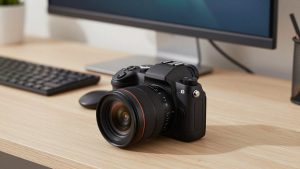
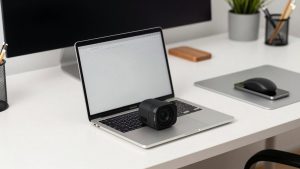
For a laptop lid or MacBook that moves between rooms: prioritize light weight, a low-profile clip that does not stress the lid, and a shutter you will actually use. Autofocus is helpful here because your distance changes. Avoid heavy glass-lens models that tilt the lid back or wobble when you type. If your MacBook camera already looks okay in good light, be honest about whether you need an external at all – an external helps most with angle, framing, and low light, not magic sharpness.
For a thick, curved, or bezel-less gaming monitor: fit comes first. Look for product photos that show the mount unfolded on top of a monitor, not just clipped to a laptop. Rubber pads, a wide foot, and adjustable tilt matter more than specs. If the clip cannot grip, plan on a monitor shelf or tripod behind the screen. A autofocus webcam for ultrawide monitor with a 75- to 85-degree field of view usually frames best here because you sit a bit farther back than with a laptop.
For two people sharing one monitor: only then consider wide-angle. Put the camera centered on the monitor, sit shoulder to shoulder, and test before an important call. If faces look tiny, move chairs closer rather than buying higher resolution. Expect to do some background cleanup because a wide lens shows the whole room.
Setup mistakes that ruin monitor webcams
Height and angle cause most complaints. A webcam on top of a 27-inch monitor looks down at you, which creates the forehead view and emphasizes glasses glare. Lower the monitor so the lens is roughly at eye level or just above, then tilt the camera down slightly. Sit about an arm’s length away. If you sit much closer, a 78-degree lens will crop your shoulders; if you sit much farther, you will look small and the mic will pick up room echo.
Light direction is next. Do not put a bright window directly behind you unless you want to be a silhouette – no webcam exposure can fix that cleanly. Face the window or put a lamp in front of you, slightly to the side. Turn off aggressive beauty filters and auto-framing at first; they hide the real problem and can cause pulsing as you move. Set exposure manually if your app allows it, then re-enable noise reduction for the mic only.
Audio is the quiet failure mode. Monitor-mounted mics sit 60 to 90 cm from your mouth and pick up keyboard, fan, and room reverb. For internal calls it is fine. For interviews, client calls, or noisy homes, use earbuds or a desk mic. Also check privacy: a physical shutter beats a software off switch, especially on a shared desk where someone might bump the mouse and re-enable video.
FAQ
Will any webcam fit any monitor?
No. Thin laptop lids fit almost everything. Thick, curved, or rounded monitor backs need a webcam with a wide folding foot and strong tilt adjustment. If the top is too thick to pinch, use a small tripod or monitor shelf behind the screen.
Is 4K worth it for a monitor webcam?
Usually not for solo work calls. 1080p looks clean on Zoom and Teams and runs better on older laptops and hubs. Buy 4K only if you sit far back, crop in, or need better low-light detail and your computer can handle the load.
Why do I look dark when my webcam is on my monitor?
Most often there is a bright window or lamp behind you. Face the main light source, close blinds behind you, and add a soft lamp in front. Lower screen brightness a little too – auto-exposure often overreacts to a bright screen.
Do I need a separate mic with a monitor webcam?
For quick internal calls, the built-in dual mics are usually fine at arm’s length. For important calls, noisy rooms, or sitting more than a meter away, use earbuds or a USB mic. You will sound closer and keyboard noise will drop sharply.