Last Updated: October 18, 2026
📄 In This Review
What actually matters on a Windows 10 desktop
A Windows 10 desktop has no built-in camera in most cases, which changes the decision compared to a laptop. You need a separate USB webcam, a way to mount it, and a microphone that actually picks you up from desk distance. Windows 10 is also picky in one specific way: many older or no-name cameras claim 1080p or 4K, but deliver soft, laggy video once you open Teams, Zoom, or Meet.
For most desk setups, prioritize three things in this order: reliable autofocus, decent low-light performance, and a microphone with noise reduction. Resolution comes fourth. A clean, stable 1080p image at 30 fps looks better in a work call than a smeary 4K image with aggressive sharpening. Windows 10 supports both UVC plug-and-play cameras and Windows Hello infrared cameras, but only a small subset supports face login. Do not assume a webcam does Windows Hello unless the listing explicitly says IR and Windows Hello compatible.
Connection is simple: USB-A is still the safest bet for Windows 10 desktops, especially older towers. Many webcams now ship with USB-C or a detachable cable with an adapter. That is fine, but if your front ports are loose or underpowered, use a rear motherboard USB port. That alone fixes a surprising number of freezing and disconnect complaints.
Quick comparison for desktop use
See also: Best Monitor for MacBook Air: Two USB-C 4K Screens and Six Adapter-Dependent Alternatives • Best Monitor for MacBook Pro: Eight Listings Sorted by Cable, Sharpness and Scaling
Desktop users usually fall into one of three groups: everyday calls, frequent presenting, or small-room meetings. The table below is the fastest way to narrow it down.
| Use case | Best fit | What to look for | When cheaper is fine |
|---|---|---|---|
| Daily Teams / Zoom calls | Basic 1080p autofocus webcam | Autofocus, dual mics, 78-90 degree field of view, tripod thread | This is enough for 80 percent of people |
| Client-facing work, teaching, streaming | Higher-end 1080p or 4K webcam | Larger sensor, good low light, 60 fps or clean 30 fps, manual settings app | Worth it if you are on camera 3+ hours per day |
| Small office / shared desk | Wide-angle conference webcam | 100-120 degree lens, far-field mics, distortion correction | Only if 2-3 people share one camera |
| Windows Hello login | IR webcam with Windows Hello support | Explicit Windows Hello / IR support for Windows 10 | Skip if you use a PIN or fingerprint reader |
Best for most people: a basic 1080p autofocus webcam
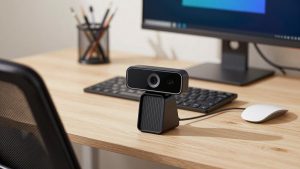
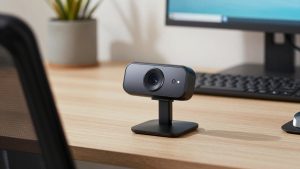
If you just need to look clear on a desktop for work, buy a simple 1080p USB webcam with autofocus and dual microphones. It will be plug-and-play on Windows 10, it will mount on top of a monitor, and it will work in every major meeting app without extra drivers.
The trade-off is low light. Budget sensors fall apart in a dim home office. Your face goes grainy, the background blooms, and autofocus hunts when you lean back. The fix is usually not a more expensive camera. Add a cheap desk lamp or face a window, keep the brightest light behind the camera, and set the camera at eye level. A 70 dollar lighting improvement beats a 70 dollar camera upgrade.
Failure modes to watch: fixed-focus budget cameras that are sharp at 2 feet and blurry at 4 feet, mics that pick up keyboard and PC fan noise, and mounts that do not grip curved gaming monitors. Look for autofocus, a standard tripod thread on the bottom, and a clip that actually tightens. Who it suits: office workers, remote support staff, students, and anyone doing one-person calls from a desk.
When to spend more: low light and long hours on camera
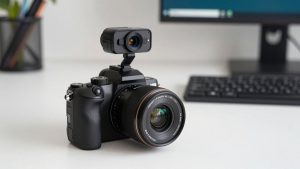
Upgrade if you teach, coach, sell, interview, or stream from your desktop and people comment that you look dark or blurry. In that case a higher-end 4K webcam for low light or premium 1080p model makes sense because of the larger sensor and better exposure control, not because of the 4K label itself.
Most meeting apps still show you at 720p or 1080p. The benefit of a better camera is cleaner pixels, less noise, more natural skin tones, and less focus breathing when you move. Some also offer a companion Windows app for exposure, white balance, zoom, and field-of-view cropping. That matters on a desktop where your background might be a messy bookshelf you want to crop out without using a glitchy virtual background.
Trade-offs: higher-end cameras cost two to three times more, use more USB bandwidth, and can run warm. Some default to an overly wide field of view that makes you look small at a deep desk. Set it to 65-78 degrees for solo calls. Failure mode: buying 4K and connecting through an old USB hub, then wondering why it drops to low resolution or stutters. Plug high-resolution cameras directly into the PC. Who it suits: managers, teachers, creators, and anyone on video four or more hours per day.
Windows Hello and shared-desk options
Windows Hello face login is the one Windows 10-specific feature worth calling out. A normal webcam cannot do it, even if the picture is excellent. You need an infrared camera that explicitly lists Windows Hello support. These cost more and the selection is smaller. Do not buy one just for slightly better video. Buy it only if you hate typing a PIN and your desktop is in a private space where face login makes sense.
The other special case is a shared desk or small office where two people sit side by side. A normal 78-degree webcam will cut someone off. A wide-angle conference webcam with far-field microphones fits that setup, but it is a bad choice for solo use. Faces look distant, edges stretch, and mics pick up the whole room.
Practical desktop setup advice: mount the camera at the top center of your main monitor, about arm’s length away. In Windows 10 Settings, then Privacy, then Camera, make sure desktop apps have camera access. In Teams or Zoom, select the external camera explicitly rather than leaving it on auto. If audio echoes, turn the speaker volume down and move desktop speakers behind the mic plane. Most echo problems are speakers, not the webcam mic.
What not to buy for a Windows 10 desktop
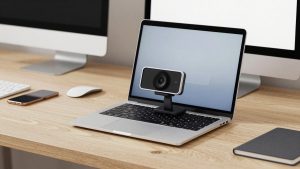
Avoid no-name 4K cameras under 30 dollars that list interpolated resolution, no autofocus specs, and no real brand support. They often have fixed focus, fake 60 fps, harsh auto-exposure, and mics that hiss. Also avoid buying a Mac-oriented 4K camera with only Thunderbolt-dependent software features and expecting full control on Windows 10. Basic video will work, but advanced framing and firmware updates may not.
You also probably do not need 60 fps unless you gesture a lot, demo products with your hands, or move around while teaching. For sitting and talking, clean 30 fps with good exposure looks more professional than high-frame-rate video from a tiny sensor. Be honest about your room: if your PC fans are loud or your keyboard is clicky, plan on a cheap USB headset for audio and use the webcam only for video. That combination beats any webcam mic upgrade.
FAQ
Do I need drivers for a webcam on Windows 10?
Usually no. Most modern USB webcams use the standard UVC driver built into Windows 10 and work immediately in Teams, Zoom, Chrome, and Edge. You only need extra software if you want manual exposure, zoom presets, background tools, or firmware updates.
Why does my webcam look worse in Teams than in the Camera app?
Meeting apps compress video and often cap resolution to save bandwidth, especially in large meetings or on weak connections. Improve lighting, plug into a rear USB port, close other video apps, and turn off HD background effects. That usually helps more than buying a higher-resolution camera.
Can any webcam do Windows Hello face sign-in?
No. You need a camera with an infrared sensor that specifically states Windows Hello support. Standard 1080p and 4K webcams do video calls only. If face login matters to you, filter for IR and Windows Hello compatibility before comparing image quality.
Is 4K worth it for a desktop work webcam?
For most people, no. A good 1080p camera with autofocus and decent low-light handling is enough for work calls. Spend more only if you are on camera all day, need cleaner low-light video, or want software controls for framing and exposure.