Last Updated: October 18, 2026
If you are on video for work every day, your webcam is not about looking cinematic. It is about being clearly seen and heard without fiddling with settings before every call. Most built-in laptop cameras still top out at grainy 720p, wash out in mixed light, and make you sound distant. A decent external webcam fixes that for less than most people expect.
I have tested work setups in small home offices, on kitchen tables, and on MacBooks with external monitors. The pattern is consistent: resolution matters less than exposure control, focus stability, and microphone pickup. A sharp spec sheet will not help if your camera hunts for focus every time you lean forward.
📄 In This Review
What actually matters for meetings
For Teams, Zoom, and Meet, prioritize 1080p with good auto-exposure over 4K on paper. Most meeting apps compress your video to 720p or 1080p anyway. What your coworkers notice is whether your face is bright without blown-out windows behind you, and whether your voice is clear without keyboard clatter.
Look for three things: a fixed or well-damped autofocus system, dual microphones with basic noise reduction, and a mount that actually grips a thin laptop lid or monitor. Autofocus that constantly pulses is worse than fixed focus set at arm’s length. Mics that pick up the whole room will get you muted a lot. And a heavy camera on a weak clip will slowly tilt down during a call, which is a common failure mode no spec sheet mentions.
Mac users should check one more thing: whether settings like zoom, exposure, and mic level are adjustable on macOS. Many webcams rely on Windows-only software for firmware updates and field-of-view controls. The camera will still work on a Mac as a basic UVC device, but you may be stuck with the default 78-90 degree framing.
Quick comparison by use case
See also: Best Monitor for MacBook Air: Two USB-C 4K Screens and Six Adapter-Dependent Alternatives • Best Monitor for MacBook Pro: Eight Listings Sorted by Cable, Sharpness and Scaling
| Type | Best for | Strength | Trade-off |
|---|---|---|---|
| Basic 1080p, fixed focus | Daily standups, 1-4 calls per day | Cheap, reliable, no focus hunting | Struggles in low light, narrow settings |
| Mid-range 1080p / 2K, autofocus | Client calls, managers, teachers | Better low light, clearer audio | Autofocus can pulse, costs more |
| 4K business webcam | Presenting, large monitor setups, cropping | Sharp image, digital zoom without mush | Needs good light and USB bandwidth, often cropped by apps |
| Built-in laptop camera + good light | Travel, hot-desking | Nothing to carry or plug in | Usually 720p, noisy, poor angles |
Best for most workers: simple 1080p
If you do regular internal meetings and want to stop worrying about it, a basic 1080p webcam for work meetings is fine. Fixed focus models are underrated here because there is nothing to hunt. Sit 2-3 feet away and you stay sharp. Move around a lot or whiteboard behind you, and you will want autofocus instead.
The compromise is low light. In a dim room at 6 p.m., these sensors get noisy and soften detail. A $20 desk lamp bounced off a wall behind your monitor does more than spending $60 extra on a sensor. The other weak point is the mic: usable in a quiet room, harsh in an echoey room or near a mechanical keyboard. If you take calls all day, budget separately for earbuds or a USB headset.
Who should buy this: individual contributors, remote workers on a budget, anyone whose IT department will not approve peripherals over $50. Do not buy this if you present to clients weekly and need to look polished in bad office light.
Step up for client-facing calls: 2K with better mics
The next tier is where you get meaningful improvements: larger sensor, better auto-exposure, and dual mics that actually reject some background noise. Image looks cleaner in mixed daylight and overhead LEDs, and skin tones look less waxy. Many also add a 75-90 degree field of view and a privacy shutter that does not fall off.
Failure modes to watch: aggressive noise reduction that makes you sound underwater on Teams, and autofocus that breathes when you gesture with your hands. Check reviews specifically for Teams and Meet, not just photo samples. Also check cable length. A short 3-foot cable is annoying if your dock is under the desk.
Who suits this: managers, sales, customer success, therapists, tutors, anyone on camera 3-6 hours a day. If you already use a dedicated USB mic or headset, you can save money and stick with the cheaper tier, because you are paying mostly for audio and low-light gains here.
When 4K makes sense – and when it does not
A 4K webcam for Zoom and Teams is useful for one specific reason: cropping. If you sit far from a 27- or 32-inch monitor and want a tighter head-and-shoulders crop, starting from 4K keeps text and faces readable after digital zoom. Some also offer auto-framing that follows you, which helps if you stand and pace.
For normal desk use, be honest about the limits. Most calls will downscale you to 1080p or lower. 4K needs strong, even light or it looks no better than 1080p, and it uses more CPU and USB bandwidth. On older laptops with a hub full of drives and docks, 4K can stutter or force the camera to drop to 1080p anyway. Plug directly into the laptop or a powered dock if you go this route.
Who should buy this: presenters, trainers, and people who record meetings locally for training videos. Skip it if your internet upload is under 10 Mbps or your laptop is more than five years old.
Laptops and Macs: fit and compatibility
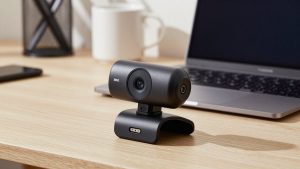
Mount fit is a practical dealbreaker. Ultra-thin MacBook Air lids and curved gaming monitors do not hold every clip. Look for a flat-bottomed mount with rubber grips and a tripod thread underneath. That thread lets you put the camera on a small tripod behind your laptop, which is often more stable and gives better eye level than perching it on the screen.
For Macs, prefer cameras that store settings on-device or offer macOS software. Otherwise you may need a Windows PC once to update firmware, then use it as plug-and-play. In Zoom and Teams on Mac, test the mic separately. macOS echo cancellation plus the app’s noise suppression can stack and make you sound thin. Often the best combo is an external camera for video plus AirPods or a wired headset for audio.
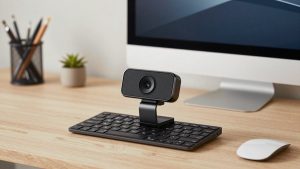
If you travel, consider weight and shutter. A light camera with an integrated shutter and a short cable in a laptop sleeve survives better than a large 4K puck. For a permanent home office, a heavier camera on top of an external monitor with a USB webcam with privacy shutter and tripod mount stays put and keeps eye contact natural when the monitor is at the right height.
FAQ
Is 1080p enough for work?
Yes, for almost everyone. Meeting apps compress video heavily, so lighting, exposure, and a stable connection affect clarity more than moving from 1080p to 4K. Buy 4K only if you need to crop or auto-frame.
Do I need a separate microphone?
Not for occasional calls in a quiet room. If you are on calls all day, share a room, or type while talking, a headset or USB mic is a bigger upgrade than a pricier camera. Webcam mics pick up keyboards and room echo by design.
Why do I look dark with a window behind me?
Your camera is exposing for the bright window. Face the window if you can, or close blinds and add a lamp in front of you. Cameras with HDR or backlight compensation help, but repositioning beats any setting.
Will any webcam work with Mac and laptop docks?
Most work plug-and-play for basic video, but advanced controls may be Windows-only. For docks, plug into a USB 3.0 port directly when possible. If video stutters at higher resolutions, try a different port or bypass an unpowered hub.