Last Updated: October 18, 2026
If you work from home and join video calls all day, a webcam with a built-in light and microphone sounds like the perfect all-in-one fix. No extra gear, no cable mess. In practice, some of these combos are genuinely useful, and some are just a dim LED and a harsh mic bolted onto a mediocre camera.
I’ve tested a lot of these for home office setups on both Windows laptops and Macs. The key lesson: built-in is convenient, but it has limits. A good all-in-one will make you look and sound clearly better than a laptop webcam in a dark room. It will not replace a separate USB mic or a proper key light if you present often or record.
📄 In This Review
What actually matters in a combo webcam
Resolution is the least important spec on the box. A good 1080p sensor with decent low-light handling beats a cheap 4K sensor every time. What matters more is exposure control, white balance, and how the camera handles backlight from a window behind you.
For the light, check brightness steps and color temperature, not just “built-in ring light.” Most built-in lights are small. They work at arm’s length in a dim room, but they fall off fast past 3-4 feet. Look for at least 3 brightness levels and adjustable warm-to-cool white. A single harsh cool-white LED will make you look washed out.
For the microphone, two mics with noise reduction is now standard on anything decent. It will pick up your voice clearly at a desk, and cut keyboard clatter and fan hum reasonably well. What it won’t do: isolate your voice in a noisy living room, or sound full and warm like a dedicated USB mic 6 inches from your mouth. Expect clear but thin audio.
Also check Mac compatibility. Most are plug-and-play with FaceTime, Zoom, Teams, and Meet via USB-A or USB-C, but advanced settings like zoom, autofocus lock, or light control often require a Windows-only app. If you’re on Mac, make sure brightness and light can be adjusted on the camera itself with buttons or a remote.
The 3 types worth buying
See also: Best Monitor for MacBook Air: Two USB-C 4K Screens and Six Adapter-Dependent Alternatives • Best Monitor for MacBook Pro: Eight Listings Sorted by Cable, Sharpness and Scaling
1. Budget 1080p all-in-one with fill light
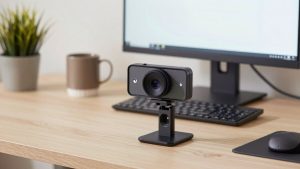
This is a 1080p camera with a small LED light bar around the lens and dual noise-reducing mics. It clips to a laptop or monitor. Best for: students, hybrid workers with 2-3 calls per week, and anyone in a dim apartment who just wants to stop looking like a shadow.
Trade-offs: The lens is often fixed-focus, so you need to sit 2-4 feet away to stay sharp. The light helps, but at full brightness it can create shiny skin and red-eye. The mic is fine for calls, but sibilant – S sounds can hiss. The cheaper option is fine here if you just need “better than laptop.” Don’t pay extra for fake 4K in this tier; it’s usually upscaled 1080p.
Look at a basic 1080p webcam with light and microphone if your room is dark and you want the simplest upgrade.
2. Midrange 2K / QHD with larger light and dual mics
This is the sweet spot for full-time remote work. You get a larger sensor, autofocus, a bigger fill light that actually lights your face evenly, and better auto-exposure. Many include a privacy shutter and tripod mount.
Trade-offs: File sizes and CPU load are higher than 1080p, which matters on older MacBook Airs. Autofocus can hunt if you move around or hold papers up – look for a model with AF lock. Mics are clearer, but they still pick up room echo if you sit in an empty room with hard walls. Failure mode I see a lot: people crank the built-in light to 100% and leave overhead lights off, which creates harsh contrast. Use the light at 40-60% plus room light.
3. Premium 4K with auto-framing and advanced mics
Best for: managers who host meetings, coaches, and anyone who presents to clients. You get true 4K, better dynamic range, face-tracking or auto-framing, and beamforming mics.
Trade-offs: Price is 2-3x the budget tier, and you need good upload bandwidth and lighting to actually benefit from 4K. Most meeting apps compress you to 720p or 1080p anyway. Auto-framing is handy if you stand and whiteboard, but annoying if it crops in too tight on a laptop screen. These also run warm – give them airflow and don’t leave the light on all day.
If you lead calls daily, a 4K webcam with microphone and light makes sense, but only if your internet and room can support it.
Quick comparison
| Type | Video | Light | Mic quality | Best for |
|---|---|---|---|---|
| Budget 1080p all-in-one | 1080p, often fixed-focus | Small LED, 3 steps, cool white | Clear for quiet room, thin | Occasional calls, dorms, dim apartments |
| Midrange 2K / QHD | Sharper, autofocus, better low-light | Larger fill light, adjustable temp | Dual mic + noise reduction | Full-time remote work |
| Premium 4K | True 4K, HDR, auto-framing | Stronger, even fill | Beamforming, better echo control | Hosting, presenting, recording |
| Separate cam + light + mic | Depends on cam | Much stronger and softer | Much fuller | Daily presenters, YouTube / courses |
When you should skip the all-in-one
Buy separate gear if any of these sound like you: you record training videos, you are on calls 5+ hours a day, you have glasses that catch reflections, or you work in a bright room with a window behind you. A small ring around a lens cannot overpower backlight. You need a larger desk light behind your monitor and to face the window, not sit with your back to it.
Glasses wearers in particular struggle with built-in lights. The LED sits inches from the lens, so reflection goes straight back into the camera. Fix: turn the built-in light down or off and use a soft video conference lighting for webcam placed off to the side.
Same for audio. If people ask you to repeat yourself, or you work in a noisy house, a $30-50 USB headset will beat any built-in webcam mic. Webcam mics sit 2-3 feet away on a desk. Physics wins.
Setup tips that matter more than specs
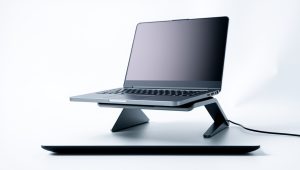
Put the camera at eye level. A laptop webcam looks up your nose; a clip-on webcam on top of an external monitor is usually the right height. If you use a laptop alone, put it on a stand and use an external keyboard.
Sit 2-3 feet away. Too close and the wide-angle lens distorts your face. Too far and the light and mic both fall off. Center yourself with a little headroom, not filling the whole frame.
Set exposure before the meeting. Join your camera app, turn your room lights on, then adjust the fill light so your face matches the background brightness. On Mac, prefer hardware buttons on the webcam over software – Zoom and Teams love to override auto-exposure mid-call.
Test your mic once. Record 20 seconds in QuickTime or Windows Sound Recorder with your normal typing and fan on. If you hear echo, move closer, add a rug or curtain behind you, and turn on noise suppression in Zoom / Teams. Don’t rely on the webcam’s noise reduction alone.
FAQ
Is a webcam with built-in light enough for a dark home office?
For evening calls at a desk, yes. It will lift shadows and make your face visible. For a fully dark room or if you’re more than 4 feet away, no – add a room light or small desk panel. Built-in LEDs are for fill, not for lighting a whole room.
Are built-in microphones good enough for work calls?
For most Zoom and Teams calls in a quiet room, yes. Your voice will be clear and intelligible. If you present, interview, or work around kids, dogs, or traffic, use a headset or USB mic. You’ll sound louder and cut background noise much better.
Will these work with MacBook and Zoom / Teams?
Yes, almost all USB webcams work plug-and-play on macOS 12 and newer with Zoom, Teams, Meet, and FaceTime. The catch is settings apps – some brands only offer full controls on Windows. If you’re on Mac, choose a model with physical light controls and on-device autofocus so you don’t need software.
Should I get 1080p or 4K?
Get a good 1080p or 2K model unless you host or record often. Meeting apps compress video heavily, so extra resolution rarely shows up live. Spend the difference on better low-light performance and a better light, not more pixels.
Related Reviews & Guides

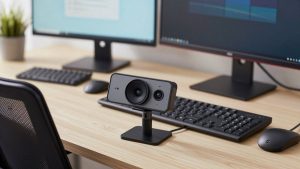
Top 10 Webcams with Microphone for PC

Amazon Prime Day 2026: Best Deals & Top Picks