Last Updated: October 18, 2026
Office meetings punish bad webcams in a way casual calls don’t. You are on for 30-60 minutes at a time, often with 5-15 people in a grid, sharing slides, and sitting under harsh overhead lights. If your image is soft, your exposure blows out, or your mic picks up keyboard clatter, everyone notices.
The good news: you don’t need to spend much to look professional in that context. Reliability, steady focus, and clean audio matter far more than 4K resolution.
📄 In This Review
What actually matters for office meetings
Resolution is the least important spec on the box. Zoom, Teams, Meet, and Webex all compress video heavily. A clean 1080p feed at 30 fps will look identical to a 4K feed to most coworkers, because the platform downscales you anyway to save bandwidth.
What you will notice day to day is autofocus behavior, exposure control, field of view, and microphones. Cheap fixed-focus webcams are fine if you sit still at a fixed distance, but they go soft if you lean in to read or lean back in your chair. Autofocus models keep you sharp, but bad ones hunt and pulse every time you move your hands. That’s distracting in a review meeting.
Field of view is a real trade-off. A 65- to 78-degree view keeps you centered and crops out the messy side of a home office or the neighbor in an open office. A 90-degree or wider view is better if two people share one desk, but for solo use it makes you look small and shows more background. Most office workers are better off with the narrower option.
Audio is where meetings are won or lost. The other end will forgive 720p video, but they won’t forgive echo, HVAC hum, or typing noise. Dual microphones with basic noise reduction help, but they don’t replace a headset in a noisy office. If you take calls from an open floor plan, plan on using earbuds or a headset regardless of which webcam you buy.
Quick comparison: the four setups that work
See also: Best Monitor for MacBook Air: Two USB-C 4K Screens and Six Adapter-Dependent Alternatives • Best Monitor for MacBook Pro: Eight Listings Sorted by Cable, Sharpness and Scaling
| Setup | Best for | Strengths | Failure mode |
|---|---|---|---|
| Built-in laptop camera + headset | Travel, hot-desking | No extra gear, always with you | Low angle, grainy in low light, looks up your nose |
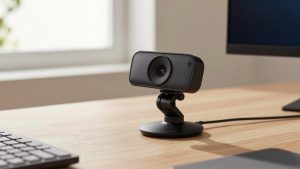
| Budget 1080p fixed-focus USB webcam | Well-lit home office on a budget | Cheap, simple, good enough on Teams/Zoom | Soft image if you move, poor backlight handling |
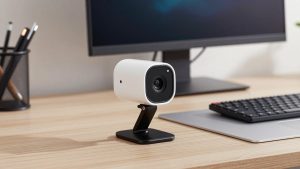
| Midrange 1080p autofocus webcam with dual mics | Daily office meetings | Sharp, stable exposure, better mics | Autofocus hunting on very cheap models; cable clutter |
| 4K webcam with auto-framing | Conference rooms, presenters who move | Crops without losing detail, follows speaker | Costs more; auto-framing can be jumpy; needs good USB port |
When your laptop camera is enough
If you use a recent MacBook, ThinkPad, Dell XPS, or Surface, your built-in camera is usable for internal check-ins, especially if you add a decent light source in front of you and use a headset mic. The failure mode is angle and lighting: laptop cameras sit low, so they exaggerate chins and ceilings, and they fall apart in dim rooms.
A $30 stack of books or a laptop stand to get the lens to eye level does more for how you look than upgrading from 1080p to 4K. Face a window or put a cheap desk lamp behind your monitor. If you do that and people say you sound clear, stop shopping. The cheaper option is fine.
Upgrade when you are client-facing, interviewing, leading standups, or presenting. That’s when stable focus and better low-light handling pay off, and when a shaky, grainy image starts to undermine you.
The daily driver: midrange 1080p autofocus
For most people in office meetings, the sweet spot is a midrange 1080p autofocus webcam with dual microphones, a privacy shutter, and a 65- to 78-degree field of view. If you sit in Teams or Zoom all day, start with a 1080p autofocus webcam with dual mics in this class rather than chasing 4K.
Why this works: 1080p at 30 fps is what platforms actually deliver, autofocus keeps you sharp when you lean in to type, and a narrower lens keeps the focus on you instead of your room. A physical shutter matters in an office because IT policies and accidental unmutes happen. Software lens covers get forgotten.
Trade-offs to check before you buy: some autofocus units refocus loudly or visibly pulse when you gesture. Look for reviews that specifically mention focus hunting on video calls, not just still photos. Check mount depth too. Thick office monitors and curved displays defeat a lot of clip mounts, and a webcam that slowly droops mid-meeting is worse than a lower-resolution one that stays put.
On Macs, confirm the camera is UVC-compliant so it works without drivers in FaceTime, Zoom, and Teams. Most are, but business models with extra background blur or auto-framing apps sometimes have full features only on Windows. If you are on macOS, a simple plug-and-play USB webcam with privacy shutter for Mac will cause fewer headaches than one that needs a utility to disable sharpening.
Budget 1080p vs. 4K: who should pay more
A budget 1080p fixed-focus webcam is fine if your setup never changes: same desk, same distance, decent front light. Set focus once by sitting where you always sit, and leave it. The image won’t be stunning, but it will be stable, which coworkers prefer.
It fails when lighting changes. Sit with a bright window behind you and budget models blow out your face into a white blob while trying to expose for the window. They also struggle in dim home offices after 4 p.m. in winter, producing grain and laggy motion. If that is your room, spend the extra $30-50 for better auto-exposure, not for more pixels.
4K only makes sense for two office uses: small conference rooms where you crop into a wide shot to frame whoever is speaking, and presenters who pace or use a whiteboard. In those cases, look at a 4K webcam with auto framing for conference rooms and test the framing feature before you rely on it. Cheap auto-framing zooms in and out with every chair squeak, which is more distracting than a static wide shot.
For solo desk meetings, 4K is mostly marketing. Your platform will compress it to 1080p or 720p, your laptop fan will spin harder to process it, and older office laptops may drop frames on 4K over a dock. If your IT department locks down USB ports or you run through an old hub, 1080p is the safer, more compatible choice.
Setup mistakes that make any webcam look bad
Mount at eye level, about an arm’s length away. Too close exaggerates facial features and picks up breathing on the mic; too far makes you unreadable in a 12-person grid. If your webcam has activity LEDs, make sure you can see when you are live.
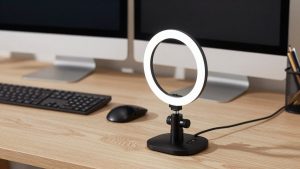
Light yourself from the front, not from above. Overhead office fluorescents create shadows under eyes. A window in front of you is ideal. If you face a wall, a $20 LED panel at 4000-5000K behind your monitor fixes more than a new camera will. Avoid a bright window or lamp directly behind your head unless your webcam has good HDR.
Finally, test where you will actually meet. Record a 60-second test in Teams or Zoom, share your screen, and watch the replay. Check for focus pulsing when you type, audio clipping when you laugh, and lag when your VPN is on. Offices with strict firewalls and underpowered laptops cause more meeting failures than camera sensors do.
FAQ
Is 1080p enough for office meetings?
Yes for almost all solo desk meetings. Zoom, Teams, and Meet compress video so heavily that most participants see you at 720p to 1080p anyway. Spend on stable autofocus, good exposure, and a solid mount instead of 4K.
Do I need a separate mic if my webcam has dual mics?
In a quiet home office, a good webcam mic is often enough. In an open office, coffee shop, or echoey room, use a headset or earbuds. Webcam mics sit 2-3 feet away and will pick up typing and neighbors no matter what noise reduction claims say.
Why do I look washed out when I sit near a window?
Your camera is exposing for the bright background, not your face. Face the window instead of putting it behind you, close blinds, or turn on auto-HDR if your camera has it. Budget webcams handle backlight much worse than midrange ones.
Will any USB webcam work with Mac and office laptops?
Most UVC webcams work plug-and-play on Mac and Windows with Zoom, Teams, and Meet. Issues usually come from old USB hubs, docks, or vendor apps that add blur and framing on Windows only. If you use a dock, plug directly into the laptop to test if video stutters.