Last Updated: October 18, 2026
📄 In This Review
What Teams actually uses
Microsoft Teams compresses your video heavily. Even if you buy a 4K webcam, the person on the other end usually sees 720p or 1080p, often less if their Wi-Fi is weak or if there are 10 people on the call. That means sharpness matters less than consistency: steady exposure, accurate skin tones, no flicker under office lights, and a microphone that does not make you sound like you are in a bathroom.
Teams also has its own certifications and features that change what to buy. Background blur, background replacement, and automatic framing are processed by Teams itself on most modern laptops, so you do not need a webcam to do them. What helps is a clean 1080p feed with good white balance, because Teams blur looks ragged when the source image is noisy. If your IT department requires Teams-certified devices, check that box first – uncertified cameras work fine for video, but certified ones have tested microphone behavior for echo cancellation and mute sync with Teams.
Quick comparison
See also: Best Monitor for MacBook Air: Two USB-C 4K Screens and Six Adapter-Dependent Alternatives • Best Monitor for MacBook Pro: Eight Listings Sorted by Cable, Sharpness and Scaling
For Teams calls, most buyers fall into one of three buckets. This is where the money actually goes:
| Category | Typical video | What you gain | Common failure mode | Best for |
|---|---|---|---|---|
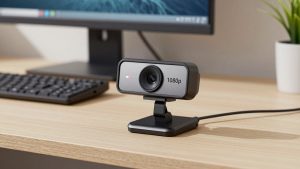
| Basic 1080p business webcam | 1080p / 30fps, fixed focus or basic autofocus | Reliable plug-and-play, physical shutter | Washed out face if window is behind you; thin mic sound | Daily standups, 1:1s, shared office laptops |
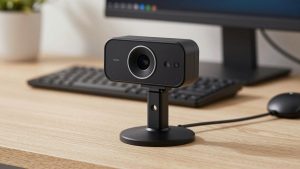
| Mid-range 1080p/1440p with better lens and mics | 1080p / 60fps or 1440p, faster autofocus | Better low light, wider dynamic range, dual noise-reducing mics | Autofocus hunting during screen shares; too-wide framing in small rooms | Home office workers on calls 3+ hours per day |
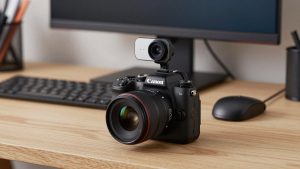
| Premium 4K with auto-framing | 4K sensor, outputs 1080p cropped/zoomed | Stay-in-frame follow, digital zoom without mush, better backlight handling | Overheating on long calls; needs direct USB port, not a cheap hub | Presenters, trainers, managers who lead meetings |
For most people: a basic 1080p business webcam is fine
If you sit at a desk 2 to 3 feet from the screen, in a room with decent daylight or a ceiling light, do not overbuy. A simple 1080p business webcam with a clip mount, tripod thread, and a physical privacy shutter covers 80% of Teams use.
Look for fixed focus set around 40cm to 2m, or autofocus that you can turn off. Fixed focus sounds cheap, but on Teams it is often more reliable – it never breathes in and out while you lean forward to type. Dual microphones are standard now, but expect limits: they will pick up keyboard clatter and room echo. If you are in an open plan office or a hard-floor apartment, plan to use earbuds for audio anyway.
Failure modes to check in the first week: white flicker under old fluorescent tubes (switch the camera to 50Hz or 60Hz in its app if available), and overexposure when you sit with a bright window behind you. No budget webcam fixes backlight by itself. Move the desk or add a $20 desk lamp in front of you – that does more than spending $100 extra on the camera.
If you live on calls: pay for low light and mics
The step-up category – typically 1080p at 60fps or 1440p – is worth it if you do client calls, interviews, or 4 to 6 hours of Teams per day from a home office. The sensor is larger and the lens is faster, so you get less grain at 7am or 6pm when the room is dim. Motion also looks smoother when you gesture or write on a whiteboard.
What you are really paying for is firmware: better auto-exposure that holds your face instead of the window, and beamforming mics that cut fan noise. A good noise-cancelling webcam for home office can make a ceiling fan disappear, but it will not save a call if your laptop is also running a loud backup or if you sit 6 feet away in a kitchen. Stay within 3 feet of the camera for voice.
Who should skip this? If your company laptop is 4+ years old or you run Teams in a browser with a dozen tabs open, the smoother 60fps mode will stutter anyway. Save the money and fix lighting first. Also check field of view: many mid-range models default to 78 to 90 degrees, which shows your whole messy spare bedroom. Look for a model with adjustable FOV in software so you can crop to 65 degrees for 1:1 calls.
For presenters: 4K and auto-framing help, with caveats
A premium 4K webcam does not send 4K over Teams – Teams will downscale it. The benefit is headroom. The camera uses the center 1080p crop and can pan and zoom digitally to follow you if you stand up or move to a whiteboard. For training, sales demos, and team leads who pace, that is genuinely useful.
The trade-offs are real. These cameras run warm. On a 90-minute call they can get hot to the touch and, on some desks, drop frames if plugged into an unpowered USB hub with a hard drive and a headset dongle. Plug them directly into the laptop or a powered dock with USB 3.0. They also need more CPU for their companion apps. On Macs especially, test the vendor’s software before you commit – some auto-framing and background features are Windows-only, while macOS gets basic UVC support only.
If you present, look for a 4K autofocus webcam for video conferencing with tripod mounting and a remote or app preset for 2x zoom. That lets you frame head-and-shoulders without leaning into the lens. If you sit still for status updates, this category is overkill – you will look identical to the basic option after Teams compression.
Laptops, Macs, and setup that matters more than specs
Built-in laptop cameras are still 720p on many business laptops, with tiny lenses that smear in low light. Any external webcam above is an upgrade. For mounting, a clip that grips a thin MacBook Air lid without wobbling is more important than megapixels. If you use a curved ultrawide monitor, check the clip depth – some clips slip or point downward.
On Macs, stick to UVC-compliant cameras that need no driver. They work in Teams for Mac, Zoom, and FaceTime immediately. Avoid models where key controls like FOV, zoom, or shutter speed live only in a Windows exe. On Windows business laptops with strict IT policies that block background app installs, the same rule applies: choose a camera that stores settings on-device or just works with defaults.
Two setup fixes beat any upgrade: raise the camera to eye level with a monitor shelf or stack of books to avoid the up-the-nose angle, and put the key light in front of you, not overhead. Then in Teams, go to Settings > Devices and set noise suppression to High, and test with Preview before a big call. If colleagues say you break up, turn off the camera’s 4K / 60fps mode and run 1080p / 30fps – it halves bandwidth and CPU with almost no visible loss over Teams.
FAQ
Do I need a Teams-certified webcam?
Not for basic video. Any USB webcam works with Teams. Certification matters if IT requires it, or if you want guaranteed mute-button sync and tested echo cancellation for the built-in mics.
Is 4K worth it for Teams calls?
Only if you move around while presenting or want clean digital zoom. For seated desk calls, Teams compresses to 1080p or lower, so a good 1080p camera with decent lighting looks the same to others.
Why do I look grainy even with a good webcam?
Almost always low light or backlight. Add a lamp in front of your face, turn off a bright window behind you, and plug the camera into a direct USB 3.0 port. Check that Teams is not throttling video due to weak Wi-Fi.
Should I use the webcam mic or a headset?
Use a headset or earbuds for calls over 15 minutes or in noisy rooms. Webcam mics are fine for quick 1:1s in a quiet, carpeted room within 3 feet, but they pick up keyboards, fans, and echo that Teams suppression cannot fully remove.