Last Updated: October 18, 2026
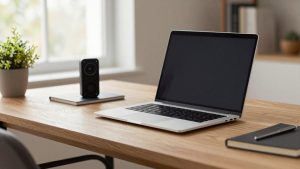
True wireless webcams for video conferencing are still a messy category. Most of what is sold as wireless is either a regular USB webcam with a short dongle, a Wi-Fi security camera repurposed for meetings, or an app that turns your phone into a webcam. All three can work, but they fail in very different ways.
I have tested all three approaches in a home office with a MacBook, a Windows laptop, and a lot of Zoom, Teams, and Meet calls. If you want no cable between you and the computer, here is what actually holds up.
📄 In This Review
What wireless really means here
There is no single standard for wireless webcams like there is for wireless mice. When a seller says wireless, check what they mean. A 2.4 GHz USB-dongle camera still needs a receiver plugged into your laptop, but you can place the camera a few feet away without a long cable. A Wi-Fi camera connects over your network and you join it through a browser or app. A phone-as-webcam setup uses Wi-Fi or Bluetooth to send video to your laptop.
For work calls, latency and reliability matter more than resolution. A wired 1080p image that stays in sync beats a stuttery 4K wireless feed every time. Wireless also adds two failure points you do not get with USB: battery and network. If either drops mid-call, you freeze or drop.
When the cheaper wired option is fine
See also: Best Monitor for MacBook Air: Two USB-C 4K Screens and Six Adapter-Dependent Alternatives • Best Monitor for MacBook Pro: Eight Listings Sorted by Cable, Sharpness and Scaling
If your camera lives on top of your monitor and you never move it, buy wired. It is cheaper, sharper for the price, works without charging, and Zoom and Teams recognize it instantly. A standard USB webcam for Mac and laptop will give you better autofocus, better low-light, and fewer driver headaches than most wireless models at the same price.
Wireless only makes sense if you have a specific reason: you present from a whiteboard across the room, you move between a desk and a standing table, you hate cable clutter on a docked laptop setup, or you do shop-floor, classroom, or workshop demos where USB cable length is a problem. If none of those apply, save your money.
The 3 workable approaches
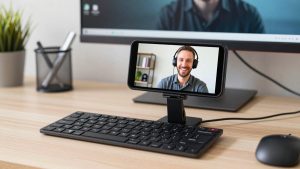
1. Phone as a wireless webcam – best for most people. A recent iPhone or Android phone has a far better sensor, lens, and noise handling than any sub-$200 webcam, wireless or not. Apple’s Continuity Camera and apps like Camo or EpocCam let you mount the phone on your monitor and send 108ed video over Wi-Fi or USB. Image quality is excellent, especially in mixed home-office light.
The trade-off is ergonomics. You need a solid phone tripod mount for video calls, you have to keep the phone charged, and calls will heat the phone and drain 10-20% battery per hour over Wi-Fi. Notifications and calls can also interrupt video unless you turn on Do Not Disturb. This suits laptop workers who already own a good phone and only need wireless occasionally.
2. Wi-Fi conference camera – best for room freedom. These are small battery-powered cameras that stream over Wi-Fi and show up as a network camera or virtual webcam. You can put one on a shelf, tripod, or whiteboard tray 10-15 feet away. No cable back to the laptop.
The failure modes are real: initial pairing is often clunky, corporate VPNs and guest Wi-Fi can block them, and there is typically 150-400ms delay. That is fine for presenting, but feels off in fast back-and-forth conversation. Battery life is usually quoted as 4-6 hours, but with Wi-Fi streaming and auto-framing on, expect 2-3 hours. This suits teachers, coaches, and anyone who presents standing up.
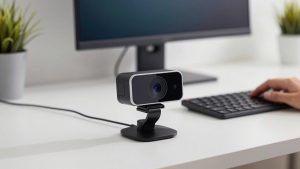
3. USB-dongle wireless webcam – best for simple desks. This looks like a normal webcam but uses a pre-paired 2.4 GHz receiver instead of a long cable. Setup is easiest: plug in the dongle, it appears as a standard USB camera to Teams, Zoom, and Meet. Latency is lower than Wi-Fi, usually under 120ms.
You still need to charge it, usually via USB-C every few days, and range is limited to the same room. Image quality at this price is often a step behind a wired camera because you are paying for the radio and battery, not a better sensor. If you browse wireless video conferencing cameras, filter out the security cameras – look for UVC / plug-and-play and explicit Zoom and Teams support. This suits tidy home offices where you dock and undock daily.
Comparison: which wireless setup fits work calls
| Type | Video delay | Power reality | Best for | Watch out for |
|---|---|---|---|---|
| Wired USB webcam | Lowest, in sync | Powered by laptop, no charging | Desk-bound calls, Macs, shared computers | Cable clutter, 6-10 ft USB limit |
| Phone as webcam | Low over USB, medium over Wi-Fi | Drains phone fast, needs mount | Best image on a budget, travel | Overheating, interruptions, arm fatigue if handheld |
| Wi-Fi / network camera | Medium-high, noticeable lip lag | 2-4 hrs streaming, needs recharge | Whiteboard, classroom, large home office | Wi-Fi blocks on work networks, pairing apps |
| 2.4 GHz dongle webcam | Low-medium | Recharge every 2-4 days | Clean desk, hot-desking | Softer image, dongle uses up a USB port |
What to check before you buy
Compatibility comes first. On Macs, especially Apple Silicon, avoid anything that requires a kernel extension or old capture software. Look for UVC-compliant, no driver needed, and explicit macOS Sonoma / Sequoia support. On Windows laptops for work, check that your IT policy allows virtual camera software – many Wi-Fi cameras install one, and locked-down laptops will block it.
Second, check audio. Most wireless webcam mics sound thin from more than 4 feet away because they use aggressive noise suppression to hide Wi-Fi hiss. If you sit farther than arm’s length, plan on a USB speakerphone or earbuds. Do a 5-minute test recording and listen for pumping, clipping, and fan noise.
Third, check field of view and mounting. For one person at a desk, 65-78 degrees looks natural and hides room mess. For two people or a whiteboard, you want 90-120 degrees or auto-framing. Make sure it has a standard 1/4-inch tripod thread. Clip-only wireless cameras are frustrating once you try to aim them across a room.
Finally, test your network. Run a call from where you plan to place the camera with a speed test running. If your office Wi-Fi drops below about 10 Mbps upload or has high jitter, Wi-Fi cameras will pixelate. A dongle camera or phone-over-USB will be far more stable there.
Setup tips that prevent drops
Keep the receiver in line of sight. A dongle plugged into the back of a dock under a metal desk can cut range in half. Use a short USB extension to bring it to desktop level. Charge on a schedule – top up a battery camera every night, not when it blinks red five minutes before a standup. And always have a fallback: keep a wired webcam profile saved in Zoom and Teams so you can switch cameras in two clicks without restarting the meeting.
For lighting, wireless sensors are smaller and noisier than they claim. Face a window or put a cheap LED panel behind your laptop. Good light does more for wireless clarity than paying extra for 4K, which just needs more bandwidth and often stutters.
FAQ
Can I use a wireless webcam with a MacBook for Zoom and Teams?
Yes, if it is UVC plug-and-play. Phone-based options via Continuity Camera work best on Mac. Avoid models that need proprietary drivers unless the maker lists current macOS support.
Why does my wireless webcam lag or go out of sync?
Usually Wi-Fi congestion or low upload bandwidth. Move closer to the router, switch the laptop to 5 GHz, close cloud backups, or switch the phone/camera to USB mode for important calls.
How long does the battery last on a real call?
Expect about half the advertised time. A camera rated for 6 hours standby often gives 2.5 to 3 hours of continuous 1080p streaming with mic on. Keep a USB-C cable handy.
Is 4K worth it for wireless conferencing?
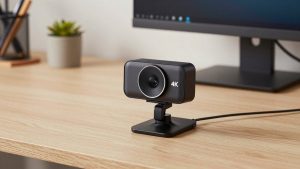
Usually not. Zoom and Teams compress to 720p or 1080p anyway. A stable 1080p feed with good light and clean audio looks more professional than a laggy 4K feed.
Related Reviews & Guides
6 Best USB C Docking Stations For Dell Laptop 2026
Best Webcam for Mac and Zoom