Last Updated: October 18, 2026
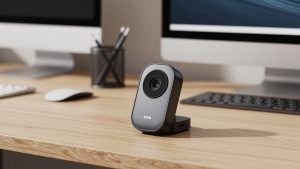
If you take calls from a dim home office, the Logitech Brio looks great on paper: 4K sensor, f/2.0 lens, and RightLight 3 auto-exposure that promises to lift shadows without blowing out your face. In practice, it is one of the better low-light webcams for work, but it is not magic. It trades sharpness for brightness, and in really dark rooms it gets noisy just like everything else in its class.
Here is what actually happens in low light, how to set it up for late calls, and when you should save money and buy something cheaper.
📄 In This Review
How the Brio actually looks in low light
In a typical evening home office – one ceiling light, no desk lamp, laptop screen as fill – the Brio in 1080p holds skin tone better than most built-in laptop cameras and budget 1080p webcams. Faces stay visible instead of muddy, background grain is controlled, and autofocus rarely hunts if you sit still. Compared to a MacBook Air or Dell XPS built-in camera, the difference is obvious: less smearing when you move, less harsh contrast when a window is behind you.
Push it darker, like only a hallway light or a single warm bulb 10 feet away, and the limits show. The Brio boosts gain to keep you bright, which adds fine luminance noise and softens detail. Hair and shirt textures go waxy. If you use 4K at 30fps in that light, motion looks slightly laggy and noisy because the sensor has less light per pixel than in binned 1080p mode. For most Zoom and Teams calls, you will look cleaner running the Brio at 1080p/30 in dim rooms, not 4K.
The other failure mode is backlight. If you have a bright monitor and a dark room, RightLight 3 will expose for your face, but the background goes black and your face can look flat and slightly over-smoothed. That is normal for small-sensor webcams. A $25 desk lamp behind your monitor does more for image quality than any sensor upgrade.
Settings that make or break low-light calls
See also: Best Monitor for MacBook Air: Two USB-C 4K Screens and Six Adapter-Dependent Alternatives • Best Monitor for MacBook Pro: Eight Listings Sorted by Cable, Sharpness and Scaling
Out of the box, the Brio is set to auto everything. That is fine for daytime, but for evening calls change three things in Logi Tune on Windows and Mac. First, turn off auto 4K and lock output to 1920×1080. You get better low-light sensitivity, smaller files, and fewer dropped frames on older laptops. Second, turn off RightLight auto HDR if your face looks washed out, then set exposure manually one notch brighter than neutral. Third, lock white balance around 4000-4500K if you use warm home bulbs, otherwise your face will drift orange to blue as you move.
On Macs specifically, use Logi Tune, not Logitech Capture or G HUB, for the current Brio models. Capture is discontinued and causes conflicts on Apple Silicon. If you are on a work-managed Mac that blocks accessory apps, the Brio still works plug-and-play over USB-A with an adapter, but you lose field-of-view, zoom, and anti-flicker controls. Flicker matters: under cheap LED bulbs at 60Hz, set anti-flicker to 60Hz in the app or you will get faint banding in low light.
Mounting matters too. The Brio’s clip is stable, but in low light keep it at eye level and within 3-4 feet. At 6 feet away in a dark room, face tracking and auto-exposure both struggle and you will look soft no matter what resolution you pick. If you use an external monitor, mount the camera on that monitor rather than a laptop off to the side.
Brio vs. cheaper options for dim rooms
Do not buy the Brio only for low light. A modern midrange 1080p webcam with a larger pixel pitch and good noise reduction can match it on a video call, where Zoom compresses everything to 720p or 1080p anyway. Where the Brio earns its price is detail in good light, 4K recording, Windows Hello IR login, and wider field-of-view options for whiteboard or group shots.
| Webcam | Low-light strength | Weakness in dim rooms | Best for |
|---|---|---|---|
| Logitech Brio 4K | Clean 1080p image to very dim, good skin tones, IR for Hello | 4K gets noisy, needs Logi Tune for best results, premium price | Home office workers who want 4K daytime + usable evening calls + Windows Hello |
| Logitech C920s / C922 class | Surprisingly good at 1080p/30 with auto exposure, cheap to replace | Softer detail, worse dynamic range, narrower controls on Mac | Budget work calls where Zoom compression hides the difference |
| Logitech MX Brio / premium 4K class | Larger sensor pixels, better noise control than original Brio | More expensive, needs good USB bandwidth, overkill for Teams-only use | Creators and managers on camera all day who also record |
If you mostly do Teams and Meet in a dim bedroom office, check current prices on the proven Logitech 1080p workhorse before you pay for 4K. For many people it is 80 percent of the low-light performance for half the money, and you will not see the Brio’s extra sharpness after compression.
If you do want the Brio, shop by exact model: original Brio 4K, Brio 500 series, and MX Brio all use the Brio name but have different sensors and Mac software support. Search Logitech Brio 4K listings carefully and confirm Windows Hello, 4K/30, and Logi Tune compatibility in the specs. Refurbished office Brios are common and fine, but check shutter, mount, and USB cable – the hardwired cable is a common failure point.
Who should buy it, and who should skip it
Buy the Brio for low light if you work evenings, have warm overhead lighting you cannot change, use Windows Hello daily, and want one camera that also records sharp daytime video. It is also a good pick for Mac Mini or Mac Studio users with no built-in camera, because it beats most budget cams in mixed office light and the privacy shutter is reliable.
Skip it if your room is truly dark, if you only do audio-first calls with camera on briefly, or if your laptop is 5+ years old. In near-dark, no webcam without a light will look professional. A $30 video light or even a north-facing desk reposition will improve a cheap webcam more than upgrading to the Brio. Laptop users with weak USB-A ports or long unpowered hubs should also be cautious: in 4K the Brio can stutter or drop to lower frame rates, which looks worse in low light than stable 1080p from a cheaper camera.
A practical middle path: buy the cheaper 1080p cam plus a small key light. Browse low light webcam options side by side and put the savings toward lighting. If you later need 4K recording or Hello, upgrade the camera, not the light.
FAQ
Is the Logitech Brio good in low light without extra lighting?
Yes, for typical evening home offices. Expect a bright, usable 1080p image with some softness and grain. In near-dark rooms, it still needs a lamp – no small webcam sensor can fix zero light.
Should I use 4K or 1080p in a dark room?
Use 1080p/30 for calls. It bins pixels for better sensitivity and looks cleaner after Zoom or Teams compression. Save 4K for well-lit recording.
Does the Brio work well on Mac in low light?
Yes as a plug-and-play camera, but install Logi Tune to control exposure, white balance, zoom, and anti-flicker. Without it you are stuck on auto, which can over-brighten faces in dim rooms.
Will a Brio fix backlit or window-behind-me calls?
Partly. RightLight helps expose your face, but contrast will still be harsh. Close blinds or add a cheap lamp in front of you. That fixes backlight better than any upgrade.