Last Updated: October 18, 2026
The Mac Mini doesn’t include a camera, microphone, or speakers. That is the whole point of it — you bring your own display and peripherals — but it means a video call setup that “just works” on a MacBook can be a hassle on a Mini. You need a USB webcam that macOS recognizes instantly, works with Zoom, Teams, FaceTime and Slack, and handles a home office that isn’t perfectly lit.
Good news: you don’t need to spend a lot. For most Mac Mini owners, a basic 1080p webcam is fine. Spend more only if you are on camera all day, record content, or work in a dark room.
📄 In This Review
Why the Mac Mini is pickier than a laptop
A MacBook has the camera and mic built in and tuned by Apple. A Mac Mini relies entirely on USB. That introduces three common failure modes.
First, USB hubs and docks. Many webcams work fine plugged directly into the Mini but stutter, drop to low resolution, or disconnect when run through an unpowered hub or a monitor hub. If you buy a 4K camera, plan to plug it straight into the Mini’s USB-A or USB-C port with an adapter.
Second, audio. The Mini has no default mic for calls once you add a display. Most webcams include dual microphones, but they sound thin and pick up keyboard noise. They are fine for meetings. They are not fine if you present, teach, or podcast. In that case budget for a separate USB mic or headset.
Third, macOS permissions. On first use, you have to allow camera and mic access in System Settings > Privacy and Security for each app: Zoom, Teams, Chrome, Slack, etc. If you get a black screen with a new camera, it is almost always permissions, not a broken camera.
What to check before you buy
See also: Best Monitor for MacBook Air: Two USB-C 4K Screens and Six Adapter-Dependent Alternatives • Best Monitor for MacBook Pro: Eight Listings Sorted by Cable, Sharpness and Scaling
Look for UVC compliance. That means USB Video Class, the standard macOS uses for plug-and-play cameras. Almost all mainstream webcams are UVC and need no driver. Avoid any camera that requires a Windows-only app for basic 1080p output.
Autofocus matters more than 4K. A cheap fixed-focus 1080p camera often looks sharper in practice than a cheap “4K” camera with hunting autofocus that pulses in and out while you talk. If you move around, lean in, or hold up documents, get autofocus. If you sit still at a desk, fixed focus is fine and cheaper.
Field of view matters on a Mini because you choose the placement. 65 to 78 degrees is best for one person at a desk. Wider 90-degree cameras are useful if two people share the screen, but they make you look small and show a messy room.
| Use case | What is enough | Worth paying for | Not worth it |
|---|---|---|---|
| Daily Zoom / Teams, 1 person | 1080p, fixed or autofocus, dual mic | Good auto-exposure, privacy shutter | 4K, AI tracking |
| Dark home office, evening calls | 1080p with large sensor | Low-light correction, manual exposure in app | Ring light built into camera |
| Presenting, teaching, YouTube | 1440p or 4K with autofocus | Tripod mount, external mic | Built-in webcam mic |
| Already own a recent iPhone | Continuity Camera | MagSafe desk mount | Buying a premium webcam too |
Best for most people: simple 1080p webcam
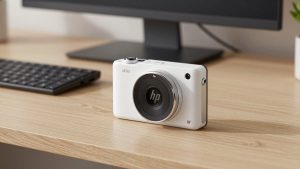
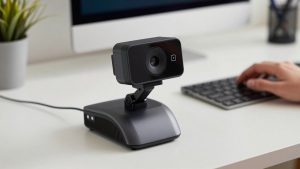
If you do 3-5 video calls a day and just want to look clear, buy a basic 1080p webcam for Mac with autofocus and a privacy shutter. Expect to pay the least in this category.
Image quality is good in daylight or office light. Skin tones are usually accurate on Mac because macOS does its own white balance. The mics will sound like a laptop on speaker — acceptable, slightly echoey.
Trade-offs: low light is noisy. In a dim room after 6pm you will look grainy and soft. There is no real background blur in hardware; that is done by Zoom or Teams and will chug on an older Intel Mini. Failure mode to know: some budget models default to 720p in Teams unless you set 1080p in the meeting settings.
Who suits: office workers, students, anyone replacing a laptop camera. Be honest with yourself here — the cheaper option is fine unless you are on camera for 4+ hours daily.
Best upgrade for all-day calls: 1440p or 4K webcam
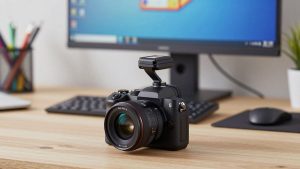
If you lead meetings, interview, or record Loom-style videos, step up to a 4K webcam for Mac Mini with autofocus. You won’t actually send 4K in Zoom — Zoom usually compresses to 720p or 1080p — but the larger sensor gives you sharper downscaled 1080p, better cropping, and cleaner text if you share papers or a whiteboard.
Look for a standard tripod thread on the bottom, USB-C or USB-A with a long cable, and a physical shutter. Software features like auto-framing and background blur are nice, but on Mac they often require the vendor’s macOS app running in the background, which can be buggy after macOS updates.
Trade-offs: price, heat, and USB bandwidth. 4K cameras run warm and can throttle after an hour. They also demand more light to actually look 4K. In a dark room, a good 1080p camera at $60 will beat a cheap 4K camera at $90. Plug directly into the Mini, not a hub, or you will get dropped frames.
Who suits: managers, coaches, creators who also record. Not worth it if your internet upload is under 10 Mbps — compression will erase the difference anyway.
Best if you work in low light or hate headset mics
Mini setups often end up in living rooms, basements, or corners without a window behind the monitor. If that is you, prioritize low-light performance over resolution. Look for a camera advertised with a large 1/2.5-inch sensor or better, plus HDR or low-light correction that actually works on macOS without a Windows-only tool.
A separate light helps more than any sensor. A $20 desk lamp bounced off a wall behind your monitor will do more than jumping from $80 to $180 on a camera. If you don’t want a headset, add a basic USB condenser mic on an arm. Webcam mics pick up Mini fan noise, typing, and room echo. They also cut out when you lean back.
Failure mode: auto-exposure hunting. In mixed light — window on one side, lamp on the other — some cameras constantly brighten and darken. Fix it by locking exposure in Photo Booth, OBS, or the vendor Mac app, then leaving it alone.
Cheapest sharp option: use your iPhone as the camera
If you own an iPhone 11 or newer and run macOS Ventura or later, try Continuity Camera before you buy anything. Mount the iPhone on top of your monitor and select it as the camera in FaceTime, Zoom, or Teams. Image quality beats almost every sub-$150 webcam, especially in low light, and you get Center Stage auto-framing and Desk View for free.
You will need a Continuity Camera mount for Mac monitor or a small tripod. The Belkin-style MagSafe mounts work, but any sturdy clip mount is fine as long as it doesn’t wobble.
Trade-offs: it ties up your phone. Notifications can buzz mid-call unless you enable Do Not Disturb, and a 60-minute call drains 20-30% battery unless plugged in. The rear camera gets warm. It is great as a daily driver if you sit at one desk, annoying if you need your phone during calls.
Who suits: anyone with a recent iPhone who wants the best image for $15-25 for a mount. If you take calls all day, though, buy a dedicated webcam so your phone stays free.
What to avoid with a Mac Mini
Avoid old business conference cameras that need drivers — many never got Apple Silicon support. Avoid no-name 4K cameras that only do 4K at 15fps; motion will look choppy. And avoid buying a premium webcam plus a premium mic plus a light all at once. Start with a basic camera, test two weeks of real calls, then fix the actual weak link, which is usually lighting or mic placement, not resolution.
FAQ
Does any USB webcam work with Mac Mini?
Almost any modern UVC webcam works plug-and-play with Apple Silicon and Intel Minis, no driver needed. If it requires a Windows app for setup, skip it.
Where should I mount the camera?
Centered on top of your monitor at eye level. With an ultrawide display, use a small tripod just behind the keyboard instead — a top-mounted camera will be too far away.
Why do I look dark or grainy?
Usually backlight from a window behind you or no light on your face. Close blinds behind you, put a lamp in front, and lock exposure. A new camera won’t fix bad light.
Do I need an external mic?
Not for normal meetings — webcam mics are okay. If people say you sound distant, echoey, or type loudly, get a USB headset or desk mic. That upgrade matters more than 1080p vs 4K.