Last Updated: October 18, 2026
If you spend most of your day in Zoom, your camera matters more than your laptop specs. Zoom compresses video aggressively, so sharpness is less important than stable exposure, natural color, and a microphone that does not make you sound distant. You do not need a 4K sensor for this. You need something that looks decent in a dim home office and does not freeze mid-meeting.
📄 In This Review
What Zoom actually needs
Zoom caps most group calls at 720p, and 1080p only in specific one-on-one or Business account situations with good bandwidth. That means a clean 1080p image with good autofocus and light handling will look identical to a 4K camera once Zoom compresses it.
What actually shows up on the other end is: whether your face is too dark against a window, whether your camera hunts for focus every time you lean back, and whether your image gets grainy at 4 p.m. when your room light fades. The best camera for Zoom is the one that handles those three problems without you adjusting settings before every call.
Is your laptop camera enough?
See also: Best Monitor for MacBook Air: Two USB-C 4K Screens and Six Adapter-Dependent Alternatives • Best Monitor for MacBook Pro: Eight Listings Sorted by Cable, Sharpness and Scaling
For most MacBook Air, MacBook Pro, and recent Windows laptops made in the last three years, the built-in camera is usable for internal check-ins. It is centered, always powered, and Zoom recognizes it without drivers.
The failure mode is low light and angle. Laptop sensors are tiny. In a typical home office with one overhead light, faces look soft, noisy, and slightly washed out. You also get an unflattering up-the-nose angle if the laptop sits flat on a desk.
An external webcam is worth it if you lead meetings, talk to clients, interview, teach, or spend 3+ hours a day on Zoom. If you join twice a week with video off half the time, save your money. A cheap external does not beat a 2022 or newer laptop camera by much unless you also fix lighting.
Which type to buy for Zoom
Think in categories, not megapixels. There are really three useful tiers for work calls.
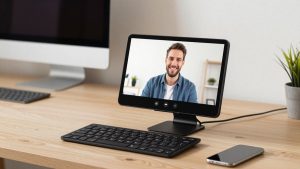
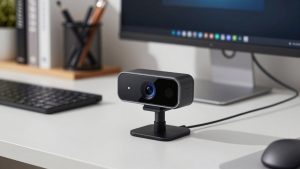
1. Basic 1080p fixed-focus webcam. This is the cheapest meaningful upgrade. It usually has a wider 75-80 degree field of view, a clip for a monitor, and dual mics. No software required. Image is slightly sharper than most built-ins and color is more consistent. Best for: individual contributors, students, anyone who wants plug-and-play and uses Zoom backgrounds. Limitation: fixed focus means if you sit very close it can look soft, and low-light performance is only average.
A simple 1080p webcam for Zoom meetings in this class is fine for 80 percent of office workers. Do not pay extra for digital zoom or beauty filters.
2. Midrange 1080p / 2K webcam with good autofocus and noise reduction. This is the sweet spot for managers, sales calls, and frequent presenters. You get faster autofocus that does not pulse when you gesture, better auto-exposure when you have a window behind you, and mics that pick up less keyboard clatter. Many include a privacy shutter and a slightly larger sensor that stays cleaner at ISO levels Zoom calls actually use.
Best for: people on camera all day, home offices with mixed lighting, Mac users who want no-driver UVC compatibility. Failure mode to watch: some models default to a very wide 90-degree view that makes you look small and shows your whole room. Check if you can set 78 degrees or crop in the vendor app.
3. 4K business webcam. Useful only in two cases: you crop in to frame yourself tightly while the camera sits far back on a large monitor, or you also record video for YouTube, training, or Loom. For live Zoom, Zoom will downscale it anyway. You pay more, you use more CPU/USB bandwidth, and on older laptops you can get dropped frames if you run it at full 4K through a dock.
A 4K business webcam with autofocus makes sense if you present and want head-and-shoulders framing without putting the camera two feet from your face. Otherwise it is overkill for Zoom alone.
Quick comparison
| Option | Best for | Strength on Zoom | Common problem |
|---|---|---|---|
| Built-in laptop camera | Occasional calls | No setup, always works | Noisy in low light, low angle |
| Basic 1080p external | Daily standups, school | Sharper, better color than old laptops | Weak mics, soft in dim rooms |
| Midrange 1080p/2K with autofocus | Leads, sales, teaching | Stable exposure, less focus hunting | Too-wide default framing |
| 4K business webcam | Presenting + recording | Allows cropping without blur | Higher CPU/USB load, costs more for no Zoom gain |
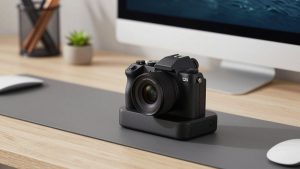
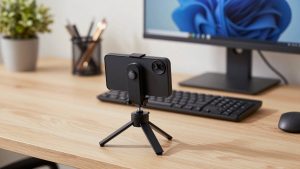
| Phone as webcam / mirrorless via USB | One-person studio setup | Best image quality | More cables, mounts, and fiddling |
Features that actually matter for Zoom
Autofocus behavior beats resolution. Look for fast, quiet autofocus that locks once and stays locked. Cheap cameras refocus every time you move your hands, which is distracting on a large gallery view.
Field of view matters more than people expect. 65-78 degrees is best for one person at a desk. 90+ degrees is for huddle rooms. If you buy wide, you will look distant. Sit 24-30 inches from the camera and frame from mid-chest up.
Privacy shutter and mute indicator save real mistakes. A physical shutter is more reliable than remembering Zoom settings. Dual noise-reducing mics help, but do not expect any webcam mic to beat a $30 USB headset in a noisy house.
Mac compatibility is mostly about USB. Choose a UVC-compliant camera that works without drivers – Zoom, FaceTime, and Teams will see it immediately. Avoid cameras that require a Windows-only app for basic exposure control. Also plug directly into the Mac or a powered dock for 4K models. Bus-powered hubs are a common cause of flicker and disconnects.
Setup mistakes that make any camera look bad
Backlight is the number one killer. If your window is behind you, even a good camera will turn you into a silhouette. Face the window or put a cheap daylight lamp behind your monitor. Keep overhead-only lighting off if you can – it creates harsh shadows.
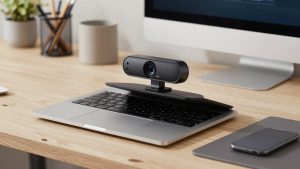
Mount height changes everything. Clip the camera to the top of your external monitor at eye level, not on a laptop off to the side. If you use a laptop + monitor, turn off the laptop video source in Zoom to avoid accidentally broadcasting the side angle.
In Zoom, turn off “Adjust for low light” auto and “Touch up my appearance” if your image looks smeary. Those filters hide noise by blurring detail. Better to add light than to rely on them. Also in Zoom Settings – Video, uncheck HD if your connection stutters. A stable 720p looks more professional than a freezing 1080p.
If you want a one-box fix for a dark desk, a webcam with privacy shutter and light for home office can help, but a separate $15 desk lamp aimed at a wall usually gives softer, more flattering light than a camera-mounted ring.
FAQ
Do I need 4K for Zoom meetings?
No, for live Zoom alone. Zoom compresses to 720p for most group calls. Buy 4K only if you also record video and want to crop in, or your camera sits far away on a large monitor.
Why does my external webcam look worse than my laptop camera?
Usually it is framing, light, or USB bandwidth. Move closer, face a light source, plug directly into the computer instead of an unpowered hub, and in Zoom set the correct Camera source. Also check you did not leave a protective film on the lens.
Will any webcam work with Mac?
Almost all modern USB webcams work with Mac as plug-and-play UVC devices in Zoom, Teams, and FaceTime. Just allow camera permission in System Settings – Privacy and Security – Camera. Skip models that need Windows software for core features.
Is the microphone on a webcam good enough?
For quiet rooms, yes. For kitchens, kids, typing, or echoey rooms, no. If people ask you to repeat yourself, switch to wired earbuds or a USB headset before you blame the camera.