Last Updated: October 18, 2026
📄 In This Review
What makes Mac + Zoom different
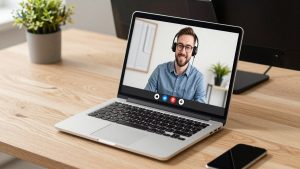
Most webcams will technically work on a Mac because Zoom just needs a standard UVC camera. Plug it into USB, select it in Zoom under Settings then Video, and you are live. The problems show up later: color that looks washed out on M-series Macs, autofocus that hunts during screen shares, mics that pick up your MacBook fan, and software that only runs on Windows.
For Zoom specifically, resolution matters less than people think. Zoom compresses 4K down heavily on most calls, especially in group meetings and on weaker Wi-Fi. What actually reads as professional on Zoom is stable exposure, clean white balance, a 60 to 75 degree field of view that does not warp your office, and dual noise-reducing mics. If you use a MacBook with only USB-C, also check the cable in the box. Many webcams still ship with USB-A to USB-C adapters that work loose on a laptop dock.
Quick comparison
See also: Best Monitor for MacBook Air: Two USB-C 4K Screens and Six Adapter-Dependent Alternatives • Best Monitor for MacBook Pro: Eight Listings Sorted by Cable, Sharpness and Scaling
If you do not want to read the whole thing, this is the short version. For most Mac-based Zoom workers, a good 1080p camera is enough. Pay more only if your room is dark or you want to crop in without looking soft.
| Category | Best for | What you gain | Watch out for |
|---|---|---|---|
| Basic 1080p UVC webcam | Daily Zoom, Teams, Meet on MacBook | Plug-and-play, low CPU load, good enough for Zoom compression | Weak low-light, narrow dynamic range near windows |
| 2K / 4K autofocus webcam | Home office, teaching, client calls | Sharper crop, better lens, better auto-exposure | Needs good light to look 4K, heavier USB bandwidth |
| Premium Mac-focused webcam | Small / dark offices, creators | Larger sensor, better low-light, nicer bokeh and color | Price, often Windows-only tuning app, runs warm |
For most people: get a solid 1080p camera
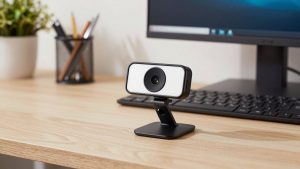
A basic 1080p, 30fps webcam with autofocus and dual mics handles 90 percent of Zoom work. On a MacBook Air or Mac mini, it uses less processing than 4K, stays cooler on long calls, and Zoom makes a 1080p and 4K feed look surprisingly close once bandwidth drops.
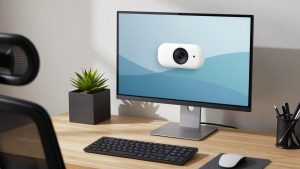
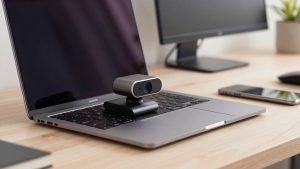
Look for three things: true plug-and-play UVC with no driver required on macOS, a physical privacy shutter, and a mount that actually grips a thin MacBook lid or an external display. Cheap mounts slip, which means you spend calls tilted at the ceiling. A tripod thread on the bottom is useful if you use a monitor arm or want the camera at eye level on a shelf.
Failure mode to know: budget 1080p cameras fall apart in mixed light. If you sit with a bright window behind you, your face goes dark while the window blows out. No software setting fully fixes a tiny sensor. Close the blind or put a $20 lamp in front of you before you blame the camera. If you already have decent front light, the cheaper option is fine and you should not upgrade.
You can browse current options with a search for a 1080p webcam for MacBook that works without drivers and filter for recent reviews that specifically mention macOS Sonoma or Sequoia.
When 4K is worth it on a Mac
Step up to 2K or 4K if you present a lot, record Zoom calls locally, or sit 3 to 5 feet from the camera and want to digitally zoom or auto-frame without getting blurry. A better lens and processor also give you smoother auto-exposure when you move, which looks more professional than raw pixels.
The trade-off is that 4K needs light and USB bandwidth. In a dim spare bedroom, a 4K webcam at full resolution can look noisier than 1080p because it is pushing a small sensor harder. Many Mac users get the best result by setting the camera to 1080p or 2K for Zoom, and saving 4K for QuickTime or OBS recordings. Also check heat: some compact 4K models get hot after 60 to 90 minutes and then soften focus.
Who it suits: home-office workers with a dedicated desk, teachers who crop to whiteboards, and anyone using an external 27-inch monitor where 1080p looks soft up close. Who should skip it: laptop-on-couch workers on hotel Wi-Fi. Zoom will compress it anyway.
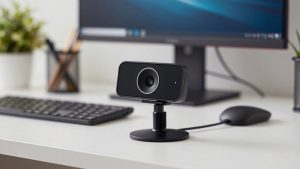
If that is you, look at a 4K autofocus webcam tuned for Zoom calls with on-camera exposure controls, not one that requires a Windows app to change basic settings.
For dark rooms and small home offices
MacBooks are often used in small bedrooms and basement offices where overhead light is yellow and weak. This is where sensor size beats megapixels. A premium camera with a larger sensor and a wider f/2.0 or brighter lens holds skin tone and keeps background noise down without making you look waxy.
Expect to pay double for maybe 20 to 30 percent better low-light. That is worth it if you are on Zoom four hours a day and cannot add lighting because of space or roommates. It is not worth it if you can add a simple daylight bulb in front of you. Light is cheaper than silicon.
Failure modes here are specific to Macs. Some premium features like background blur, auto-framing, and DSLR-style bokeh are done in the vendor app. On Mac, that app is often limited or Intel-only, or it uses a virtual camera that Zoom sees as a separate input and adds 5 to 10 percent CPU load on an older MacBook Air. Before you buy, check the maker support page for Apple Silicon support and whether settings are saved on the camera itself. You want to set it once and have it stick when you unplug.
What to avoid for Mac and Zoom
Avoid old 720p office leftovers. Zoom will upscale them and you will look soft next to everyone else. Avoid 60fps as a selling point unless you move around a lot. For talking-head work, 30fps with good exposure looks better and drops fewer frames on a busy Mac.
Be careful with wide 90 to 120 degree action-style views for a home office. They show your whole room and bend bookshelves at the edges. For Zoom, 65 to 78 degrees is the sweet spot. Wide is only useful if two people share one Mac.
Also skip any camera that requires a driver install on macOS. Modern UVC cameras should just appear in Zoom, FaceTime, Photo Booth, and QuickTime Player. If it needs a kernel extension or login item just to get 1080p, it will break on the next macOS update.
Setup tips that matter more than the model
Put the camera at eye level, about arm’s length away. Stack your MacBook on books or use a separate mount if you use an external display. In Zoom, turn off Mirror My Video if text behind you reads backwards in recordings, set HD to on if your bandwidth allows, and choose Original ratio only if you know why you need it.
In macOS, give Zoom camera and mic permission under System Settings then Privacy and Security, then quit and reopen Zoom. If the image is dark, open the camera in FaceTime first. If it looks good there but bad in Zoom, the problem is Zoom’s Low Light adjustment or Touch Up Appearance, not the webcam. For audio, a webcam mic is fine for daily standups, but if your room echoes, use AirPods or a desk mic. Zoom’s noise suppression on Low will preserve your voice better than Aggressive if your webcam mic is already clean.
If you work from a dock, plug the camera directly into your Mac for a test call before you blame the network. Some USB hubs, especially unpowered ones, cause flicker or drop to low resolution. A powered hub or direct USB-C connection fixes most mystery blur.
If you also need better sound for long meetings, consider browsing a simple USB microphone for Zoom on Mac instead of buying a more expensive webcam for its mics.
FAQ
Do I need a 4K webcam for Zoom on a Mac?
No, for most people. Zoom usually streams at 720p to 1080p in group calls, so a good 1080p camera with decent light looks nearly as good. Get 4K only if you record locally or want to crop in.
Will any USB webcam work with MacBook Air and Mac mini?
Almost any modern UVC webcam will work without drivers on Apple Silicon. Just confirm it says macOS compatible and includes USB-C or a solid adapter, and test it in FaceTime and Zoom before your return window closes.
Why do I look dark on Zoom even with a good webcam?
Usually backlight. A window or bright lamp behind you forces auto-exposure to darken your face. Face the light source, close blinds behind you, and turn off Zoom’s auto low-light correction while testing.
Should I use my MacBook built-in camera or buy external?
Newer MacBook built-ins are usable for travel, but an external camera at eye level gives you better framing, a shutter for privacy, and better mics. If you take client calls daily from a desk, external is worth it.