Last Updated: October 18, 2026
If you want to log into Windows 11 with your face instead of typing a PIN every time, you need a specific kind of webcam. Most 1080p and 4K webcams, even good ones, will not work for this. Windows Hello face sign-in requires a separate infrared sensor, not just a regular camera.
That narrows the field a lot. There are only a handful of reliable options, they cost more than a basic webcam, and they involve real trade-offs for video call quality. Here is how to choose without overbuying.
📄 In This Review
Why most webcams don’t work with Windows Hello
Windows Hello does not use the normal color image to recognize you. It projects infrared light and builds a depth map of your face. That is why it works in a dark room and why a photo held up to the camera will not fool it.
A webcam needs a second IR camera and Microsoft certification to enable it. If the spec sheet does not explicitly say “Windows Hello compatible” or “IR facial recognition,” assume it does not work. Logitech, Dell, and Lenovo all sell excellent webcams for meetings that lack IR. The Dell UltraSharp 4K is a classic example: great image, no Windows Hello.
This also matters for Mac users. A Windows Hello webcam will still work on a MacBook or Mac mini as a normal webcam for Zoom and Teams, but the face login part does nothing on macOS. Do not pay extra for IR if you primarily use a Mac.
What to check before you buy
See also: Best Monitor for MacBook Air: Two USB-C 4K Screens and Six Adapter-Dependent Alternatives • Best Monitor for MacBook Pro: Eight Listings Sorted by Cable, Sharpness and Scaling
First, check if you actually need an external camera. Many business laptops from Lenovo ThinkPad, Dell Latitude, and HP EliteBook lines already have an IR camera built into the lid. Open Settings > Accounts > Sign-in options > Facial recognition in Windows 11. If your laptop lets you set it up, you do not need to buy anything for login.
An external Windows Hello webcam makes sense in three cases: you use a desktop PC, you use a laptop closed in a dock with external monitors, or your laptop only has a basic webcam without IR.
Second, check USB connection and mounting. Most IR webcams need USB-A or USB-C directly into the PC, not through a cheap unpowered hub, or Hello enrollment fails intermittently. If you sit more than 3-4 feet away, facial recognition gets flaky. These cameras are designed for arm’s length desktop use, not living-room distance.
Third, decide how much video quality matters. The IR sensor adds cost, so a $150 Windows Hello camera often looks worse in Teams than a $100 non-IR camera at the same price. You are paying for the login convenience, not a better picture.
| Type | Typical resolution | Windows Hello | Best for | Watch out for |
|---|---|---|---|---|
| Premium 4K business webcam with IR | 4K / 1080p | Yes, certified IR | Home office desktop, frequent Teams/Zoom | Large, needs good light to look its best, premium price |
| Mid-range 2K business webcam with IR | 1440p / 1080p | Yes, certified IR | Laptop dock setup, all-day calls | Autoframing and noise reduction can look artificial |
| Compact IR webcam / IR add-on bar | 1080p | Yes, basic IR | Desktop login first, video second | Narrower field of view, weaker mic, worse low light |
Best overall for home office: 4K business webcam with IR
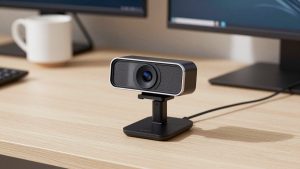
For most people working from home on a desktop or docked laptop, the safest pick is still the business version of the Logitech Brio Windows Hello webcam. Not every Brio variant is identical – you want the business / Ultra HD Pro version that specifically lists Windows Hello on the box. The consumer packaging sometimes differs by region, so check that line before you click buy.
In daily use, it logs you in from about 1.5 to 3 feet away in under two seconds, even with glasses and in a dim room. For calls, you get 4K at 30fps or 1080p at 60fps, adjustable field of view, and decent background replacement without needing a green screen.
Trade-offs: It is finicky about exposure. In mixed backlight from a window, faces blow out unless you turn on HDR and lower the field of view. The built-in mics are usable for quick calls but pick up keyboard clatter. Anyone doing 4+ hours of calls a day will still want a separate USB headset. It is also bulkier than a laptop lid camera, which matters if you travel.
Who it suits: Desktop PC users who want one camera for both fast login and client-facing video. If you are on calls with customers, the sharper image is worth the premium.
Best for docked laptop setup: 2K IR webcam
If your laptop stays closed on a stand, a mid-range 2K option like the Dell Pro 2K webcam is often the better fit. It was designed for this exact scenario: plug into a dock, sit on top of a 27-inch monitor, handle all-day Teams.
Setup is straightforward. Plug directly into the PC or a powered Thunderbolt dock, then enroll your face once in Windows. After that, opening the laptop lid is not required. The 2K sensor is actually more forgiving than 4K in typical home office lighting because pixels are larger and noise reduction is less aggressive.
Failure modes to know: Dell’s auto-framing can hunt if you lean back and forth, which is distracting on video. Turn auto-frame off if you move a lot. And like all IR cameras, it struggles if you sit too far back or have a bright window directly behind you. The IR pattern gets washed out.
Who it suits: Hybrid workers with a monitor, keyboard, and mouse who hate opening the laptop just to type a PIN. Video quality is a step below a true 4K Brio in good light, but few coworkers will notice at normal Zoom window sizes.
Budget pick if login matters more than video
If you mainly want passwordless login on a desktop and only do occasional calls, do not spend $180+ for 4K. A basic 1080p camera from the current crop of Windows Hello IR webcams will sign you in just as fast for about half the price.
Expect compromises: softer image, no 60fps mode, narrower 65-78 degree lens that crops you tight, and mics you will want to mute in favor of earbuds. Low-light performance is the biggest drop. In a dark spare bedroom, the picture gets grainy even though Hello login still works fine.
Who it suits: Personal desktop, workshop PC, or family computer where three people use face login and video calls are short. For a shared PC, Windows Hello with multiple enrolled faces is genuinely faster than juggling PINs.
Setup tips that prevent headaches
Mount the camera at eye level, centered on your main monitor. Too high and Hello sees forehead; too low and it misses when you wear a cap. During enrollment, do it in your normal working light, not a dark room, and remove sunglasses. Add glasses afterward using the “Improve recognition” option.
If Hello stops working after a Windows update, unplug the camera, plug it into a different USB port directly on the PC, and re-run facial setup. Hubs and monitor passthrough ports are the most common cause of “Something went wrong” errors. Also turn off aggressive USB power saving in Device Manager if login works after reboot but fails after sleep.
For privacy, use the built-in shutter. All of these IR cameras have a physical cap or electronic shutter. Close it when not in use. Hello will wake the sensor when you approach, which some people find creepy at first. You can set Windows to require Hello only after sleep, not every screen lock, if you prefer.
When the cheaper non-Hello option is fine
Be honest about how you log in. If your laptop already has face unlock, or you use a fingerprint reader on your keyboard, an external IR webcam adds little. A $70-100 regular 1080p webcam will often give you better color and better mics for the money.
Fingerprint is also more reliable if you wear a mask often, work in a very bright sunroom, or share a desk where the camera distance changes constantly. Windows Hello is convenient, but it is not more secure than a strong PIN + fingerprint for most home workers. Buy IR for convenience at a fixed desk, not because you think you need it for security.
FAQ
Will a Windows Hello webcam work with Windows 10 and 11?
Yes, if it is certified. Both Windows 10 and 11 support face sign-in, but setup is under Settings > Accounts > Sign-in options. You still need a PIN as backup, and you need to be plugged in via USB, not over wireless display.
Can I use a Windows Hello webcam on a Mac for video calls?
Yes as a normal webcam for Zoom, Teams, and FaceTime, usually plug-and-play over USB. The infrared login feature does not work on macOS. Do not pay extra for IR if Mac is your primary machine.
Does Windows Hello work in the dark or with glasses?
In the dark, yes, that is the point of IR. It works better in the dark than a normal webcam does for video. With glasses, usually yes after you run Improve Recognition with glasses on. Sunglasses, masks, and heavy glare will still cause failures.
Is face login safe to use for work?
For typical home office use, Windows Hello facial recognition is considered phishing-resistant and stores data locally on the PC, not in the cloud. For regulated work, follow your IT policy. Some employers require PIN plus Hello, or disable it entirely on shared machines.
Related Reviews & Guides

Best High End Webcam

Steelcase Gesture vs Steelcase Leap V2