Last Updated: October 18, 2026
- What actually matters for recording
- Quick comparison: which type should you buy?
- Best overall for most people: 1080p 60fps with good autofocus
- Best for YouTube and cropping: 4K/30 webcam
- Budget pick: when 1080p/30 is enough
- If you already own a good camera, use that instead
- Setup that matters more than the model
- FAQ
Recording with a webcam is different from live calling. On a Zoom call, a little softness or noise gets hidden by compression. When you record — for YouTube, a course, Loom-style tutorials, or job application videos — you watch the footage back, you crop in, and every flaw is obvious.
The good news: you don’t need a cinema camera. A solid webcam plus decent light and audio will beat an expensive camera used badly. The trick is buying for recording specifically, not just for meetings.
📄 In This Review
- What actually matters for recording
- Quick comparison: which type should you buy?
- Best overall for most people: 1080p 60fps with good autofocus
- Best for YouTube and cropping: 4K/30 webcam
- Budget pick: when 1080p/30 is enough
- If you already own a good camera, use that instead
- Setup that matters more than the model
- FAQ
What actually matters for recording
Resolution gets all the marketing, but for recording, three things matter more: focus behavior, frame rate consistency, and low-light handling.
Autofocus hunting is the number one failure mode. Many webcams constantly pulse in and out of focus when you move your hands or lean forward. On a live call people ignore it. On a recording it’s unwatchable. If you sit at a fixed distance, a webcam with reliable autofocus — or a manual focus lock in its software — will look better than a higher-resolution model that hunts.
Frame rate is second. 30fps is fine for talking-head videos, courses, and most YouTube. 60fps is worth it if you gesture a lot, do whiteboard demos, or record product handling where 30fps looks choppy. Be skeptical of webcams that claim 4K/30 and 1080p/60 but drop frames in typical home office light. Most do unless you add a key light.
Low light is third. Small sensors get noisy fast. If your office is a single overhead bulb at night, even a 4K sensor will produce grainy, soft video. A cheaper 1080p webcam with a larger pixel size plus a $30 desk lamp bounced off a wall will out-record a 4K webcam in a dark room.
For Mac users in particular: check that the vendor’s camera settings app runs on macOS, not just Windows. Without it you often can’t lock exposure, disable auto white balance shifts, or update firmware. Browser-based recorders and QuickTime will use the default settings, which are usually too bright and too cool.
Quick comparison: which type should you buy?
See also: Best Monitor for MacBook Air: Two USB-C 4K Screens and Six Adapter-Dependent Alternatives • Best Monitor for MacBook Pro: Eight Listings Sorted by Cable, Sharpness and Scaling
| Type | Typical spec | Best for | Watch out for |
|---|---|---|---|
| 1080p 60fps workhorse | 1080p, 30/60fps, autofocus | Tutorials, Loom-style videos, coaching, talking-head with movement | Soft detail if you crop heavily; needs good light for true 60fps |
| 4K fixed-position webcam | 4K/30, 1080p/60, advanced autofocus | YouTube, courses where you crop to 1080p, higher bitrate exports | Heat and dropped frames on long takes; larger files; autofocus hunting on some models |
| Budget 1080p 30fps | 1080p/30, fixed or basic autofocus | Occasional recording, application videos, internal training | Fixed focus means you must stay in the sweet spot; poor low light |
| Mirrorless / action camera as webcam | 4K, interchangeable lens, clean HDMI/USB | Creators who already own the camera and want blurred background | Overheating on long recordings, battery limits, more setup and cost |
Best overall for most people: 1080p 60fps with good autofocus
If you record at your desk and publish without heavy editing, this is the sweet spot. You get smooth motion, files stay manageable, and YouTube and course platforms handle 1080p perfectly.
Look for true 1080p60 over USB without requiring compressed MJPEG tricks that kill quality, plus a desktop app that lets you lock focus and exposure. That lock is what separates a recording webcam from a meeting webcam. Record a 2-minute test where you lean in, hold up a book or product, then lean back. If focus snaps quickly and stays, keep it. If it breathes the whole time, return it.
Who this suits: coaches, teachers, founders doing demos, anyone recording tutorials with screen share. When is the cheaper option fine? If you always have good window light or a key light, a mid-range 1080p 60fps webcam will look 90% as good as a 4K model for talking-head work, with fewer heat and USB issues.
Failure mode to know: many laptops, especially older MacBook Airs with USB hubs, can’t sustain 1080p60 plus an external mic and SSD on the same hub. Plug the webcam directly into the laptop for long recordings or drop to 1080p30.
Best for YouTube and cropping: 4K/30 webcam
Buy 4K for one reason: flexibility in edit. You can shoot wide and crop to a tighter 1080p framing without obvious softness, or stabilize shaky desk footage. You do not need 4K because YouTube “prefers” it — most viewers watch talking-head on phones at 1080p or lower.
The trade-off is heat, file size, and light hunger. 4K sensors in webcam bodies run hot. On 20-40 minute takes, some models get warm and drop to a lower frame rate or get noisier as they heat up. Record a full-length test, not just 60 seconds. Also check your recording app: Teams, Zoom local record, OBS, and QuickTime all handle 4K very differently, and older laptops will stutter in preview even if the final file is okay.
A practical setup that works: shoot in 4K/30, edit and export in 1080p. You get cleaner downscaled detail and room to reframe. If you sit still and want maximum sharpness for courses, a current 4K webcam for recording with manual exposure control is worth the premium. If you move around, wave your hands, or demo products close to lens, prioritize autofocus speed over 4K.
Budget pick: when 1080p/30 is enough
If you record occasionally — a cover video, async standup, homework submission — don’t overspend on the camera. Spend on light and sound instead. A budget 1080p webcam at eye level, 2-3 feet away, with a window or cheap LED panel in front of you will beat a $200 webcam backlit by a window.
Fixed-focus budget models are actually an advantage for recording if you don’t move: no hunting, ever. The failure mode is distance. Sit too close and you’re soft; sit too far and you’re small and noisy from digital zoom. Tape a mark on your desk for your chair position and test it once.
Audio will limit you before video does. Built-in webcam mics sound hollow and pick up keyboard and fan noise, which is fatiguing on playback. Even a basic wired earbud mic close to your mouth will sound better. If you want one upgrade, make it a dedicated USB microphone for voice recording before a better webcam.
If you already own a good camera, use that instead
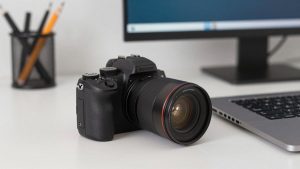
A mirrorless camera or recent action camera used as a USB webcam will out-image any webcam for recording, especially for background blur and low light. But only if you solve power, heat, and audio sync.
Run it on continuous AC power, not battery. Set a 30-minute test to check for overheating shutdowns — still a real problem for long course modules. Use clean HDMI or the manufacturer’s USB webcam utility, and record audio separately if possible. The built-in mic on a camera 6 feet away will sound worse than a $25 lavalier.
This suits creators doing weekly YouTube or paid courses. For everyone else doing work recordings, it’s overkill. Setup time kills consistency, and consistency is what gets videos published.
Setup that matters more than the model
Mount at eye level, not looking up your nose from a laptop. A stack of books or a cheap arm works. Keep the lens 24-36 inches away. Face a soft light source; never sit with a bright window behind you unless you want to be a silhouette.
Lock exposure and white balance before you hit record. Auto-exposure pumping when you share a white screen or move your hands is extremely distracting on playback. Record in a quiet room with fan noise minimized — laptops on beds throttle and ramp fans, which ruins audio.
For laptops and Macs with limited ports, simplify: webcam direct to laptop, mic direct to second port or via a powered hub, record to internal SSD. Close Chrome tabs and screen-sharing extras you don’t need. Dropped frames in recordings are usually CPU, USB bandwidth, or heat — not a “bad” webcam.
FAQ
Do I need 4K to record good YouTube videos?
No. Good 1080p with locked focus, stable 30 or 60fps, clean audio, and soft frontal light looks professional. Buy 4K only if you plan to crop, zoom in edit, or export high-detail demos.
Why does my recording look worse than the preview?
Usually low light forcing a slower shutter, auto-exposure changes, or your app compressing the recording. Add light, lock exposure in the camera app, and record in OBS or QuickTime at high bitrate to test the true sensor quality.
Is 60fps better than 4K for recording?
For tutorials, demos, and anyone who moves while talking, yes — smooth 1080p60 is more pleasant than choppy 4K30. For static talking-head where you crop in post, 4K30 is more useful.
Will any webcam work with Mac for recording?
Most UVC webcams work for basic video in FaceTime, QuickTime, and OBS. What often doesn’t work on Mac is the settings software for focus lock, background blur, and firmware updates. Check Mac support before buying if you plan to record regularly.