Last Updated: October 18, 2026
If you work from home, your video conference camera matters more than your laptop’s processor. People judge your image and audio in the first 10 seconds of a call, and a dim, soft built-in webcam makes you look less prepared than you are. You don’t need studio gear, but you do need something that handles bad light, keeps focus, and doesn’t drop out on Zoom or Teams.
After testing different setups in real home offices — spare bedrooms, kitchen corners, desks facing windows — the pattern is clear: a decent $60-$120 webcam with good auto-exposure beats an expensive 4K camera used badly. Placement and light matter as much as resolution.
📄 In This Review
What actually matters for home office calls
Resolution is the least useful spec on the box. Most conference platforms compress you to 720p or 1080p anyway. What you see as “blurry” is usually bad exposure, slow autofocus, or a cheap sensor struggling in low light, not a lack of pixels. Look for a camera with a larger sensor, autofocus (not fixed focus), and automatic light correction. Those three affect daily call quality far more than 4K vs. 1080p.
Field of view is the second thing to get right. For one person at a desk, 65 to 78 degrees is ideal. It frames your head and shoulders without showing your whole room. Wider 90-120 degree cameras are made for huddle rooms. In a home office they make you look small and distant, and they pick up clutter, doorways, and people walking behind you. Digital zoom to fix it just crops the image and makes it softer.
Audio and mounting cause most returns. A clip that slips on a thin laptop lid, a camera that needs a driver install for every update, or a mic that picks up keyboard and fan noise will annoy you daily. If you take calls all day, plan on using a separate USB mic or headset and treat the camera mic as backup. Also check cable length: many home desks need 5-6 feet to route cleanly to a dock, and short fixed cables are a common failure mode.
The main options compared
See also: Best Monitor for MacBook Air: Two USB-C 4K Screens and Six Adapter-Dependent Alternatives • Best Monitor for MacBook Pro: Eight Listings Sorted by Cable, Sharpness and Scaling
There are really three categories for home use. Everything else is a variation. This is where most buyers overspend — they buy a conference-room camera for a 10-foot bedroom desk.
| Type | Best for | Typical field of view | Strengths | Trade-offs |
|---|---|---|---|---|
| Basic 1080p USB webcam | 1 person, mostly Zoom/Teams, budget setup | 65-78 degrees | Plug-and-play, low CPU load, works on old laptops and Macs | Soft in low light, narrow dynamic range, basic mics |
| Mid-range 4K USB webcam with autofocus | Daily calls, presentations, poor lighting | 65-90 degrees, adjustable | Better sensor, auto-framing, clearer in mixed light | Costs more, needs good USB port, 4K often cropped to 1080p by apps |
| Wide-angle / PTZ conference camera | Small room, 2-3 people, whiteboard demos | 90-120 degrees, pan/tilt/zoom | Covers room, remote control, speaker tracking on some models | Overkill for solo desk, you look tiny, more setup and cables |
What to buy for different home offices
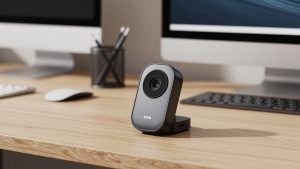
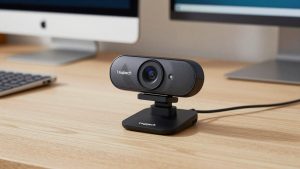
For solo daily calls: a simple 1080p autofocus webcam is fine. If you sit 2-3 feet from the screen, have at least some daylight or a desk lamp, and just need to look sharp on Zoom, don’t overthink it. The cheaper option is genuinely fine here. Pick a plug-and-play model with autofocus, dual mics with noise reduction, and a privacy shutter. Failure mode to watch: fixed-focus budget models that are sharp at 4 feet but soft at desk distance. Sit at your normal distance during setup and check text behind you — if you can’t read a bookshelf title, your face is probably soft too.
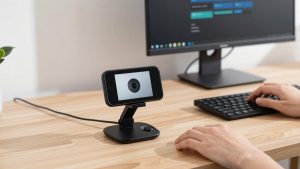
Many people in this group do well with a basic 1080p autofocus webcam for home office mounted at eye level. Put it on a small tripod or stack of books so you’re not looking up at your chin. That one change does more than jumping to 4K.
For low light, glasses glare, or client-facing calls: step up to a better 4K USB camera. This suits basement offices, north-facing rooms, or late-afternoon calls when your face goes dark. A larger sensor holds detail without cranking gain, which is what causes that grainy, watercolor look. Look for auto-exposure you can lock, adjustable field of view in software, and Windows Hello or Mac-compatible UVC support if you hate installing utilities. Trade-off: these cameras draw more power and can stutter on old USB 2.0 hubs or underpowered laptop docks. Plug directly into the laptop or a powered hub.
If that’s you, a mid-range 4K USB webcam with autofocus is worth it, but turn the default beauty filters and auto-framing off at first. Auto-framing that constantly re-crops when you lean is distracting, and heavy noise reduction makes skin look waxy. Set it to 1080p/30 in Zoom or Teams — you will look better than forcing 4K that the app compresses anyway.
For two people or a shared home office: get a wide-angle conference camera, not two webcams. Two cameras means switching inputs mid-call and audio echo. A single wide-angle bar or small PTZ on top of the monitor covers a couch or second chair and usually has better far-field mics. Who it suits: couples sharing an office, coaches who stand and move, people who demo products on a desk. Who should skip it: solo workers. You will sit in the middle of a wide empty frame and the digital zoom will erase any sharpness advantage.
For that shared setup, look at a wide angle conference camera for small rooms with a remote and tripod thread. Mount it 4-5 feet back if you can, not 18 inches from your face. Test the mic pickup with the room door closed and HVAC on — wide mics love to broadcast fans and street noise. If callers complain, mute the camera and use a close mic.
Setup mistakes that ruin even good cameras
Most “bad camera” complaints are lighting and position. Don’t sit with a bright window behind you; the camera will expose for the window and turn you into a silhouette. Face the window or put a $20 LED panel behind your monitor at 4000-5000K. Keep the lens at or slightly above eye level, about arm’s length away. Below eye level emphasizes nostrils and double chin, too high feels surveilling.
On laptops and Macs, close competing camera apps before calls. Zoom, Teams, QuickTime, and browser tabs will fight for the camera and leave you with a black screen. If you use a MacBook with only USB-C, use a direct USB-C to USB-C cable or a good adapter — cheap adapters cause flicker and disconnects that look like a broken camera. Update firmware once via the maker’s app, set exposure and white balance, then quit the utility so it doesn’t run in the background.
FAQ
Is 4K worth it for Zoom and Teams?
Usually not for image sharpness alone, because calls are compressed to 1080p or lower. 4K helps if the camera uses the extra pixels for better cropping, auto-framing, or low-light processing. If you have good light and sit still, a good 1080p camera looks nearly identical and runs smoother on older laptops.
Why do I look grainy even with a new webcam?
Almost always low light. The camera raises ISO to compensate, which adds noise. Add light in front of you, turn off a bright light behind you, and lower the background. Also wipe the lens — home office dust and fingerprints soften more images than people admit.
Can I use a mirrorless camera or phone instead?
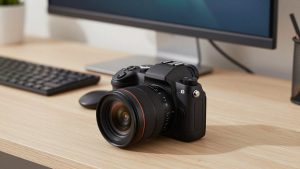
Yes, and image quality can be excellent, but it’s fussy for daily work. Mirrorless needs continuous power, clean HDMI or USB streaming mode, and can overheat on long calls. Phones work well as continuity cameras on Mac, but mounts slip and notifications interrupt. For 4+ hours of calls a day, a dedicated USB webcam is more reliable.
Do I need a separate microphone?
If you present, teach, or take sales calls, yes. Camera mics sit 2-3 feet away and pick up room echo and typing. A basic USB headset or desk mic placed 6-8 inches from your mouth will improve intelligibility more than any camera upgrade, especially in echoey spare rooms.