Last Updated: October 18, 2026
📄 In This Review
What a monitor camera actually needs to do
A camera for your computer monitor has one job: make you look clear and natural on video calls without getting in the way of your work. That sounds simple, but the difference between a good and bad option shows up fast when you are on Zoom or Teams for four hours a day.
The mount matters more than most people expect. A clip that grips the top bezel of a monitor without wobbling, tilting forward, or blocking your screen is essential. Thin bezels on modern Dell, LG, and Apple displays don’t play well with bulky clips. If the camera is too heavy or the hinge is weak, it will slowly droop during a call, and you will spend the meeting looking up your nose.
Field of view, autofocus, and low-light correction are the next big factors. A 65 to 78-degree field of view keeps you centered without showing your entire room. Autofocus should be fast but not hunting constantly. And auto-exposure needs to handle a bright window behind you or a dark home office at 7am without turning your face into a white blur or a grainy mess. Microphones are secondary for most people – a dedicated USB mic or headset will always beat the tiny mics built into a webcam – but decent dual mics are useful as a backup.
The three types that work on a monitor
See also: Best Monitor for MacBook Air: Two USB-C 4K Screens and Six Adapter-Dependent Alternatives • Best Monitor for MacBook Pro: Eight Listings Sorted by Cable, Sharpness and Scaling
Most options fall into three categories, and each suits a different setup.
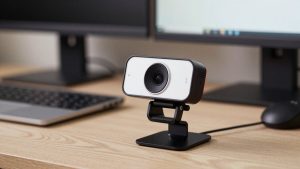
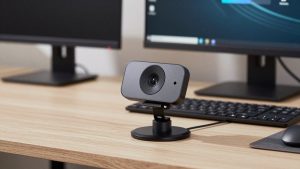
1. Clip-on 1080p webcams. This is the standard bar-shaped camera that clips to the top of any monitor or laptop lid. Resolution is 1080p at 30fps, usually with fixed or basic autofocus and a 70-78 degree lens. They are light, cheap, plug-and-play over USB-A or USB-C, and work with Mac and Windows without drivers. Failure mode: cheap sensors fall apart in low light, producing noisy, soft video. And fixed-focus models can leave you slightly soft if you sit very close or far from the screen.
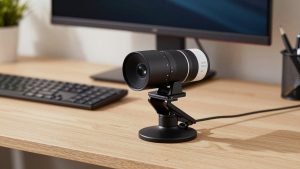
2. 4K / premium clip-on webcams. Same form factor, but with a larger sensor, better lens, and 4K resolution. You rarely need to send 4K on a call – most platforms compress to 1080p or 720p anyway – but the larger sensor gives you sharper 1080p, better color, and more headroom to crop or use AI framing without going soft. Many include autofocus, HDR, and background blur at the hardware level. Trade-off: they cost 2-3x more, run warmer, and need a decent USB 3.0 port and CPU to handle 4K without dropping frames.
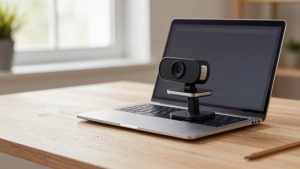
3. Ultra-compact or magnetic puck cameras. Tiny cube or puck cameras designed for laptops and thin-bezel monitors, including models built for MacBooks with a magnetic mount. They are discreet and portable, ideal if you move between a desk monitor and a laptop. The compromise is optics. The small lens and sensor struggle more in dim rooms, and the narrow clip can be less stable on thick curved gaming monitors.
If you just want something that works for daily standups and client calls, a reliable 1080p webcam for computer monitor is the sensible starting point. If you present, teach, or record and want headroom for cropping and better low-light, step up to a 4K webcam for desktop monitor.
Comparison: which type fits your monitor setup
| Type | Best For | Strengths | Weaknesses |
|---|---|---|---|
| 1080p Clip-On | Everyday work calls, budget home office | Affordable, lightweight, stable on most monitors, no drivers | Soft in low light, basic autofocus, noisier image when cropped |
| 4K Premium Clip-On | Presenting, coaching, content, large monitors | Sharper image, better color and HDR, clean digital zoom/crop, future-proof | More expensive, runs hotter, needs USB 3.0 and more CPU |
| Compact / Magnetic Puck | Laptops, thin-bezel monitors, travel between desks | Tiny, discreet, great for MacBooks, easy to move | Less stable on thick bezels, weaker low-light, narrower mount options |
| Built-in Laptop Camera | Temporary use only | Always there, no extra cable | Low angle, poor sensor, unflattering perspective when docked |
How to choose for your monitor
Start with your monitor, not the camera specs. On a standard 24-27 inch flat office monitor with a flat top bezel, any clip-on will sit fine. On curved ultrawide monitors or gaming monitors with a thick top edge and no flat lip, many standard clips will not grip. Look for a clip with a deep, rubberized hinge and a folding foot that braces against the back of the monitor. Center-mounted tripod threads are a plus if you want to put the camera on a small stand behind the monitor instead.
For Mac users with Studio Display or external 4K monitors, check macOS compatibility. Most UVC-compliant webcams work natively with FaceTime, Zoom, and Teams on Mac, but features like background blur, auto-framing, and HDR may require the vendor’s app, which is sometimes Windows-only. If you use a MacBook in clamshell mode with a monitor, do not rely on the built-in laptop camera – the angle is too low and you will look like you are looming over people when docked.
Resolution is not the whole story. A good 1080p sensor with a decent lens and smart auto-exposure will look better than a cheap 4K sensor that is noisy and over-sharpened. What matters for work is skin tone accuracy, stable exposure when you lean forward, and a microphone that does not pick up every keystroke. If you can, prioritize a camera with a physical privacy shutter. Tape over the lens works, but a built-in shutter is faster and does not leave residue.
Consider cable length and port. Most webcams include a 4-5 foot fixed USB cable. If your PC is under the desk or you route cables through a monitor hub, you may need extra length. USB-C native cables are cleaner for modern MacBooks and docks, but a simple USB-A to C adapter is fine. Avoid running the camera through an unpowered hub with other high-bandwidth devices – that is a common cause of stuttering or black screens.
Common failures and how to avoid them
The most frequent complaint after buying is not image quality, it is mounting and software friction. Cameras that claim universal fit often slide on monitors with rounded backs. Before buying, check photos of the mount from the side. You want a clear L-shaped foot, not just a spring clip. If you use a monitor light bar, make sure there is still room for the camera to clip in front of it without pushing the light forward.
Autofocus hunting is the second failure mode. Constant pulsing in and out of focus is distracting for everyone on the call. Cameras with phase-detect autofocus or a well-tuned fixed focus are more stable for desk distances of 20-30 inches. If you move around a lot or show products to the camera, autofocus is worth it. If you sit still at a desk, fixed focus is more reliable.
Third is poor low-light handling. Home offices are rarely well lit. A camera without good auto-gain will either blow out your face when a window is behind you or drown you in grain when the room is dim. You do not need a studio light, but a small affordable webcam with privacy shutter and autofocus paired with a soft desk light or placing a lamp in front of you rather than behind you solves 80% of quality problems. Also turn off HDR beauty filters if your camera app enables them by default – they often make skin look waxy.
When to save and when to spend
Be honest about how often you are on camera. If you are on two or three calls a week and mostly listen in, the cheapest well-reviewed 1080p clip-on is fine. Spend the savings on a decent headset instead – audio quality matters more for comprehension than going from 1080p to 4K.
Spend more if you lead meetings, interview candidates, teach, or do client-facing consultations where you are on camera for hours. In those cases, the better sensor, more natural color, and stable exposure of a premium model pays for itself in how you are perceived. It also holds up better if you record meetings or create quick Loom-style videos where compression is less aggressive than live calls.
Do not spend extra for 4K if your computer is older or you have limited USB bandwidth. You will end up running it at 1080p anyway, and you would have been better off with a mid-range 1080p model with better optics. And if you work from a laptop at a kitchen table and dock to a monitor only occasionally, a compact magnetic option you can move in seconds will get used more than a larger camera you leave in a drawer.
FAQ
Do I need a 4K camera for my monitor if Zoom and Teams compress video?
Not necessarily. Most platforms send 720p to 1080p even if your camera is 4K. The benefit of 4K is not the delivered resolution, it is the sharper downscaled 1080p, better low-light, and ability to crop or auto-frame without losing detail. If you sit centered and your room is well lit, a good 1080p camera looks excellent and costs less.
Will any webcam work with a Mac and an external monitor?
Almost any USB UVC webcam will work plug-and-play on macOS with Zoom, Teams, Meet, and FaceTime. Advanced features like background effects, firmware updates, or manual controls may need a vendor app that does not always have full Mac support. If you need those features, check Mac compatibility before you buy and favor models that store settings on the camera itself.
Where should the camera sit on a large or curved monitor?
Centered on the top bezel, as close to eye level as possible. On ultrawide or curved displays, mount it in the middle so eye contact feels natural. If the bezel is too thick or curved for a clip, use the tripod thread with a small stand placed just behind the monitor. Avoid mounting it far to one side – it creates an awkward off-angle look.
Is the built-in camera on my laptop good enough when docked to a monitor?
Usually no. When your laptop is closed or off to the side, the built-in camera points at the wrong angle or is blocked entirely. Even when open, the low angle is unflattering and the sensor is smaller than a dedicated webcam. A dedicated monitor camera at eye level gives a more natural perspective and consistently better image quality.