Last Updated: October 18, 2026
📄 In This Review
Why use a DSLR for work calls?
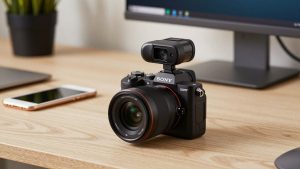
A DSLR used as a webcam gives you a bigger sensor, a real lens, and much better low-light performance than a built-in laptop camera. In practice that means cleaner skin tones, less noise in a dim home office, and natural background blur without the glitchy edges of software portrait mode. For managers, coaches, teachers, and anyone on client calls all day, the difference is obvious.
But it is not plug-and-play. You need continuous power, a way to get clean video out, and a camera that will not overheat or shut off mid-meeting. If you just need to look okay on a daily standup, a good $80-$120 dedicated webcam is simpler, cheaper, and fine. A DSLR makes sense if you are presenting, recording, or on camera for hours and want consistent, professional image quality.
What you actually need to make it work
See also: Best Monitor for MacBook Air: Two USB-C 4K Screens and Six Adapter-Dependent Alternatives • Best Monitor for MacBook Pro: Eight Listings Sorted by Cable, Sharpness and Scaling
The camera body is only one part. Almost every failed DSLR-as-webcam setup I have seen fails for the same three reasons: dirty HDMI output, power, or heat.
First, you need clean HDMI out. That means the camera can send video over HDMI without menus, focus boxes, and battery icons burned into the image. Many recent Canon, Nikon, and Sony DSLRs offer this, but older entry-level bodies often do not, or they turn off HDMI when USB is connected. Check the manual for clean HDMI and no 30-minute limit in live view.
Second, decide how you will connect. Option one is USB with the manufacturer’s webcam utility, such as Canon EOS Webcam Utility or Nikon Webcam Utility. It is free and easy for laptops and Macs, but resolution is often capped at 720p or compressed 1080p, and you can get extra lag and occasional disconnects. Option two is HDMI to a capture device like an HDMI capture card for DSLR webcam. That gives you sharper, more stable 1080p and works with Zoom, Teams, Meet, and OBS as if it were a webcam.
Third, you need continuous power. A standard photo battery lasts 60-90 minutes in live view, then dies on a long workday. For a desk setup, buy a dummy battery / AC adapter made for your exact battery type. It is the least exciting accessory and the most important one.
Best types of DSLR to use as a webcam
Do not shop by megapixels. For video calls, what matters is clean HDMI, reliable continuous autofocus in video, good 1080p with no heavy crop, a flip screen to frame yourself, and USB power or affordable dummy battery support.
For most home offices, the sweet spot is a recent entry to mid-range Canon DSLR with Dual Pixel autofocus. Canon’s video autofocus is still the easiest to live with: it locks on your face and does not hunt during a call. Image looks natural, colors are good for skin, and the EOS Webcam Utility is the most mature on both Windows and Mac. If you already own Canon EF lenses, especially a 24mm f/2.8 pancake or 35mm f/2 or 50mm f/1.8, you are set. Use the 24mm or 35mm at f/2.8 to f/4 for calls – wide enough at arm’s length and sharp without razor-thin focus.
A mid-range Nikon DSLR is the second-best pick if you already own Nikon glass. Video autofocus is not as smooth as Canon’s in live view on older models, so plan to set focus once and leave it, or use a smaller aperture like f/5.6 for more depth of field. The advantage is excellent 1080p HDMI output on many models and solid white balance under office LEDs. Avoid very old Nikon entry bodies with no clean HDMI and weak live-view autofocus – they hunt constantly and frustrate coworkers.
If you are buying from scratch purely for video calls, seriously consider mirrorless instead of DSLR. A basic mirrorless body usually runs cooler in video, has better eye autofocus, no mirror mechanism to wear out, and often does USB webcam without a capture card. I am keeping this guide DSLR-focused because many readers already own one, but if you own nothing yet, mirrorless is the better long-term webcam.
| Setup type | Best for | Pros | Cons / failure modes |
|---|---|---|---|
| Existing Canon DSLR + USB utility | Laptop / Mac users wanting cheapest start | Free software, easy setup, good face AF | Compressed image, occasional lag, battery drains fast without dummy power |
| Canon or Nikon DSLR + HDMI capture card | Daily presenters, coaches, YouTube + Zoom combo | Sharper 1080p, stable, works in any app | Extra $100-$130, more cables, some laptops need powered USB hub |
| Older entry DSLR without clean HDMI | Not recommended for work | You already own it | Overlays on screen, 20-30 min shutoff, AF hunting, overheating |
| Dedicated 1080p/4K webcam | Simple work calls, small desks, travel | Plug-and-play, tiny, no heat issues | Smaller sensor, noisier in low light, digital blur looks artificial |
Lens, power, and mounting matter more than the body
For a desk 3-5 feet away, use a wide to normal prime or the kit zoom at 24-35mm full-frame equivalent. On APS-C DSLRs, that is roughly 18-24mm. Set aperture to f/2.8 to f/4. Wide open f/1.8 looks creamy but you will drift in and out of focus when you lean forward to type. Shutter at 1/60, ISO as low as you can, and add a $30 LED panel instead of cranking ISO. That one light improves a DSLR webcam more than upgrading bodies.
Mount the camera at eye level on a small tripod or desk arm just behind your monitor. Top-of-monitor shelf mounts vibrate when you type. For power, get the dummy battery for your specific model plus a reliable AC adapter, and route cables so a tug does not unplug HDMI mid-call. If you go the HDMI route, a widely compatible Elgato Cam Link 4K style USB capture stick is what most office setups use because Zoom and Teams see it as a normal camera.
Use a separate USB microphone or headset for audio. DSLR preamps hiss, and the camera will be 3-4 feet away. The image upgrade from a DSLR is wasted if your audio is echoey.
Mac and laptop warnings
On Macs, especially Apple Silicon MacBooks, test the chain before an important week. Some webcam utilities require Rosetta, camera permissions in System Settings, and a reboot after install. HDMI capture sticks are usually more reliable on Mac than USB webcam utilities, but use a direct USB-A/C port or a powered dock. Cheap USB-C dongles cause freezes when you also run an external monitor and hard drive.
Heat is the other work-killer. DSLRs in live view generate heat. In a warm office with 4K output and a bright LCD left on, many bodies will warn and shut down after 45-90 minutes. To prevent this: output 1080p not 4K, flip the LCD away from the body or dim it, keep the battery door open with the dummy battery cable routed out, and leave space around the body. If you run 5+ hours of back-to-back calls, a dedicated webcam or mirrorless camera with higher heat tolerance is safer.
Also turn off auto power-off, auto sleep, and in-body image review. Set focus to continuous face-detect video AF if your model does it well, otherwise half-press to lock once and switch lens to manual. Nothing looks less professional than the lens pulsing in and out every time you pick up a pen.
What to buy if you own nothing yet
If you already own a compatible DSLR, spend money in this order: dummy battery, light + tripod, then capture card. That is usually $120-$200 total and beats buying a new camera body.
If you must buy a body for webcam duty, buy used. Look for a clean used Canon DSLR known for video autofocus and clean HDMI, plus a 24mm pancake. A search for a Canon DSLR used body with clean HDMI will show you what is available now and what dummy battery fits. Budget another $40 for a spare battery door cable, SD card you leave in the slot, and a short high-quality HDMI cable. Long cheap HDMI cables cause black flashes.
Be honest with yourself about hassle. If you travel, share a desk, or hate fiddling with settings, skip the DSLR and buy a modern autofocus webcam with a large sensor. The DSLR wins on image quality, but only if you will leave it set up permanently.
FAQ
Can I use any DSLR as a webcam?
No. You need clean HDMI output or a supported USB webcam utility, plus a way to disable the 30-minute live-view cutoff. Very old entry-level bodies often lack one or both. Check your exact model manual before buying accessories.
Is USB webcam software good enough for work?
Yes for most internal meetings. It is free and easy on laptops and Macs. Upgrade to HDMI plus capture card if you present to clients, record courses, or see stuttering and soft image over USB.
Will using my DSLR for calls wear it out?
Photo shutter count barely increases in video mode, but heat and sensor hours add up. The bigger risk is leaving it in live view all day in a hot room. Use 1080p, dim the screen, and power it with a dummy battery to reduce stress.
Do I need a 4K DSLR for Zoom and Teams?
No. Zoom and Teams compress to 720p-1080p anyway. A good 1080p signal with clean light and a sharp lens looks better than 4K in a dark room. Spend on lighting and audio first.
Related Reviews & Guides
Best Webcam with Bokeh
Best CPUs for Office Work in 2026: Fast, Quiet Options