Last Updated: October 18, 2026
There is no single best web camera for work. The right one depends on your light, your laptop, and how often you are on video. After testing a lot of setups for home offices and Macs, most people fall into one of three groups: you want something cheap that just works, you want to look noticeably better on daily calls, or you need a sharper, more reliable image for client-facing work.
Before you spend over $100, check your current built-in camera in Zoom or Teams with your normal office light on. If your face is dark, noisy, or blown out by a window behind you, a new webcam will help, but placement and light matter just as much as resolution.
📄 In This Review
What actually matters for work calls
Resolution is the least useful spec on the box. Almost all video apps compress you to 1080p or 720p anyway. What changes how you look is sensor size, lens quality, autofocus behavior, and microphone pickup pattern.
A good work webcam holds focus on your face without hunting when you lean back, handles mixed light without turning you orange or gray, and does not over-sharpen to the point where you look waxy. Dual microphones with noise reduction are useful if you do not use a headset, but they will still pick up keyboard clicks and room echo. If you are on calls four hours a day, plan on a separate headset or USB mic regardless of which camera you buy.
For Mac users in particular, check compatibility carefully. Most USB webcams are plug-and-play on macOS for video, but the settings app for zoom, pan, background blur, or firmware updates is often Windows-only. If you want to adjust field of view or turn off auto-focus on a Mac, look for cameras that store settings on-device or work with macOS software, not just a Windows utility.
Quick comparison: the three tiers that make sense
See also: Best Monitor for MacBook Air: Two USB-C 4K Screens and Six Adapter-Dependent Alternatives • Best Monitor for MacBook Pro: Eight Listings Sorted by Cable, Sharpness and Scaling
Forget 20-product roundups. For office work, these are the only three categories worth comparing:
| Type | Typical image | Best for | Watch out for |
|---|---|---|---|
| Basic 1080p webcam | Fine in good light, soft and noisy in dim rooms | Laptop users who just need a better angle than a low laptop camera | Narrow dynamic range, harsh auto-exposure with windows, flimsy clip |
| Mid-range 1080p with larger sensor and better mic | Cleaner in low light, more natural skin tones, steadier focus | Daily standups, remote workers, teachers | Costs twice as much for a modest resolution bump; still needs light |
| 4K office webcam | Sharper if you crop or use digital zoom, better detail for whiteboards | Client calls, managers, creators who also record | Needs good USB bandwidth and CPU; many laptops drop to 1080p in calls anyway; larger file sizes for recording |
If you sit in a bright room facing a window or a soft lamp, the basic tier is honestly fine. If your home office is dim, has overhead-only lighting, or you take calls late, step up to the mid-range tier for the better low-light handling, not for extra pixels.
If you want cheap and reliable: basic 1080p
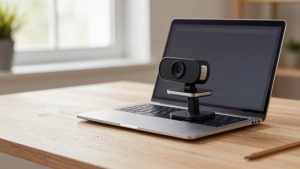
A simple 1080p webcam for laptop is the right call for most hybrid workers. You get a fixed or basic autofocus lens, a clip that fits a laptop lid or external monitor, and a plug-and-play USB-A connection. On modern MacBooks you will need a USB-C adapter or dock, so factor that in.
What goes wrong with cheap models: the mount slips on thin laptop lids, the auto white balance swings when you share screen, and the built-in mic sounds hollow past three feet. Fix the first two by clipping it to an external monitor if you have one, and sit with light in front of you, not behind. Use a headset for audio and half the complaints disappear.
Who should buy this: anyone whose built-in laptop camera points up their nose, anyone on a work laptop with locked-down software installs, and anyone buying three or four cameras for a small team. Do not buy 4K here. You will not see it in Teams or Meet.
If you are on video all day: mid-range 1080p with better optics
This is the sweet spot for home offices. You are paying for a better lens and processing, not more pixels. Look for a wider but not ultra-wide field of view around 78 to 90 degrees, reliable autofocus, and a physical privacy shutter. A detachable clip or tripod thread is useful if your monitor is high or you want eye-level framing with a stack of books or a monitor arm.
In practice, these cameras hold exposure better when you move, produce less grain at 7am or 6pm, and sound less echoey than bargain models. They also handle backlight better if you cannot avoid a window. They still fail in a dark room. No webcam fixes no light. A $25 desk lamp with a diffuser bounced off a wall will improve you more than jumping from $70 to $180 on a camera.
Who should buy this: remote employees, project managers, therapists, tutors, and anyone who presents daily. If you wear glasses, this tier tends to have less harsh reflection and less focus pulsing than cheap fixed-focus models, which matters on long calls.
When 4K is worth it – and when it is not
A 4K webcam for home office makes sense in two specific cases: you want to crop in for a tighter headshot while keeping detail, or you record training videos and want cleaner footage to edit later. Some also offer AI framing that follows you if you stand at a whiteboard, which can be useful for teaching.
Trade-offs are real. 4K needs more light to look good, more USB bandwidth, and more CPU. On older laptops and many MacBook Air setups with a dock and external display, the app will drop you to 1080p anyway. Files are much larger if you record locally. Autofocus systems on 4K models can also be slower in low light, hunting at the worst moment.
Who should skip it: anyone on a five-year-old laptop, anyone with slow Wi-Fi, and anyone who mostly does internal standups. Who should consider it: client-facing consultants, founders doing pitches, and anyone who wants one camera for both Zoom and YouTube-style recording.
Setup tips for laptops and Macs
Mount the camera at eye level, about arm’s length away. Laptop lids are too low and create an unflattering angle. If you use a laptop stand, use a separate webcam stand tripod for desk or clip the camera to your external monitor. Center yourself with a little headroom, not a lot of ceiling.
Face your key light. A window in front or slightly to the side beats any camera upgrade. If the window is behind you, close blinds or reposition. Turn off a bright overhead that casts shadows under your eyes. In Zoom, Teams, and Meet, turn off touch-up filters first to judge the real image, then add them back sparingly if you want.
On Macs, test in Photo Booth or FaceTime plus your actual work app, because they handle camera permissions differently. If the camera has a settings app, set field of view and disable auto-focus hunting once, then leave it. Unplug docks and hubs once to test if you get stuttering – underpowered USB hubs are a common cause of freezing that looks like a bad camera but is really a bad connection.
FAQ
Is a cheap webcam enough for work?
Yes, if your lighting is decent and you use a headset. Spend $40 to $70 for a basic 1080p model and put the savings toward a lamp or stand. Upgrade only if you are grainy in low light or your focus keeps drifting.
Do I need 4K for Zoom or Teams?
No. Most calls are delivered at 1080p or lower after compression. 4K helps for cropping, digital zoom, and recording, but it will not make a normal meeting look four times sharper.
Why do I look worse on a new external webcam than my MacBook camera?
Usually light angle, exposure settings, or USB bandwidth. Apple tunes its built-in cameras aggressively for faces. An external camera placed too high, in a dark room, or on a weak hub will look worse until you fix placement, add front light, and connect directly.
Built-in mic or headset?
Headset, every time for all-day work. Webcam mics are fine as backup, but they pick up typing, fans, and echo. Even basic wired earbuds will sound clearer to coworkers than any webcam mic at desk distance.