Last Updated: October 18, 2026
If you spend your day in Microsoft Teams, you do not need the most expensive camera. You need one that handles bad office light, does not wash you out when a window is behind you, and keeps working when Teams updates. Most Teams calls are still delivered at 1080p or lower, so sensor quality, autofocus behavior, and microphone pickup matter far more than 4K on the box.
I have tested this setup in real home offices: overhead LEDs, a desk facing a window, a laptop docked to a monitor, and a MacBook that refuses to play nice with some Windows-first utilities. The pattern is consistent. A decent $60 to $120 webcam, mounted at eye level and set correctly, looks better than a $250 camera left on top of a monitor pointing up your nose.
📄 In This Review
What Teams actually needs
Teams compresses video aggressively, especially in gallery view with 6-9 people. Fine detail disappears. What survives compression is even exposure on your face, stable focus, natural color, and clean audio. A camera with good auto-exposure and a wide dynamic range will beat a higher-resolution camera with a tiny sensor that goes grainy in a dim room.
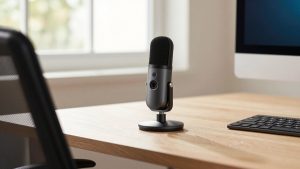
Audio is half the decision. Teams has decent noise suppression, but it cannot fix a mic that picks up every keystroke or your HVAC vent. If you are on calls 3-4 hours a day, a webcam with dual mics and a tight pickup pattern is worth paying for. If you already wear a headset for calls, you can save money and buy a camera-only focused option.
Compatibility is the other hidden issue. On Windows, almost everything is plug-and-play. On Mac, basic video works fine over USB, but background blur, auto-framing, and firmware updates often require a vendor app that is Windows-only. If you use a MacBook for work, stick to simple UVC-compliant cameras and let Teams handle blur and backgrounds. Do not pay extra for software features you cannot access.
Quick comparison: which type suits you
See also: Best Monitor for MacBook Air: Two USB-C 4K Screens and Six Adapter-Dependent Alternatives • Best Monitor for MacBook Pro: Eight Listings Sorted by Cable, Sharpness and Scaling
Most buyers fall into one of four groups. Match yourself first, then shop inside that group.
| Type | Best for | Strengths | Weak points |
|---|---|---|---|
| Built-in laptop camera (720p-1080p) | Occasional Teams users, travel | No setup, always with you | Low angle, noisy in low light, flat color |
| Budget 1080p USB webcam | Most office workers, 2-5 calls per day | Big jump in clarity, cheap, works on Mac | Fixed focus on cheapest models, struggles with backlight |
| Mid-range 1080p/2K business webcam | Daily Teams users, managers, client-facing roles | Better low light, autofocus, dual mics, privacy shutter | Needs good USB port, costs 2x budget models |
| Premium auto-framing / 4K webcam | Presenters, trainers, small huddle rooms | Auto-framing, wider field of view, best mics | Overkill for 1:1 calls, framing can hunt, software-dependent |
For about 70 percent of Teams users, the sweet spot is the middle two rows. If your laptop is from the last two years and you take two calls a week with your internal team, the cheaper option is fine. Upgrade when other people regularly say you look dark, blurry, or echoey.
Best value for most Teams calls: a simple 1080p business webcam
This is the no-regrets pick. Look for true 1080p at 30fps, autofocus (not fixed focus), dual microphones with noise reduction, and a physical privacy shutter. A 78 to 90 degree field of view is ideal for one person at a desk. Wider than that and you show your messy office and look smaller.
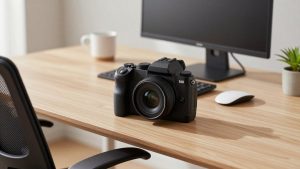
When you shop, a basic 1080p autofocus webcam with dual mics will cover daily standups, interviews, and client reviews without fuss. Plug it directly into your laptop or dock, not into a cheap unpowered hub, and select it explicitly in Teams under Settings and then Devices. Teams will sometimes revert to the laptop mic after an update.
Failure modes to know: budget autofocus models can pulse or hunt if you gesture a lot or have a busy bookshelf behind you. Fixed-focus models avoid hunting but look soft if you sit too close or too far. Test at your normal sitting distance of 2 to 3 feet. If the image looks over-sharpened, turn sharpness down in the vendor app and let Teams do its own processing.
If your room is dark or backlit: pay for light handling
Teams cannot fix a silhouette. If you face a window, sit with your back to a bright window, or work in a basement office with one overhead light, resolution does not matter. You need a larger sensor, good auto-exposure with face priority, and preferably HDR handling.
In this case step up to a mid-range 2K or high-quality 1080p camera marketed for low light. A well-tuned 2K business webcam for low light Teams calls will hold exposure on your face without blowing out the background into white. The difference is obvious at 4 p.m. in winter when your room goes dim.
Who this suits: people managers, sales, customer success, and anyone who cannot rearrange their desk. Who should skip it: if you already have a decent key light in front of you and a wall behind you, save the money. A $25 LED panel at 4000K to 5000K will improve a cheap webcam more than upgrading the webcam will.
For presenters and small rooms: auto-framing cameras
Auto-framing sounds gimmicky until you stand up to whiteboard or pace during a training. These cameras crop in and follow you, which helps in Teams meetings and webinars. They also tend to have wider lenses and better far-field mics for two people sharing one desk.
The trade-off is real. Framing can drift, zoom in on the wrong person, or zoom in and out during gestures. It also requires more CPU and vendor software, which is less reliable on Macs and locked-down corporate laptops. Only buy this if you move around, host meetings, or use a 27-inch or larger external monitor where you sit farther back.
If that is you, look at an auto framing webcam for conference and training calls with subject tracking you can turn off. You want a physical way to disable it. For seated 1:1 calls, turn tracking off and lock the frame. You will look more stable and more professional.
Setup matters more than specs
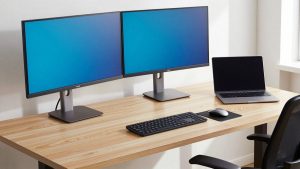
Mount the camera at eye level, not below. On an external monitor, that usually means a small tripod or riser rather than clipping it to the top bezel and tilting down. You want the lens 20 to 30 inches away, centered. Clean the lens once a month. Fingerprints cause most blurry webcam complaints.
In Teams, go to Settings, then General and turn off the option to automatically adjust for low light if your image looks smeary, then adjust brightness manually in the camera app. Turn on Teams noise suppression to High or Auto if you use the webcam mic. If you use a headset, set the headset as both speaker and mic and disable the webcam mic to avoid echo when Teams picks the wrong device.
Power and USB cause strange failures. Long passive USB extension cables, monitor USB hubs, and docks without enough power will drop frames or force the camera to 720p. If video stutters, plug the camera straight into the computer to test. On laptops, close the lid or disable the built-in camera in Device Manager to prevent Teams from switching cameras mid-call.
FAQ
Do I need a Teams-certified webcam?
No, not for most home office use. Certification mainly matters for shared conference rooms and strict IT departments. Any standard USB webcam that supports UVC will work with Teams on Windows and Mac for video and mic.
Is 4K worth it for Teams?
Usually not. Teams scales most calls down, and 4K mainly helps if you want digital zoom or crop without losing sharpness. A good 1080p sensor with better low light will look cleaner than a cheap 4K sensor in a dim room.
Why do I look dark even with a good camera?
It is almost always backlight or overhead light. Face a window or put a soft light in front of you at eye level, and put a plain wall behind you. Move the camera off auto-exposure if it keeps exposing for the bright background.
Can I use my phone or mirrorless camera for Teams?
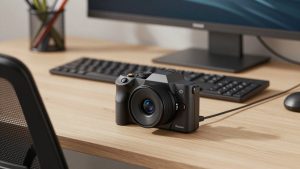
Yes, but it adds friction. Phone-as-webcam apps work well but drain battery and overheat on long calls. Mirrorless cameras look great but need a capture device, dummy battery, and more light. For daily work calls, a dedicated USB webcam is more reliable.