Last Updated: October 18, 2026
If you do a lot of video calls, 1080p at 60fps looks noticeably smoother than the usual 1080p at 30fps. Hand gestures, head movement, and screen demos don’t stutter as much, and you look more natural on Zoom, Teams, and Google Meet. It’s not about sharpness – it’s about motion.
That said, don’t buy 60fps blindly. Most office lighting and most laptop USB ports make it harder to get a clean 60fps image than the box suggests. Here’s how to pick the right type for work, and when to save your money.
📄 In This Review
When 60fps helps – and when it doesn’t
60fps helps if you move a lot when you talk, share physical products, whiteboard, or switch between you and your desk. It also helps if you record training videos or Loom-style walkthroughs where viewers watch in fullscreen. The difference is obvious side-by-side.
It doesn’t help much if you sit still in a dim home office. In low light, many 1080p60 webcams automatically drop to 30fps or lower to gather more light, or they keep 60fps but add visible grain. Video conferencing apps also often compress you to 720p or 30fps anyway when bandwidth is tight. If your calls are mostly static head-and-shoulders on a work laptop, a good 1080p30 webcam with better low-light performance and better microphones can look better in practice than a cheap 1080p60 sensor.
What actually matters beyond the 1080p60 label
See also: Best Monitor for MacBook Air: Two USB-C 4K Screens and Six Adapter-Dependent Alternatives • Best Monitor for MacBook Pro: Eight Listings Sorted by Cable, Sharpness and Scaling
First, check focus type. Autofocus is better for work because you lean in and out, hold up documents, and move around. Fixed-focus creator cameras can look sharper if you stay exactly in the sweet spot, but if you sit too close or too far, you’re soft for the whole meeting.
Second, check field of view. For a home office, 75 to 90 degrees is ideal. Wider than 95 degrees pulls in your whole room and makes you small. Narrower than 70 degrees feels cramped unless it’s just for you.
Third, check light handling and exposure control. Look for auto exposure that doesn’t pulse when you share your screen, and white balance that doesn’t turn orange under warm lamps. Physical privacy shutter, tripod thread, and a decent clip for thick monitors matter more day-to-day than digital zoom or beauty filters.
For Mac and work laptops, also confirm UVC plug-and-play with no driver required. Most modern options work over USB-A or USB-C with an adapter, but 60fps needs USB 3.0 bandwidth on some models and a reasonably recent CPU. On older Intel MacBook Airs and thin work laptops, running 1080p60 plus background blur in Teams can max out the fan.
Which type to buy for work
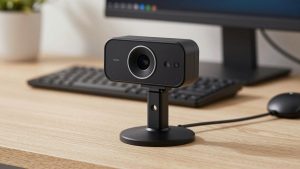
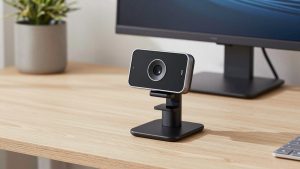
A standard autofocus 1080p 60fps webcam for Zoom calls is the safest pick for most home offices. It handles everyday movement, document hold-ups, and sit-stand desks without you thinking about focus. Image quality won’t beat a mirrorless camera, but reliability is high and setup is plug-and-play. Failure mode: in a dark room it will get noisy at 60fps. Fix it with a $20 desk lamp behind your monitor rather than buying a more expensive camera.
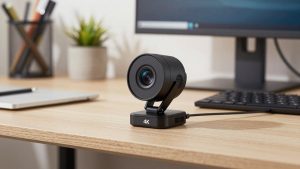
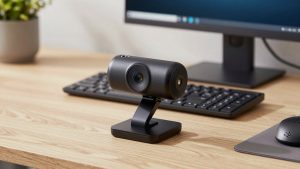
A creator-style fixed-focus 1080p60 camera suits a dedicated desk where lighting is controlled. You set the distance once and you get consistent, slightly sharper video with less focus hunting. It’s good for recording and for people who host webinars. Failure mode: if you use it from the couch, from a laptop on your lap, or pass it around a room, people will be out of focus. Only choose this type if you always sit in the same spot.
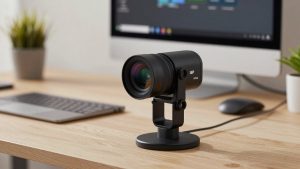
A wide-angle conference 1080p60 camera suits small huddle rooms and shared desks. It fits two people without crowding and smooth motion helps when people shift in chairs. Failure mode: at a normal solo desk distance, you look distant and the room echo is worse because you’re farther from the mic. For solo work, don’t buy wide just to get 60fps.
| Type | Best for | Strength at 60fps | Watch out for |
|---|---|---|---|
| Autofocus work webcam | Daily Zoom/Teams, home office | Forgiving focus while moving | Grain in low light; may drop to 30fps in dark |
| Fixed-focus creator webcam | Webinars, recording at a fixed desk | Sharper if distance is correct | Soft image if you sit outside focus range |
| Wide-angle conference cam | 2-person desk, small room | Smooth motion across frame | You look small solo; mics pick up room noise |
| Good 1080p30 webcam | Dim offices, older laptops | Better low-light, lower CPU load | More motion blur on fast gestures |
Mac and laptop setup notes
On Macs, stick to webcams that are UVC-compliant with no software required. You can tweak settings in the vendor app on Windows once, but on macOS you usually can’t adjust field of view or turn off autofocus without third-party tools. If you use Center Stage-style framing or Portrait background blur, note that macOS may lock you to 30fps when those effects are on.
On Windows work laptops, lock the camera to 1080p60 or 1080p30 manually in the app instead of leaving it on auto. In Teams go to Device Settings and turn off auto-adjust brightness if your face pulses brighter every time you open a white document. If the image stutters at 60fps, try a rear USB port or a powered hub, close background-blur, and drop to 30fps before blaming the camera – it’s often bandwidth or CPU.
Audio matters more than 60fps for work. Even good webcam mics sound thin in a room with hard walls. If people ask you to repeat yourself, a simple USB headset or a budget desktop mic will improve meetings more than any camera upgrade.
How to get clean 60fps without buying twice
Give the sensor light. Face a window or put a soft white lamp at 45 degrees in front of you, not overhead. Overhead-only lighting creates eye shadows and forces longer exposure, which kills the benefit of 60fps.
Mount at eye level and about arm’s length away. Too close exaggerates motion and focus hunting; too far forces digital zoom and noise. If your monitor is thick or curved, test the clip – many slip or point slightly down, which looks unprofessional.
If you’re deciding between lighting and a pricier sensor, buy light first. A mid-range 1080p 60fps webcam with low light correction in a well-lit room will beat an expensive camera in a dark corner. The cheaper option is genuinely fine here for most 1:1 calls.
Only step up to a premium 1080p60 model or a mirrorless / action camera as webcam if you record a lot and can control light, USB bandwidth, and focus distance. For pure meetings, that extra money is better spent on a desk lamp for video calls, a stable mount, and wired ethernet.
FAQ
Will Zoom and Teams actually show my 60fps?
Sometimes. Both support up to 1080p on business accounts with good bandwidth, but group calls often drop to 720p or 30fps to save data. You still benefit when recording locally or on 1:1 calls with strong connections.
Why does my 1080p60 webcam look grainy?
Usually low light. At 60fps each frame gets half the light of 30fps, so the camera boosts gain. Add frontal light, then manually lock exposure or drop to 30fps in dark rooms for a cleaner image.
Do I need USB 3.0 for 1080p60?
Often yes. Some models do compressed 1080p60 over USB 2.0, others need USB 3.0. Use a USB 3.0 port directly on the laptop, avoid long unpowered extension cables, and use the cable that came with the camera.
Is 4K30 better than 1080p60 for work?
For static talking-head calls, usually yes – 4K downscaled to 1080p looks cleaner and handles cropping better. For demos, whiteboarding, and lots of movement, 1080p60 looks smoother. Pick based on how much you move, not the bigger number.