Last Updated: October 18, 2026
If you are buying a laptop mainly for Zoom, Teams, and Google Meet, the built-in webcam matters more than most spec sheets suggest. Most are still small, noisy in low light, and fixed in place. A few are genuinely good. Here is how to tell the difference and when to just plan on an external camera instead.
📄 In This Review
What “built-in” actually means in 2026
A built-in laptop webcam is a tiny module above the screen, usually 720p or 1080p, with a fixed-focus lens and tiny pixels. Because the lid is thin, there is no room for a large sensor or real optics. Manufacturers compensate with processing: noise reduction, auto-exposure, and face brightening.
In practice that means two laptops can both say “1080p HD camera” and look completely different. Sensor size, lens aperture, microphone placement, and image processing matter more than the resolution number. A good 1080p built-in with backlit sensor and decent processing will beat a cheap 1080p module every time. A bad 1080p camera just gives you a larger, softer image.
Common failure modes to expect: waxy skin from heavy noise reduction, blown-out windows behind you, stutter in low light as the camera drops shutter speed, and tinny audio because the mics pick up fan noise and keyboard clicks. If you take calls from a dim home office, assume you will see all of these unless the laptop specifically addresses low light.
Which laptops tend to have the best built-in webcams
See also: Best Monitor for MacBook Air: Two USB-C 4K Screens and Six Adapter-Dependent Alternatives • Best Monitor for MacBook Pro: Eight Listings Sorted by Cable, Sharpness and Scaling
No built-in beats a good external camera for sharpness, but if you want to avoid carrying one, these categories are consistently better:
MacBook Pro 14/16 and MacBook Air M-series: Apple moved to 1080p and then 12MP Center Stage cameras with a wider aperture. Image processing is strong. Skin tones stay natural, exposure is stable when you move, and the triple-mic array is among the best built-ins for cutting room echo. Trade-off: Center Stage auto-framing can feel floaty if you move a lot, and in very low light it still smears detail. Best for Mac users who want zero fuss.
Microsoft Surface Laptop / Surface Pro: Surface devices have had 1080p front cameras for years, and they are tuned well for Teams. Framing is natural, not too wide, and Windows Studio Effects for background blur run well on them. Trade-off: battery life and price, not the camera. Good pick if you live in Teams.
Lenovo ThinkPad X1 Carbon / Yoga 9i and Dell XPS 13/14: Recent versions use 1080p or QHD cameras with IR for Windows Hello, plus a physical shutter. ThinkPads in particular have better mics than most Windows ultrabooks and useful Lenovo Vantage controls for background and brightness. Dell’s QHD options look sharp in good light but can over-sharpen faces. Best for office workers who need Windows Hello and a privacy shutter.
HP Spectre / Envy with 5MP cameras: HP pushed 5MP sensors early. In daylight they resolve more detail on hair and glasses than 1080p modules. Trade-off: in low light that higher resolution can mean more noise unless binning and processing are done well. Check reviews with low-light samples, not just daylight.
| Laptop type | Typical camera | Strengths | Weaknesses | Best for |
|---|---|---|---|---|
| MacBook Pro / Air | 1080p to 12MP Center Stage | Natural color, good mics, stable exposure | Soft in dim rooms, auto-frame drift | Mac users, frequent callers |
| Surface Laptop / Pro | 1080p front | Good Teams tuning, natural framing | Price, average low-light | Teams / Office 365 users |
| ThinkPad X1 / Yoga | 1080p IR + shutter | Privacy shutter, Hello login, solid mics | Aggressive noise reduction | Corporate / travel work |
| Dell XPS 13/14 | 1080p to QHD IR | Sharp in good light, Hello login | Can over-sharpen, fan noise pickup | Home office with good lighting |
| HP Spectre / Envy | 5MP | More detail in daylight | Noisy in low light | Daytime calls near window |
| Budget $400-600 laptop | 720p | Cheap, works for basic calls | Soft, poor mics, bad low light | Students, backup machine |
What to look for on a spec sheet: 1080p or higher, dual-array or triple-array mics, IR camera if you want Windows Hello face login, and a physical shutter or kill switch. Ignore terms like “HD” alone. “AI camera” usually just means background blur and auto-framing, which Windows and macOS now do in software anyway.
When the built-in is fine
For internal standups, 1:1s, and classes, a modern built-in from Apple, Lenovo, Microsoft, Dell, or HP is fine if you have decent light. Put a lamp or window in front of you, not behind you, keep the lid at eye level with a stand or stack of books, and you will look clearer than 80% of people on the call.
The cheaper option is also fine here: if your laptop already has a 720p or 1080p camera and you only do a few calls per week, spend $25 on lighting before you spend $80+ on a camera. A lack of light is what makes most built-ins look bad, not the megapixels. Wipe the lens, too. A fingerprint on that tiny lens softens everything.
Built-ins also win for portability and privacy. Nothing to pack, nothing left plugged in at a coffee shop, and most work laptops now have a shutter. If you travel constantly and do calls from hotels, that convenience outweighs the small quality gap.
When you should plan on an external webcam
Buy external if you present to clients, teach, interview, record YouTube or training videos, or sit in a dark room. A separate camera has a larger sensor, better lens, autofocus, and a wider field of view that you can adjust. It also lets you place the camera at eye level while keeping the laptop screen where you want it.
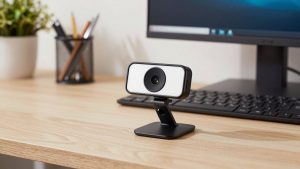
This is where a simple external 1080p webcam for laptop still beats every built-in in low light and sharpness, and it costs less than upgrading laptops for the camera alone. Clamp it to a monitor, plug in USB, and you bypass the thin-lid compromise entirely.
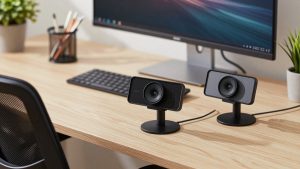
If you are on a MacBook and want Desk View, Center Stage flexibility, or better background separation without thinking about settings, a 4K webcam for MacBook Teams Zoom gives you room to crop and better detail for recording, though 4K is overkill for most live calls. For a shared desk or small conference setup, a wide angle webcam with microphone for home office is more useful than resolution because it fits two people without crowding.
Failure mode with external cameras: people buy 4K and then run it over a bad USB hub or poor upload speed, so Teams drops it to 720p anyway. If your internet is under 5 Mbps up, fix that or use 1080p. Also, autofocus hunting during screen sharing is distracting. Turn off autofocus or set focus once if your software allows it.
How to make any built-in look better
First, raise the laptop. A camera pointing up your nose makes even a good sensor look bad. Second, face a soft light source. A $30 LED panel at 4000-5000K, bounced off a wall, does more than any spec upgrade. Third, turn off HDR and auto-framing if your face pulses brighter and darker. In Zoom and Teams, uncheck “adjust for low light” if it makes you waxy, and set background blur to light rather than heavy.
For audio, built-in mics work best in a quiet, carpeted room 2 feet away. If you type while talking, use earbuds or a headset. That single change improves perceived quality more than moving from 720p to 1080p.
Keep drivers and firmware updated. On Windows, camera tuning often improves with Intel, Lenovo Vantage, Dell Optimizer, or HP updates. On Mac, updates improve Center Stage and Desk View processing. If your camera suddenly looks green, dark, or flickery, check for an OS update and close other apps using the camera before assuming hardware failure.
FAQ
Do any laptops have a built-in webcam as good as an external webcam?
Not quite. The best MacBook, Surface, ThinkPad, and XPS cameras are good enough for daily work calls in good light, but a midrange external 1080p camera still wins on sharpness, low light, and framing flexibility because it has room for a bigger sensor and lens.
Is 720p or 1080p enough for Zoom and Teams?
Yes for most work. Zoom and Teams often transmit at 720p to 1080p anyway, and will drop quality if your connection is weak. Lighting, stability, and audio matter more than the number on the box.
Should I choose a laptop just for its webcam?
Only if you take calls all day and refuse to carry an external camera. Otherwise choose for keyboard, screen, battery, and IT compatibility, then add a $60-$120 external camera if needed. That is cheaper than switching laptop lines for a slightly better module.
Why does my built-in camera look bad in my home office?
Usually low light and backlight. Face a window or lamp, close blinds behind you, raise the laptop to eye level, and clean the lens. If it still smears and stutters, the room is too dark for the tiny sensor and an external camera with a larger sensor will help more than settings tweaks.