Last Updated: October 18, 2026
Most people searching for a webcam without a microphone aren’t looking for better video. They’re looking for control. You already have a good headset, a USB mic, or a work laptop locked down by IT, and you don’t want a second live mic sitting on top of your monitor causing echoes, picking up background noise, or creating a compliance problem.
Here is the honest starting point for 2026: almost no mainstream work webcam ships with zero microphone hardware. If you buy a typical 1080p or 4K webcam for Zoom, Teams, or Meet, it will have a mic built in. The practical solution for 90% of home offices is to buy a good camera for its lens and sensor, then disable its mic at the system level and use your dedicated audio instead.
There are true no-mic exceptions, but they come with trade-offs. This guide covers both paths.
📄 In This Review
Why true no-mic webcams are rare
Manufacturers add dual mics for about $2 in parts because it lets them check the “all-in-one” box for laptop buyers. Removing the mic doesn’t save them money in support calls, it creates more. The only categories that routinely skip the mic are industrial USB machine-vision cameras, some privacy-focused conference cameras, and HDMI cameras meant for streaming rather than calls.
That matters because those no-mic cameras often skip other work-friendly features too: no auto-focus tuned for faces, no decent auto-exposure for home offices, no built-in privacy shutter, no Teams/Zoom certification. You gain audio certainty, you lose plug-and-play polish.
For work use on Mac and Windows laptops, disabling is usually more reliable than hunting for missing hardware. A disabled device in macOS Sound settings, Windows Sound settings, or your meeting app will stay disabled even after reboot, while a cheap “no mic” import may still present itself as an audio device due to off-the-shelf firmware.
Your three real options, compared
See also: Best Monitor for MacBook Air: Two USB-C 4K Screens and Six Adapter-Dependent Alternatives • Best Monitor for MacBook Pro: Eight Listings Sorted by Cable, Sharpness and Scaling
If you absolutely cannot have a microphone in the room — government, healthcare intake, legal, or a strict employer policy — skip to option 2 or 3. For everyone else who just wants to avoid echo and confusion, option 1 is cheaper and looks better.
| Approach | Video quality for calls | Mic situation | Setup hassle | Best for |
|---|---|---|---|---|
| Standard business webcam, mic disabled in OS | Good to excellent, tuned for faces | Hardware present but disabled / not selected | Low, 2 minutes once | Most home office and laptop users |
| Privacy USB camera marketed as no-mic | Average, often fixed focus | No mic hardware claimed | Medium, check drivers and focus distance | Strict no-mic policies, shared desks |
| HDMI camera + USB capture for calls | Very good, but needs light | No mic on HDMI path if you use separate capture | High, extra power and capture dongle | Presenters who already own a camera |
Best for most people: buy for video, disable the mic
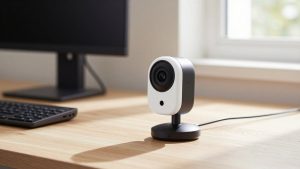
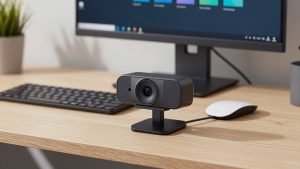
This is the cheapest option that is actually fine. A standard 1080p business webcam gives you the features that matter for 8 hours of calls: fast autofocus that doesn’t hunt when you lean back, auto white balance that doesn’t turn you orange under warm bulbs, and a 78-90 degree field of view that doesn’t show your whole kitchen.
When you shop, look at sensor size and software, not just “4K.” 4K helps if you crop or use digital zoom, but low-light noise is worse on a lot of small-sensor 4K units. For a dim home office, a well-tuned 1080p camera with a larger pixel and good software exposure will look cleaner than a cheap 4K badge.
The failure mode here is selecting the wrong mic in Zoom or Teams. Both apps love to auto-switch to “Same as System” after an update. Lock it: in Zoom go to Audio and uncheck “Automatically adjust microphone volume” and manually pick your headset. In Teams pick your mic under Devices and turn off the webcam mic in Windows Sound > Recording > Disable. On Mac, you can’t fully disable in the same way, so set Input to your headset in System Settings > Sound and never select the webcam in the meeting app.
Browse 1080p business webcams made for video conferencing and filter for a physical privacy shutter and tripod thread. Those two details tell you more about work-readiness than resolution does.
If policy requires no microphone hardware
If your employer or client says “no mic physically present,” you can’t just disable. You need hardware that was built without one. Most of what you’ll find when you search for webcams sold specifically without a microphone falls into two groups: small-batch USB conference cameras and board-lens industrial cameras repackaged for desktops.
Expect concrete compromises. Fixed focus is common, which means you need to sit 2-4 feet away or you’ll look soft. Auto-exposure is slower, so moving from a bright window to a dark corner causes a 2-3 second washout. Low-light performance is usually a stop worse than a mainstream webcam at the same price. And Mac support can be spotty — some ship with Windows-only focus utilities.
Who this suits: reception desks, shared workstations, telehealth check-in kiosks, and secure offices where IT audits USB audio devices. Who it doesn’t suit: anyone who presents, coaches, or teaches and needs to look sharp on a 27-inch screen. For that person, the disabled-mic route looks noticeably better for the same $80-$150.
Before you buy, check the listing Q&A for “Does this enumerate as an audio device?” If Windows still sees it as “USB Microphone,” IT will still flag it, even if the seller claims no mic.
Using a camera you already own as a no-mic webcam
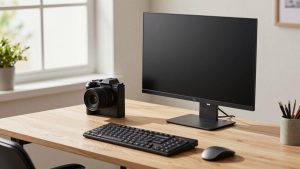
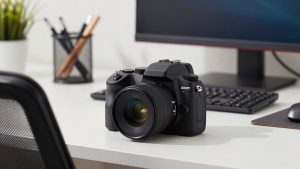
The third path is to use an HDMI action camera, camcorder, or mirrorless camera with a USB capture dongle. Because you control the HDMI audio path, you can run video-only into OBS, Zoom, or Teams and keep all audio on your headset. Image quality can be excellent, especially for controlling depth of field.
The trade-offs are real for daily work. You need continuous power — internal batteries overheat and die after 60-90 minutes. You need clean HDMI out with no on-screen icons. And you need good light; a large-sensor camera in a dark room with auto ISO will look grainy fast. This is also the most failure-prone setup after a Mac or Windows update, when the capture device changes names.
This only makes sense if you already own the camera. Don’t buy a $600 camera plus $100 capture setup just to avoid a $100 webcam mic you could disable in two clicks. If you do go this way, search for 4K HDMI to USB video capture devices for streaming and get one that explicitly supports UVC with no drivers — driverless UVC is far more stable for work calls.
Setup that prevents the classic echo problem
The reason most people want no mic is echo and mic fights. Two mics live at once, and colleagues hear themselves back. Fix it once at the source.
On Windows laptops: Settings > System > Sound > Input > choose your headset, then More sound settings > Recording > right-click the webcam mic > Disable. Do this before opening Teams. On Mac: System Settings > Sound > Input > select your external mic, then in each meeting app select the same mic manually — don’t leave it on System Default. Plug your webcam into the same USB port every time; swapping ports often causes Windows and Mac to reset the default input.
If you use a dock, test unplug and replug. Many docks re-enumerate audio on wake and silently switch Teams back to the webcam. A 30-second test call after any dock firmware update saves you a meeting full of “you’re echoing.”
FAQ
Can I physically remove the mic from a normal webcam?
No, don’t open it. You’ll break the autofocus cable or the lens seal and void any return. Disabling in the OS and not selecting it in your meeting app is functionally the same for echo, unless you have a strict no-hardware policy.
Will Zoom or Teams still use the webcam mic if I disable it?
Not if it’s disabled in Windows Sound settings. On Mac, set your headset as Input and manually select it in Zoom/Teams. Check after major app updates, which sometimes reset to System Default.
Are cheaper no-mic USB cameras fine for work?
For basic check-ins, yes. For 4+ hours of calls a day, usually no. Fixed focus and poor low light cause eye strain for viewers and make you look out of focus when you move. A mainstream 1080p camera with its mic disabled is often cheaper and looks better.
What should I buy if IT audits for audio devices?
Ask IT what they check for — Device Manager name, USB VID/PID, or physical teardown. Then buy a camera that explicitly states no audio endpoint and confirm in reviews that it doesn’t show up under Recording devices. Keep the invoice showing “no microphone” for compliance.