Last Updated: October 18, 2026
If you spend all day on Zoom, Teams, or Meet, 4K sounds like an easy upgrade. Sharper image, more professional, done. In practice, most 4K cameras for video conferencing spend most calls sending 1080p or 720p anyway because that is what the meeting app negotiates.
That does not make 4K useless. It gives you a sharper sensor to crop from, better digital zoom without falling apart, and cleaner text if you share a whiteboard. But you should buy for lens quality, autofocus, low-light performance, and microphones, not just the 4K badge on the box.
📄 In This Review
Do you actually need 4K for work calls?
For one-person calls from a laptop at a desk, often no. If your face fills the frame and your lighting is decent, a good 1080p webcam looks clean and uses less CPU and bandwidth. 4K helps in three specific cases: you want to crop or use auto-framing and still look sharp, you sit farther back in a small conference room, or you need to show detail like documents, prototypes, or a whiteboard.
The other reality is compression. Zoom and Teams heavily compress video, especially in gallery view with 10+ people. Your crisp 4K feed becomes a small tile. Viewers notice good lighting and stable focus far more than they notice 4K versus 1080p. If your office has dim overhead light or a bright window behind you, fix that first. A $30 light makes a bigger difference than a $200 sensor upgrade.
What matters more than resolution
See also: Best Monitor for MacBook Air: Two USB-C 4K Screens and Six Adapter-Dependent Alternatives • Best Monitor for MacBook Pro: Eight Listings Sorted by Cable, Sharpness and Scaling
Shop by these four things. First, autofocus behavior. Cheap 4K cameras hunt — they pulse in and out when you lean forward or hold up paper. Look for fast, quiet autofocus with face priority, and a fixed-focus option if you mostly sit still.
Second, low-light handling. Many 4K sensors are small and noisy in a dim home office. Larger pixels, good noise reduction, and a wide f/2.0-ish lens matter more than pixel count. If product listings show dark, grainy sample shots, believe them.
Third, field of view. For a solo desk, 65 to 78 degrees is ideal. Wider than 90 degrees makes you look small and shows your messy room. For a huddle room, you want 95 to 120 degrees plus auto-framing.
Fourth, Mac and laptop compatibility. Most USB webcams are plug-and-play on Mac and Windows, but advanced features like background blur controls, firmware updates, or auto-framing settings often require Windows-only software. If you are on a MacBook, check that you can adjust zoom, exposure, and microphone level without that app.
The three types of 4K conferencing cameras
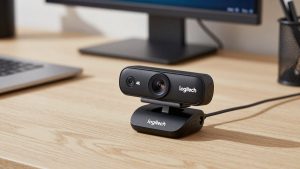
1. Compact 4K USB webcam. This is the right choice for most home offices. It clips to a monitor or laptop, powers over USB, and has dual mics. Strengths are simplicity and price. Failure mode is audio: built-in mics pick up keyboard clatter and room echo. Plan on a separate USB headset or desktop mic for all-day calls.
A basic 4K webcam for video conferencing in this class is fine if you sit 2 to 3 feet away, have a neutral background, and mostly do 1:1 calls.
2. All-in-one conference bar for small rooms. These are wider, with an array of microphones and sometimes a built-in speaker. They are meant for 2 to 6 people around a table. Good ones have auto-framing that zooms to the active speaker and noise suppression for HVAC hum. Failure modes are echo in glass rooms and over-aggressive cropping that cuts people off. You still need to place it at eye level, not on top of a 65-inch display pointing at foreheads.
If you are outfitting a huddle room, look at a dedicated 4K conference camera with speakerphone rather than stretching a desk webcam to cover a whole table.
3. Mirrorless or DSLR as a webcam. Best image quality by far, especially in bad light, with real background blur from a fast lens. But it is a system, not a product: camera, lens, tripod, continuous power dummy battery, and either USB webcam mode or an HDMI capture device. Failure modes are overheating on long calls, 30-minute recording limits on older bodies, and complexity your coworkers will not troubleshoot for you. Only choose this if you present, teach, or record and you enjoy fiddling.
| Type | Best for | Image in good light | Biggest trade-off |
|---|---|---|---|
| Compact 4K USB webcam | Solo desk, laptop + Mac | Very good, sharp center | Weak mics, struggles in dim rooms |
| Wide-angle 4K conference bar | Huddle room, 2-6 people | Good, softer at edges | Needs careful placement, can mis-frame |
| Mirrorless as webcam | Presenters, creators | Excellent, natural blur | Expensive, needs power, HDMI capture, setup |
| Good 1080p webcam | Most office workers | Clean, less CPU load | Digital zoom falls apart faster |
Who should buy what
Solo worker on a laptop: A compact 4K webcam is worth it only if you use digital zoom or auto-framing. Otherwise, be honest: a well-lit 1080p camera plus a headset will look and sound better than a 4K camera in a dark room on Wi-Fi. If you keep 4K, run it at 1080p or 1440p in Teams/Zoom settings to save CPU and avoid dropped frames, and keep 4K for recording.
Mac users: Prioritize UVC-compliant cameras that need no driver. Avoid anything that locks white balance, exposure, or field-of-view controls behind a Windows-only utility. On Apple Silicon MacBooks, also check USB hub behavior. Some 4K cameras demand direct USB 3.0 power and stutter through a cheap dock.
Small team room: Do not buy two desk webcams. Buy one wide-angle unit designed for rooms, mounted at seated eye height about 6 to 8 feet from the farthest person. Pair it with a table speakerphone if the room has echo. Test Teams and Zoom auto-framing before you mount anything permanently — some rooms with glass walls confuse tracking.
Presenter or coach: If video quality is part of your job, the mirrorless route wins. Use a 24mm to 35mm equivalent lens, soft key light at 45 degrees, and manual focus locked once you are seated. An HDMI capture card for camera as webcam is more reliable than many cameras’ built-in USB webcam modes and avoids odd cropping.
Setup mistakes that ruin 4K
Most bad 4K looks like a setup problem. Do not sit with a window behind you — the camera will expose for the window and turn you into a silhouette. Put the light source in front of you. Keep the lens at or slightly above eye level; looking up at a laptop camera is unflattering at any resolution.
Turn off beauty filters and over-sharpening if you can. They create waxy skin and halos around glasses. Leave auto white balance on unless your LED lights flicker, then lock it. And if your fan spins up on calls, drop the camera from 4K30 to 1080p30 in the meeting app. You will get smoother motion and less heat with almost no visible loss to other callers.
For audio, sit close to the mic source. A 4K camera three feet away hears your room. A headset six inches away hears you. If you must use the camera mic, enable noise removal in Teams/Zoom and close hard-surfaced doors.
FAQ
Will others see me in 4K on Zoom or Teams?
Usually not. Most calls are delivered at 1080p or 720p depending on bandwidth, layout, and admin settings. 4K helps locally for cropping, zooming, and recording, but do not expect recipients to see full 4K.
Does 4K use more CPU and internet?
Yes. 4K30 needs USB 3.0 bandwidth and noticeably more encoding work, which can make older laptops run hot or drop frames. If that happens, set the camera to 1080p in the app. You keep better autofocus and color without the load.
Can I use a 4K webcam with a MacBook?
In most cases yes, plug-and-play over USB. The catch is companion software. Check that exposure, zoom, and firmware can be adjusted on macOS or that defaults are sane without software at all.
When is the cheaper 1080p option fine?
When you do mostly 1:1 calls, sit close, have decent light, and use a headset. Spend the savings on lighting and a stable mount. Upgrade to 4K only if you regularly crop, frame multiple people, or present detail.