Last Updated: October 18, 2026
If you want that soft, blurred background on video calls — the look where you stay sharp and the messy bookshelf behind you melts away — you need to shop differently than most webcam roundups suggest.
Most webcams can’t do real optical bokeh. Their sensors are tiny and their lenses are wide-angle with deep depth of field, which means almost everything stays in focus. What they call bokeh is usually background blur done in software. It can look good, but it fails in specific ways. For true bokeh, you need a bigger sensor camera used as a webcam.
Here’s how to decide which route makes sense for work.
📄 In This Review
Software blur vs. real bokeh
Software blur — in the webcam app, in Zoom/Teams/Meet, or in Nvidia Broadcast — cuts you out and blurs what’s behind you. Best case, it looks like bokeh. Worst case, your hair, glasses frames, or hands flicker and go half-blurry when you move.
Real optical bokeh comes from a large sensor, wide aperture, and longer focal length. A mirrorless camera with a 35mm or 50mm f/1.8 lens 3-5 feet from you will give you creamy backgrounds with no edge glitches. It also looks far better in low light.
For daily standups and client calls, good software blur is usually enough. For YouTube, coaching, live selling, or executive presence where you are on camera for hours, the camera-as-webcam route is worth it.
What actually creates the effect
See also: Best Monitor for MacBook Air: Two USB-C 4K Screens and Six Adapter-Dependent Alternatives • Best Monitor for MacBook Pro: Eight Listings Sorted by Cable, Sharpness and Scaling
Ignore marketing words like cinematic. Look for these three things:
1. Sensor size. This matters most. A 1/2-inch sensor webcam will always have deeper focus than a 1-inch sensor webcam, which in turn can’t match Micro Four Thirds, APS-C, or full-frame. If you want blur without software tricks, go bigger.
2. Distance and framing. Sit closer to the camera and farther from the wall behind you. Even 4 extra feet between you and the background creates visibly more blur. A 50mm-equivalent tight head-and-shoulders shot blurs more than a wide-angle shot showing your whole desk.
3. Blur processing. Check if the blur runs on-device or in-app, whether it works on Mac, and whether it works at 1080p or drops to 720p. Some webcams only do background blur in Windows. On Mac, you may have to rely on Zoom’s or Teams’ built-in blur, which is fine but less adjustable.
Best options for bokeh on work calls
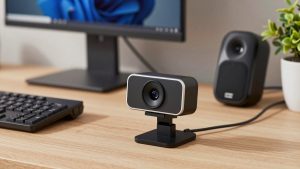
Best easy upgrade: AI-tracking 4K webcam with portrait blur
This is the category with models like the Insta360 Link series and OBSBOT Tiny series. They use a larger-than-average sensor for a webcam, autofocus, and a dedicated portrait / bokeh mode with adjustable intensity.
In practice, the blur looks convincing when you sit still in good light. Hair is the failure mode — curly hair, earbuds with white stems, and backlit windows cause halos and pulsing edges. Auto-framing that follows you around the room also breaks the illusion because the background keeps changing.
Who it suits: home office workers on Mac and Windows who want plug-and-play USB, no extra lenses or capture cards, and decent blur for Teams and Zoom. Turn off auto-tracking for the cleanest edges.
Shoppers in this category usually start by comparing 4K AI tracking webcams with background blur and checking whether the blur works in the Mac app, not just Windows.
Best image quality without going full camera: large-sensor fixed webcam
This is the category with models like the Elgato Facecam Pro and Logitech Brio series. They don’t follow you around. They prioritize a bigger sensor, better autofocus, and clean 1080p to 4K output.
By themselves they produce only mild natural background softness — don’t expect a blurry office. Pair them with Nvidia Broadcast (Nvidia GPUs only), Zoom’s background blur, or macOS Portrait mode and you get a stable, professional look. Because the starting image is cleaner, the software cutout fails less often than with a cheap 1080p webcam.
Who it suits: people who sit at a desk all day, want reliable focus and skin tones, and are okay using the meeting app for blur. If your room is dark, this is a better buy than a gimmicky blur webcam with a tiny sensor.
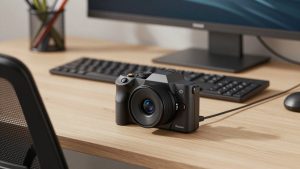
Best real bokeh: mirrorless camera as webcam
A Sony ZV / A6000-series, Canon R-series, Panasonic G-series, or similar with a fast prime lens is the only way to get true optical bokeh on calls. Set it to video mode, f/1.8 to f/2.8, 24-50mm, continuous autofocus on face/eye, and feed it over USB webcam mode or an HDMI capture card.
The difference is obvious: backgrounds melt, no flicker around hair, far better low-light performance. The trade-offs are cost, complexity, and heat. You need a tripod or desk mount, constant power via dummy battery or USB-PD, and 3-5 feet of desk depth. Autofocus can hunt if you gesture a lot, and some cameras overheat and shut off after 45-90 minutes in 4K. For calls, run 1080p — it runs cooler and still looks sharper than any webcam.
Who it suits: creators, founders, coaches, and anyone whose face is the product. Overkill for internal standups. If you go this route, look at mirrorless camera webcam kits with HDMI capture so you get a clean HDMI feed, mount, and power solution together.
Cheapest fix that is often fine: keep your webcam, add light and distance
Before you spend $200-$300, try this: put a $30-$50 key light in front of you, sit 6-8 feet from the wall behind you, and turn on built-in blur in Teams, Zoom, or macOS. On a modern laptop — especially Macs with Portrait video effects — this looks 80% as good as a dedicated bokeh webcam.
Upgrade only if your current webcam smears in low light, loses focus when you lean back, or mangles hands and glasses. A basic 1080p autofocus webcam for laptop and Mac plus good lighting will beat an expensive blur webcam in a dark room.
Quick comparison
| Option | Type of blur | Best for | Watch out for |
|---|---|---|---|
| AI-tracking 4K webcam | Software bokeh mode | Plug-and-play desk setup | Edge flicker on hair/hands; blur may be Windows-only |
| Large-sensor fixed webcam | Mild natural + app blur | All-day reliability | Little blur on its own; needs Zoom/Teams/macOS blur |
| Mirrorless as webcam | True optical bokeh | Creator-quality calls | Cost, desk space, power, heat, autofocus hunting |
| Current webcam + light | App blur | Budget home office | Fails in low light; older laptops struggle with blur |
Setup tips that matter more than specs
Put distance between you and the background. This single change does more for bokeh than jumping from 1080p to 4K. If your back is against a wall, no lens will blur it much.
Light your face, not the background. A bright window or lamp behind you forces the camera to expose down and adds noise, which makes software blur edges worse. Face a window or put a soft light at eye level.
Use 1080p for calls. Most meeting apps compress to 720p-1080p anyway. Running a webcam or camera at 1080p gives you smoother frame rates, less heat, and more stable blur than maxed-out 4K.
Test blur with movement. Wave your hand in front of your face, lean in and out, put on headphones. If ears disappear or fingers go transparent, lower the blur strength. Medium blur with clean edges looks more professional than max blur with artifacts.
FAQ
Can a webcam do real bokeh without software?
Only slightly. Small sensors and wide lenses keep almost everything in focus. You will get mild softening with a large-sensor webcam close up, but creamy round bokeh requires a bigger camera with a fast lens.
Why does background blur look bad on my calls?
Usually low light, a cluttered background too close behind you, or max blur strength. Add frontal light, move away from the wall, and drop blur to 50-70%. On Mac, use the meeting app’s blur if the webcam’s own app doesn’t support it.
Do I need a capture card for a camera as webcam?
Not always. Many newer mirrorless cameras have USB webcam mode — just plug in USB and select it in Zoom or Teams. You need an HDMI capture card if you want the highest quality, longer sessions, or your camera lacks clean USB video.
Is an expensive bokeh webcam worth it for work?
For most office work, no. A midrange autofocus webcam with good lighting and built-in meeting-app blur looks professional. Pay more only if you are on video all day, record content, or want tracking and auto-framing.