Last Updated: October 18, 2026
If you do a lot of video calls from a PC, the built-in camera and mic are usually the weakest link. Laptop cameras are still mostly 720p with small sensors that fall apart in office light, and the built-in mic picks up keyboard clicks, fan noise, and room echo. You do not need studio gear to fix it, but you do need to choose the right type of camera and mic for how you work.
For most home office workers, the sweet spot is a separate 1080p webcam and either a simple USB mic or a good headset. 4K cameras and XLR mics are better on paper, but they add cost, cables, and CPU load that many work laptops cannot handle well.
📄 In This Review
What most people actually need
Before you buy, think about your calls. Are you on Zoom or Teams 4 hours a day in a quiet room? Are you in a noisy living room? Do you move around, whiteboard, or stay at a desk? Do you use a desktop without any camera, or a laptop where you just want something sharper?
If you sit at a desk in a reasonably quiet room and want to look and sound clearer, a clip-on 1080p webcam plus a desk USB mic will beat any all-in-one upgrade. If you take calls with kids, coworkers, or street noise behind you, a headset with a boom mic close to your mouth will do more for intelligibility than a $150 desk mic.
| Setup | Best for | Strengths | Trade-offs |
|---|---|---|---|
| 1080p webcam + laptop mic | Tight budget, desktop with no camera | Cheap, simple, big jump in video | Audio still thin and echoey |
| 1080p webcam + USB desk mic | Quiet home office, desk-bound | Clear, full voice; good for recording | Picks up room noise; needs placement |
| 1080p webcam + wireless headset | Noisy rooms, shared spaces | Best noise rejection; hands-free | Audio sounds compressed; needs charging |
| 4K webcam + USB mic | Presenters, hosts, content reuse | Sharper crop and auto-framing | Higher price; needs good light and USB bandwidth |
Camera options: 1080p is enough for most
See also: Best Monitor for MacBook Air: Two USB-C 4K Screens and Six Adapter-Dependent Alternatives • Best Monitor for MacBook Pro: Eight Listings Sorted by Cable, Sharpness and Scaling
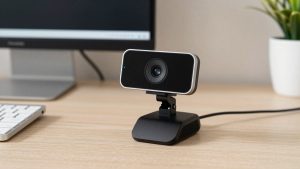
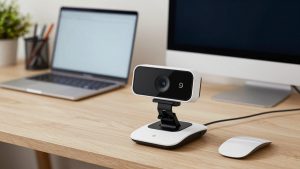
A basic 1080p webcam for PC with autofocus and a decent-size sensor is the honest default for work. In good overhead light, it looks sharp on Zoom, Teams, and Meet, which compress video anyway. Look for autofocus, not fixed focus, dual mics you will probably not use, and a standard tripod thread plus a monitor clip that actually grips.
Failure modes to know: cheap 1080p cameras lie about resolution, many are 720p sensors upscaled. They also hunt for focus in low light and blow out your face if you have a window behind you. If your image looks waxy or lags, it is often your office light or your laptop struggling with background blur, not the camera. Add a $20 desk lamp in front of you before you buy a more expensive camera.
A 4K webcam makes sense if you present, teach, or record clips you will crop later. The extra resolution lets you use digital zoom and auto-framing without going blurry, and newer models handle backlight better. The trade-off is price, heat, and USB load. Some 4K modes only run at 30fps, drop to 1080p when you enable AI framing, or stutter on older Intel Macs and thin work laptops. If IT locks down your USB ports or you use a cheap dock, stay at 1080p.
Mac users: check compatibility first. Most UVC webcams are plug-and-play on macOS, but the companion apps for background replacement, firmware updates, and manual exposure are often Windows-only. If you need Center Stage style tracking on Mac, confirm it works in hardware without the app.
Mic options: headset for noise, desk mic for tone
For pure call clarity, a headset beats a desk mic in a noisy house. A boom mic 1 inch from your mouth does not have to work hard, so it rejects keyboards, dogs, and room echo better than any software noise removal. Wired USB headsets are the most reliable for work. Wireless is convenient but adds charging, Bluetooth pairing issues on PCs, and a slightly compressed sound. If you pace or do long calls, wireless is worth it. If you sit still, wired is cheaper and just works.
If your room is quiet, a USB condenser microphone for work calls will make you sound noticeably fuller and less fatiguing than a headset or laptop mic. Cardioid desk mics on a short stand or boom arm are best. Keep it 6 to 8 inches from your mouth, slightly off-axis, with a gain knob turned down. That one placement trick prevents most distortion and plosives.
Failure modes to know: desk condenser mics hear everything. Mechanical keyboards, HVAC, hard floors, and a mic sitting directly on the desk will come through as rumble and clicks. Do not put the mic next to your speakers on speakerphone mode or you will get echo complaints. If you cannot treat the room at all, choose a dynamic USB mic or a wireless headset with mic for calls instead of a sensitive condenser.
Lavalier and clip-on wireless mics are useful if you stand, demo products, or move between rooms, but they are overkill for desk calls and add batteries and receivers to manage. For laptops, a simple USB-C mic with a headphone jack for zero-latency monitoring avoids most driver headaches.
All-in-one video bars vs. separate camera and mic
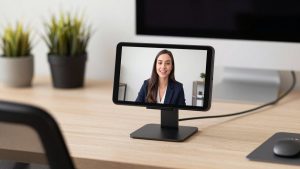
USB video bars that combine a camera, mic array, and speaker are popular for small conference rooms and tidy desks. They reduce cable clutter and everyone in a 6-foot radius is audible. For solo desk work, though, separates usually win. A dedicated mic close to you will sound better than a mic array 3 feet away, and a separate webcam can be angled independently.
Choose an all-in-one only if you hate cables, share the PC with others in the same room, or constantly switch between personal and group calls. Expect a compromise: wider field of view means more background visible, and beamforming mics can cut off the start of words in echoey rooms. Test echo cancellation in Teams or Zoom before an important meeting.
Setup that matters more than gear
Most bad call quality is placement and settings, not hardware. Put the camera at eye level, about arm’s length away. Face a window or lamp, do not sit with a bright window behind you. In Windows Sound settings or Mac Sound settings, set the external mic as input, lower input volume to around 70 percent, and turn off automatic gain if your voice pumps up and down.
In Zoom and Teams, turn on noise suppression on Low or Auto first. High or aggressive modes make desk mics sound robotic. If you use background blur, note it taxes older CPUs and can make fans spin up, which your mic then picks up. A physical background or slight camera crop is quieter. Finally, plug webcams and mics directly into the PC when troubleshooting. Many docks, especially USB hubs with external drives, cause freezes, robotic audio, or cameras that drop to low resolution.
FAQ
Is a 4K webcam worth it for Zoom and Teams?
Usually no. Those apps compress to 1080p or 720p, so coworkers will not see 4K detail. Buy 4K only if you want auto-framing, digital zoom, or to record video you will edit later, and you have good light and a recent PC or Mac.
Should I get a USB mic or a headset for work calls?
Get a headset if your room is noisy or you share space. Get a USB desk mic if your room is quiet and you want richer, less fatiguing sound. If you can only buy one thing and your laptop camera is usable, upgrade the mic first – bad audio ends calls, slightly soft video does not.
Why do I sound echoey even with a good mic?
You are likely too far from the mic, using speakers at high volume, or in a bare room. Move the mic closer, use headphones, lower speaker volume, and add soft furnishings. Turn off monitoring and second apps that are also listening to the mic.
Will these work with both PC and Mac laptops?
Most USB webcams and mics do, as they use standard USB audio and video. The catch is software features like AI tracking controls, EQ, and firmware updates, which are often Windows-only. Check the specs for macOS support if you rely on those extras.