Last Updated: October 18, 2026
📄 In This Review
What Makes a Webcam Good for Microsoft Teams
Microsoft Teams is pickier than Zoom or Google Meet in one specific way: it leans hard on certified hardware and background processing. A webcam that looks great in the Windows Camera app can still stutter, wash out, or fail to blur your background cleanly in Teams. If you live in Teams all day, you want a camera that handles auto-exposure quickly, keeps your face sharp when you lean in and out, and doesn’t force your laptop fan to run at full speed to do it.
Teams also compresses video more aggressively than most people expect. A 4K sensor does not automatically mean you will look like 4K to everyone else. For most calls, Teams caps at 1080p and often sends 720p if bandwidth or CPU is tight. That means lens quality, autofocus speed, and low-light performance matter more than raw resolution.
What Actually Matters for Teams
See also: Best Monitor for MacBook Air: Two USB-C 4K Screens and Six Adapter-Dependent Alternatives • Best Monitor for MacBook Pro: Eight Listings Sorted by Cable, Sharpness and Scaling
Certification vs. compatibility: “Microsoft Teams certified” means the device passed Microsoft’s testing for plug-and-play behavior with Teams – mute sync, consistent framing, and predictable performance with Teams’ background effects. Non-certified webcams work fine 95% of the time, but certified models are less likely to have weird issues where background blur flickers or Teams doesn’t recognize the camera after sleep.
Autofocus and auto-exposure: This is the biggest real-world difference between cheap and mid-range webcams. Cheap fixed-focus cameras are fine if you sit exactly 2 feet away and never move. If you lean forward to read, lean back to think, or hold up a document, fixed-focus goes soft. Fast autofocus keeps you sharp without hunting. Good auto-exposure prevents you from looking like a ghost when a window is behind you.
Field of view: 65 to 78 degrees is ideal for one person at a desk. It frames your head and shoulders without showing your entire messy room. Wider 90-degree lenses are better if you need to fit two people on one camera, but they make a solo speaker look small and distorted at the edges.
Microphone and speaker trade-off: Every webcam has a built-in mic, but Teams does heavy noise suppression already. A webcam mic is usable as a backup, but a dedicated headset or even $30 USB speakerphone will beat any webcam mic for clarity and echo cancellation. Do not pay extra for a webcam just because it advertises dual mics if you already use a headset.
Windows Hello and Mac support: Some 4K webcams include Windows Hello IR for facial login on Windows 11. Useful, but irrelevant if you are on a Mac. On MacBooks, check that the camera is truly plug-and-play over USB without a driver. Most modern Logitech, Dell, and Poly cameras are, but a few business-focused models need Logi Tune or Dell Peripheral Manager to enable features like auto-framing.
Our Picks by How You Use Teams
1. Best all-rounder for daily Teams calls: 1080p with fast autofocus
For most home offices, a solid 1080p camera with good autofocus is the sweet spot. You get a sharp image, reliable background blur without artifacts, and no extra CPU load like 4K requires. This is the category where the cheaper option is genuinely fine for 90% of workers. Look for models with a 78-degree field of view, autofocus under 1 second, and a built-in privacy shutter.
If you are shopping in this range, a proven 1080p webcam for Teams with autofocus will cover 6-8 hours of meetings without making your laptop throttle. Failure mode to watch for: cheap 1080p cameras often struggle in warm, yellow home-office lighting. Faces go orange and grain builds up after 5pm. Mid-range options handle white balance much better.
2. Best upgrade if you present or lead meetings: 4K with AI framing
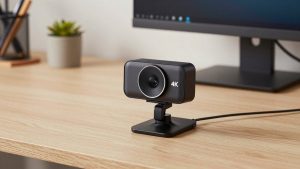
This is worth it if you are the person who shares your camera the whole meeting, records Teams meetings, or presents to clients. 4K sensors downscaled to 1080p look noticeably cleaner, and features like auto-framing (camera follows you if you move) and light correction help you look professional without fiddling.
The trade-off is price and CPU usage. 4K auto-framing uses more processing power. On older laptops, especially Intel MacBooks or thin-and-light Windows machines without active cooling, you may see dropped frames in Teams when both camera effects and screen sharing are on. If your laptop is more than 3-4 years old, a high-quality 1080p camera will actually look smoother than a budget 4K one.
A good example of this class is a 4K webcam with auto-framing for Teams from the business lines of Logitech, Dell, or Poly. Who it suits: managers, trainers, and anyone who is on camera for 4+ hours a day and wants to avoid looking washed out.
3. Best for shared desks and small huddle rooms: wide-angle with Teams certification
If two people share one desk or you use the webcam for a small conference table, get a certified wide-angle model (90 degrees or more) with a decent mic array and Teams mute sync. These cameras are designed to keep both faces in focus at different distances, which single-person webcams struggle with.
Who it does not suit: solo workers. That wide angle will make you look small and show too much of your room.
4. Budget pick when you just need to be clearly visible: fixed-focus 1080p
If you are mostly listening in Teams, keep your camera off except for daily standups, or your company laptop already has a decent 1080p built-in camera, you do not need to spend $150. A basic fixed-focus 1080p webcam is fine. Image will be a bit softer, background blur will be less clean around hair and glasses, but you will be intelligible and present.
This is also the most reliable option for older laptops and MacBook Airs because it draws less power and needs no software. If you want the simplest plug-and-play option, search for a budget 1080p webcam with privacy shutter for Teams and stick to brands with real warranty support.
Comparison: Which Type Fits Your Work
| Type | Best For | Teams Background Blur | Low-Light Quality | Watch Out For |
|---|---|---|---|---|
| Budget 1080p Fixed-Focus ($30-$55) | Occasional camera-on, second home office, kids’ laptop | Works, but edges flicker around hair/glasses | Average, grainy after sunset | Soft image if you move closer/farther; slow exposure when window behind you |
| Mid-Range 1080p Autofocus ($60-$110) | Daily Teams user, 1-person desk | Clean, stable | Good, natural skin tones | Make sure it has a privacy shutter; some cheap stands slip off thin laptop lids |
| 4K Auto-Framing ($130-$220) | Presenters, team leads, recording meetings | Very clean, handles fine detail better | Very good, with HDR correction | Higher CPU load; needs USB 3.0 for full quality; overkill if Teams sends you at 720p |
| Wide-Angle Certified ($90-$180) | Two people on one camera, huddle rooms | Stable for two subjects | Good, but wide lens lets in more background light | Too wide for solo use; distortion at edges; mic picks up more room echo |
Setup Tips That Matter More Than Resolution
Even the best Teams webcam will look bad if your setup fights it. Teams does not fix bad lighting, it just compresses it.
Put a soft light source in front of you, not behind you. A window behind you forces auto-exposure to darken your face. If you cannot move your desk, close the blinds and use a small desk lamp bouncing off a wall. This single change beats upgrading from 1080p to 4K.
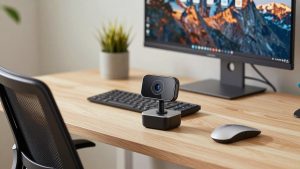
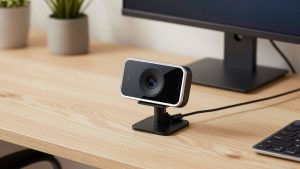
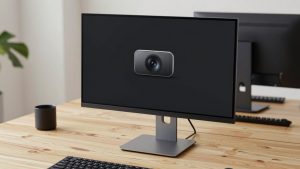
Mount at eye level. Laptop lids angle the camera up your nose and make double chins more prominent. A clip-on webcam on top of an external monitor is better, or put your laptop on a stand. Keep the camera 20 to 30 inches away for the most natural framing.
In Teams, go to Settings > Devices > Camera and turn off overly aggressive filters. Test background blur with your actual glasses and hairstyle. Some cameras create a halo around thin glasses frames – if you see it, switch to a plain background or a subtle blur instead of a virtual image.
For Mac users: Teams on macOS handles virtual backgrounds on-device, so expect higher CPU use and warmer laptops. If your MacBook Air gets hot and the camera starts stuttering, drop Teams video to 720p in the meeting or turn off auto-framing in the webcam’s software. That usually fixes it without buying new hardware.
FAQ
Do I need a Microsoft Teams certified webcam?
No, but it helps if Teams is your primary app. Certified models have been tested to work reliably with Teams background effects, mute controls, and sleep/wake behavior. Non-certified webcams usually work fine, you just may need to reselect the camera after your computer wakes up or see occasional blur artifacts.
Is 4K worth it for Teams calls?
For most people, no. Teams rarely transmits true 4K and your colleagues will see you at 1080p or 720p. A good 1080p camera with fast autofocus and good low-light correction will look better than a cheap 4K sensor. Get 4K only if you present often, record meetings, or want auto-framing and better digital zoom.
Will a better webcam fix my dark or grainy image?
Only partly. Grain and darkness usually come from poor lighting, not the sensor. Add a front-facing light and keep bright windows out of the frame behind you. If your image is still grainy after that, then a mid-range webcam with larger pixels and better white balance will be a real upgrade.
Why does my webcam stutter only in Teams?
Teams uses more CPU for background blur, noise suppression, and encoding than other apps. If stutter happens only in Teams with blur or auto-framing on, your laptop is hitting its CPU or USB bandwidth limit. Try turning off background effects, closing other camera apps, connecting directly to a USB 3.0 port instead of a hub, and updating Teams and your camera firmware.