Last Updated: October 18, 2026
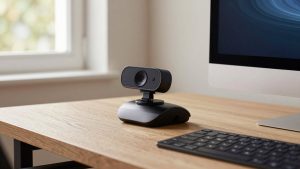
If you do video calls all day, a USB webcam is still the simplest upgrade you can make. Laptop cameras are better than they used to be, but they still wash out in bad light, crop too tight, and fall apart the moment you move. A good external webcam fixes framing, exposure, and consistency without making you think about settings before every meeting.
For 2026, don’t chase specs. A stable 1080p image with good autofocus and decent low-light handling beats a cheap 4K sensor in real meetings. Zoom, Teams, and Meet compress everything anyway. What matters is how you look at 9am in a dim home office, not what the box claims.
📄 In This Review
What actually matters for work calls
Resolution is only part of it. Look for autofocus that doesn’t hunt, auto-exposure that doesn’t blow out your face when a window is behind you, and a 65 to 78-degree field of view if you sit alone. Ultra-wide 90-degree+ views are useful for two people sharing a desk, but for solo calls they make you look distant and show your messy room.
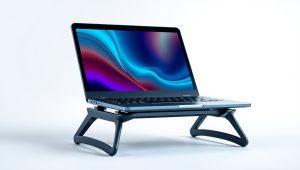
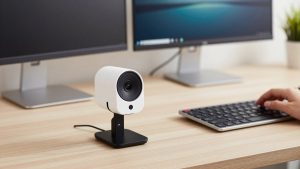
Mounting and USB connection cause more returns than image quality. Most webcams still ship with USB-A and a short 4 to 5-foot cable. If you use a MacBook with only USB-C, or a dock under your desk, budget for an adapter or a longer active cable. A heavy webcam on a thin laptop lid will also wobble every time you type. If your laptop lives on a stand, put the camera on a separate tripod or monitor mount.
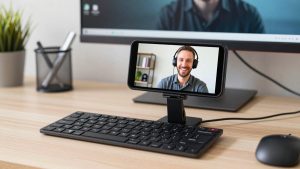
Built-in mics are fine as a backup, but they pick up keyboards, fans, and room echo. If you already use earbuds or a USB headset, you can ignore mic quality entirely and save money. Privacy shutter, Teams or Zoom certification, and Mac plug-and-play support matter more for daily work.
Quick comparison
See also: Best Monitor for MacBook Air: Two USB-C 4K Screens and Six Adapter-Dependent Alternatives • Best Monitor for MacBook Pro: Eight Listings Sorted by Cable, Sharpness and Scaling
These are categories, not specific models, because model names change constantly while the trade-offs stay the same.
| Type | Best for | Strengths | Watch out for |
|---|---|---|---|
| Basic 1080p fixed-focus | Budget laptop upgrade, kids’ school, second PC | Cheap, simple, low CPU load | Soft in low light, no adjustment if you move closer/farther |
| Mid-range 1080p / 1440p autofocus | Daily home office, interviews, freelancers | Reliable focus, better exposure, usable mics | Autofocus can pulse on some units; check cable length |
| 4K autofocus with larger sensor | Presenters, coaches, anyone who crops or records | Sharper, better low light, digital zoom headroom | Costs more, needs good light and USB bandwidth, compressed by Zoom anyway |
| Business-certified with shutter | Corporate laptops, Macs in IT-managed offices | Teams/Zoom presets, privacy shutter, stable drivers | Narrower look, often only 1080p for the price |
Best budget pick: basic 1080p is fine for most calls
If you just need to look clear on a laptop and you sit 2 to 3 feet away in decent light, stop here. A basic 1080p USB webcam with fixed focus will look dramatically better than a 720p laptop camera, especially on older Windows laptops.
The trade-off is low light. Fixed-focus budget sensors get noisy and smeary in a dim bedroom office, and they have no real dynamic range. If you face a window or use a single overhead light, add a $20 desk lamp in front of you rather than buying a more expensive camera. Light helps budget webcams more than any setting.
Failure mode to know: fixed focus means what it says. Lean back in your chair and you stay readable; hold up a document close to the lens and it will stay blurry. Also check the mount before you buy. Some ultra-cheap clips don’t grip thick monitors or curved ultrawides and slowly tilt down during calls.
Best all-around for home office: autofocus 1440p or good 1080p
This is the sweet spot for full-time remote work. A mid-range autofocus camera holds focus when you lean in, handles mixed office light better, and usually includes dual mics with light noise reduction. For Zoom and Teams, a clean 1440p autofocus webcam for home office often looks better than a cheap 4K camera because the processing is less aggressive.
Who it suits: anyone doing 3+ hours of calls per day, job seekers, managers, and freelancers who need to look professional without fiddling. Look for 30fps at full resolution, a physical privacy shutter, and a 65 to 78-degree view for solo framing. 60fps is nice for hand movement but rarely matters for talking heads, and it needs more light.
Concrete downside: autofocus hunting. Some units pulse in and out if you have a busy background like a bookshelf or move your hands a lot. If yours does that, move 6 inches farther back, turn off background blur, or lock focus in the vendor app. Also test your USB port. Plugging into an unpowered hub with a headset and external drive can cause stutter or drop to lower resolution.
Best for Macs and thin laptops: fit, cable, and compatibility
Mac users should prioritize plug-and-play UVC support over fancy Windows-only software. macOS handles most USB webcams natively in FaceTime, Zoom, and Teams, but features like AI framing, background blur, and manual exposure often require a vendor app that may be Windows-only or limited on Apple Silicon. If you need those controls, check Mac support before you buy, not after.
Practical setup matters more here. Modern MacBooks need USB-C, many docks pass through limited power, and Center Stage-style auto-framing can crop aggressively if you sit close. A compact business camera with a flat-bottom clip and tripod thread is easier to live with than a bulky 4K unit that overhangs the lid. If you use a Mac mini or Studio with a separate monitor, get a model with a longer detachable cable or plan on a mount.
This is also where a dedicated USB webcam for Mac with privacy shutter makes sense for shared spaces and offices. The shutter is faster and more reliable than software toggles, and IT departments tend to prefer certified devices that don’t need background services running.
When 4K makes sense – and when it doesn’t
Buy 4K if you record video, teach, coach, or present and want to crop in without going soft. A larger-sensor 4K camera in good light gives you cleaner 1080p output after downscaling and lets you use 2x digital zoom and still look sharp. That is useful if your desk is deep or you want head-and-shoulders framing from farther away.
Don’t buy 4K just for Zoom. Live calls are typically delivered at 720p to 1080p, often lower on bad hotel Wi-Fi. You will pay more, generate more heat, and use more CPU for a difference no one else can see. If your room is dark, spend the difference on lighting first. A $35 daylight LED panel will improve a 1080p camera more than jumping to 4K in the same dark room.
Failure modes: cheap 4K cameras often fake sharpness with heavy sharpening, which looks crunchy on text and faces. They also struggle with older USB 2.0 hubs and long passive extension cables. Use a direct USB 3.0 port if you want full resolution, and turn sharpening and auto low-light boost down if faces look waxy.
FAQ
Do I need 4K for Zoom or Teams?
No, for most people. Both platforms compress heavily, so a clean 1080p feed with good light looks the same to other attendees. Get 4K only if you record locally, stream, or need digital zoom headroom.
Why does my webcam look worse than my phone?
Usually light and processing. Phones have much larger sensors and aggressive processing. Put a soft light in front of your face, face the window instead of sitting with it behind you, set the camera at eye level, and turn off background effects to test the true image.
Will a USB webcam work with Mac?
Almost always yes for basic video in Zoom, Teams, Meet, and FaceTime, because they use standard USB video. Advanced features like AI tracking or manual controls may need a vendor app with limited Mac support, so check that specifically if you need it.
My video stutters or drops resolution. Is the camera broken?
Probably not. Try a direct USB port instead of a hub, unplug another high-bandwidth device, close background blur, and drop from 4K to 1080p. Long or low-quality extension cables and underpowered docks are the most common cause.