Last Updated: October 18, 2026
MacBooks have decent built-in FaceTime cameras on paper, but in daily work they still struggle. They sit too low when the laptop is on a desk, they fall apart in warm office light, and on an external monitor setup you have no camera at all. An external webcam fixes placement and image quality at once, if you pick one that actually plays well with macOS.
After testing different types on MacBook Air, MacBook Pro, and Mac mini setups for Zoom, Teams, Meet, and Webex, the pattern is clear: you do not need the most expensive 4K camera to look professional. You need correct focus behavior, usable low-light performance, and a mic you can turn off without thinking about it.
📄 In This Review
What Mac users actually need
macOS is plug-and-play with most UVC webcams, which means no driver install for basic video. Problems start with the extras. Privacy shutters, auto-framing, background blur, and settings apps are often Windows-first. On a Mac you may get video immediately but no way to update firmware or turn off aggressive noise reduction.
For work calls, prioritize three things. First, a fixed mount that grips a Studio Display, LG UltraFine, or laptop lid without wobbling. Second, autofocus that does not hunt every time you lean back. Fixed focus is boring but reliable for desk work. Third, a wide but not too-wide field of view. Around 78 to 90 degrees keeps you centered without showing your whole room.
Resolution matters less than sellers imply. A clean 1080p image with good exposure beats a soft, oversharpened 4K image that drops frames in low light. 4K only pays off if you crop in for framing or you present and want to stay sharp when sharing detail.
Quick comparison by use case
See also: Best Monitor for MacBook Air: Two USB-C 4K Screens and Six Adapter-Dependent Alternatives • Best Monitor for MacBook Pro: Eight Listings Sorted by Cable, Sharpness and Scaling
Most people fall into one of these buckets. Match your actual calls, not the spec sheet.
| Type | Typical resolution | Best for | Watch out for |
|---|---|---|---|
| Basic 1080p USB webcam | 1080p / 30fps | Daily Zoom and Teams, laptop on stand | Narrow dynamic range, harsh backlight blows out window |
| Midrange 1440p webcam | 1440p / 30fps | Home office with mixed light, external monitor | Software features may not work on Mac |
| 4K work webcam | 4K / 30fps | Presenting, recording, cropping to frame | Needs good light and direct USB port, runs warm |
| iPhone as Continuity Camera | Varies | Travel, temporary desk, best sensor you already own | Mount slips, battery drains, calls drop if phone locks |
Best for most desk workers: clean 1080p
If you sit at a desk all day and just want to look clear without fiddling, a basic 1080p webcam for Mac is fine. These are small, cheap, powered by USB-A or USB-C, and macOS sees them instantly in Zoom and Teams.
The trade-off is light handling. In a room with a bright window behind you, your face goes dark while the window goes white. There is no real HDR here. You fix it by facing the window or adding a $20 desk lamp, not by buying more megapixels. Autofocus on cheap models can also pulse if you gesture a lot. If you mostly sit still, it is a non-issue.
Who suits: hybrid workers, students, anyone with a laptop stand plus external monitor who needs eye-level video. Failure mode to know: many cheap models default to a beauty filter or heavy sharpening you cannot turn off on Mac. Check the first call recording. If your skin looks waxy, return it.
Best upgrade for home offices: 1440p with better lens
The sweet spot for Mac home offices is a midrange 2K / 1440p camera with a larger sensor and dual mics. You get a visibly cleaner image in evening light, less grain, and more stable exposure when clouds move. It still runs at 30fps without taxing an older MacBook Air.
This is where Mac compatibility gets annoying. The camera will work, but the companion app for framing, zoom presets, or firmware updates is often Windows-only or web-only. Buy one where the defaults are good out of the box: auto exposure on, autofocus gentle, field of view around 80 degrees. Do not buy for AI tracking unless reviewers confirm it works without the Windows app.
Who suits: managers, coaches, therapists on video all day, anyone in a dim room. Be honest: if your room is already bright and you use a headset mic, you will not see a big jump over 1080p. Save the money.
When 4K is worth it: presenting and cropping
A 4K webcam for MacBook makes sense for two jobs: you record clips for work, or you want to digitally zoom and still look sharp. Mount it on top of a 27-inch monitor, set a 2x crop, and you get a natural head-and-shoulders frame without moving the camera.
The downsides are real. True 4K needs a direct USB-C or USB 3.0 port. Through an old hub or a monitor passthrough, it often falls back to 1080p or stutters. It also shows every lighting flaw. In low light, many 4K sensors switch to heavy noise reduction and your image smears when you move. The camera also runs warmer than 1080p models.
Who suits: creators, trainers, founders pitching. Failure mode: Teams and Zoom often cap you at 1080p or 720p anyway. You pay for local recording quality and cropping flexibility, not for what the other side always sees.
iPhone as webcam and what to do about audio
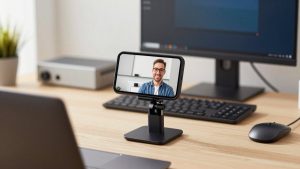
Apple’s Continuity Camera turns a recent iPhone into a Mac webcam, wirelessly or wired. Image quality is excellent, especially in low light, and Desk View is useful for demos. For travel it beats carrying another gadget.
As a daily driver it is fiddly. MagSafe mounts slip on thick monitors, the phone gets hot on long calls, and notifications or an incoming call can interrupt video. Wired USB gives a more stable connection than wireless. If you take calls all day, a dedicated webcam is less stressful.
On audio: do not judge a webcam by its mics. Even good dual mics pick up keyboard and room echo. They are fine as backup. For work, use AirPods, a headset, or a cheap USB mic and mute the webcam mic in Zoom settings. Look for a camera with a physical mute or lens cap. Touch mute buttons are easy to misread on a call.
Setup that matters more than the camera
Mount at eye level. On a laptop, that means a stand plus external keyboard. On a desktop, center the camera on the monitor, not off to the side. Sit about an arm’s length away.
Plug directly into the Mac or a powered Thunderbolt dock. Avoid chaining through keyboard USB ports. If you buy a USB-A camera for a USB-C Mac, use one good adapter, not a stack of adapters. In Zoom, turn off HD only if your Mac fans spin up; most M-series Macs handle 1080p fine.
For light, face a window or put a soft lamp behind the monitor. Close blinds behind you. A $25 bias light will improve a $40 camera more than upgrading to a $150 camera in a dark room. If you want background blur, do it in Zoom or Teams, not in a vendor app that may not support Mac. Native blur is more reliable and easier to toggle.
If you need a mount for a thin display or want to browse mounts and lighting together, search webcam mounts and lights for home office rather than buying another camera first.
FAQ
Do I need drivers for a webcam on Mac?
Usually no. Most modern webcams use the UVC standard and work instantly in FaceTime, Zoom, Teams, and Meet. Extra features like AI framing or settings memory may need an app that is Windows-only. Check that before you buy.
Why does my 4K webcam look blurry on Zoom?
Zoom and Teams often limit incoming video to 720p or 1080p to save bandwidth. You still benefit in recording apps like QuickTime or OBS, and when you crop. Also check you are plugged into USB 3.0 or faster and that low-light mode is not smearing motion.
Is using my iPhone as a webcam good enough for work?
Yes for image quality, especially in dim rooms. It is less ideal for all-day reliability because of heat, battery drain, and mount stability. Use a cable, enable Do Not Disturb, and keep a dedicated webcam if you host long meetings.
1080p or 4K for a MacBook Air?
For most people, 1080p. It is lighter on CPU, runs cooler, and looks clean on calls. Choose 4K only if you record, present often, or want to crop tightly without losing sharpness, and you have decent lighting.
Related Reviews & Guides


5 Best Standing Desks with Storage (2026)
Best Webcam for Online Teaching