Last Updated: October 18, 2026
If you use a Mac for work, your webcam needs to do one thing well: work every time you open Zoom, Teams, FaceTime, or Meet, without driver hunting or settings buried in Windows-only software. macOS is picky about that. Many webcams will technically connect to a MacBook or Mac mini, but features like 4K modes, background blur, auto-framing, and manual exposure often only work in the vendor’s Windows app.
That is why the best digital camera for Mac is not necessarily the sharpest sensor. It is the one that is truly plug-and-play over USB-C, keeps exposure stable in a home office, and does not hijack your microphone setup. For most Mac users, that means a simple UVC-compliant 1080p or 4K webcam, or just using an iPhone with Continuity Camera.
📄 In This Review
What actually matters on a Mac
Look for UVC compliance first. That means macOS sees it as a standard USB video device with no driver install. You plug it in, it shows up in Zoom and QuickTime Player immediately. Almost all current mainstream webcams do this for basic video, but advanced controls often do not carry over. If a box advertises AI framing, gesture controls, or virtual backgrounds, assume those need Windows unless the maker explicitly lists a macOS app with Apple Silicon support.
Second is connection and power. Modern MacBooks and Mac minis are USB-C only. A webcam with a native USB-C cable saves you a dongle and one common failure point. USB-A webcams with an adapter usually work, but cheap adapters cause the classic Mac failure modes: camera not detected after sleep, flickering at 4K, or the mic disappearing mid-call. If you dock through a monitor or hub, plug the webcam directly into the Mac to test before you blame macOS.
Third is light handling, not megapixels. Mac home offices tend to be backlit, with a window behind you or a bright Studio Display in front. Small sensors overexpose faces and blow out windows. A good 1080p camera with large pixels, decent auto-exposure, and a 65 to 78-degree field of view will look better day to day than a cheap 4K sensor that is noisy in low light and defaults to an ultra-wide shot of your whole room.
Quick comparison for Mac users
See also: Best Monitor for MacBook Air: Two USB-C 4K Screens and Six Adapter-Dependent Alternatives • Best Monitor for MacBook Pro: Eight Listings Sorted by Cable, Sharpness and Scaling
This table skips spec-sheet marketing and focuses on what changes your calls:
| Option type | Best for | Mac trade-off | When cheaper is fine |
|---|---|---|---|
| Basic 1080p USB webcam | Daily Zoom and Teams on MacBook | Narrower dynamic range, basic mic | Fine for most office work if lighting is decent |
| Mid-range 4K webcam with dual mics | Home office, coaching, interviews | 4K often limited to 30fps, advanced settings may need Windows | Worth it if you sit far back or crop in |
| Premium auto-framing webcam | Teaching, demos, moving around | Framing can hunt or lag; macOS app support varies | Skip if you sit still at a desk |
| iPhone as webcam via Continuity Camera | Best image quality you already own | Uses up iPhone, needs mount and power for long calls | Best free option for MacBook users |
Best for most Mac office work: simple 1080p
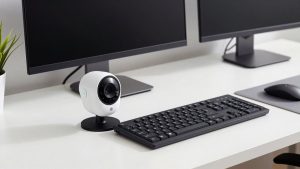
If your calls are 30 minutes of talking head on a MacBook Air or iMac setup, buy simple. A basic 1080p webcam for Mac with autofocus, dual microphones, and a privacy shutter covers 90 percent of needs. It runs cooler, uses less USB bandwidth, and is far less likely to drop frames through a dock than 4K.
Failure mode to know: cheap 1080p models fix exposure slowly. If you move from a dark hallway to a bright desk, your face stays dark for 2 to 3 seconds. Fix this with a $20 desk lamp in front of you rather than a more expensive camera. Also check field of view. Anything over 90 degrees will make you look distant and show clutter. A 65 to 78-degree lens looks more natural for one person at arm’s length.
Who this suits: employees, students, anyone on a managed Mac who cannot install vendor software. If IT locks down installs, UVC-only is a feature, not a limitation.
Worth the upgrade: 4K for home office and client calls
Step up to 4K when you want cropping flexibility, need to look sharp on a large external monitor, or record training videos locally. A mid-range 4K webcam for Mac with USB-C usually gives you better lenses, larger sensors, and clearer mics than budget 1080p. On a Mac you will mostly use it at 1080p or 1440p in Zoom anyway, but downscaled 4K looks cleaner and lets you digitally zoom without turning to mush.
Trade-offs are real. 4K over a hub often falls back to lower resolution or 15fps. Vendor apps for zoom presets, HDR toggles, and firmware updates are frequently Windows-first. On Apple Silicon Macs, some older camera utilities run under Rosetta or not at all. Before you buy, check the support page for a current macOS version number, not just works with Mac. And plan on using the Mac’s internal mic or a USB headset for important calls. Even good webcam mics pick up keyboard and room echo.
Who this suits: freelancers, managers, therapists, tutors, and anyone whose face is their storefront. If you sit 3 to 4 feet from the screen on a 27-inch display setup, the difference is visible.
Only if you move around: auto-framing cameras
Auto-framing cameras follow you, keep you centered, and can switch between wide and tight shots. For teachers pacing in a home studio or makers doing demos, that is useful. For a seated desk worker, it is a liability. On Mac, you often cannot tune tracking speed or turn off over-aggressive zoom without the full desktop app. Result: the frame drifts when a coworker walks behind you or hunts during hand gestures.
If you need this style, prioritize models that store settings on the camera itself and remember your framing after unplug. Otherwise every reboot resets you to ultra-wide. Test in FaceTime first, then in Zoom and Teams, because virtual camera handling differs. Disable Mirror My Video confusion by checking preview in each app separately.
Do not overlook Continuity Camera
For Macs running recent macOS on Apple Silicon or recent Intel, an iPhone mounted on your display is often sharper than any sub-$200 webcam, especially in mixed light. Continuity Camera gives you Center Stage, Portrait mode, and Desk View with no extra purchase beyond a mount. It connects wired or wirelessly and appears as a camera option in most apps.
The catches: it ties up your phone, wireless mode can lag or overheat on hour-long calls, and mic handoff can confuse Teams audio routing. For daily standups, wireless is fine. For interviews or webinars, plug the iPhone in with a cable, enable Do Not Disturb, and keep it charging. If you do this regularly, a dedicated iPhone monitor mount for Continuity Camera is more important than a new camera.
Mac setup that prevents most problems
Set this once and most webcam weirdness disappears. In System Settings, check Privacy and Security then Camera and Microphone to confirm Zoom, Teams, Chrome, and Slack are allowed. In each meeting app, manually select the same camera and mic instead of leaving it on System Default. That stops macOS from switching to AirPods or the Studio Display mic mid-call. If video stutters at 4K, lower the app to 1080p before buying new gear. Close one 4K display capture or virtual background if your M1 or M2 MacBook Air gets hot, because those features cost more CPU than the camera itself.
Lighting still beats resolution. Face a window or put a soft white lamp behind your monitor at eye level. Avoid sitting with a bright window directly behind you unless your camera has good HDR, which most do not. A matte wall behind you helps autofocus stay locked and makes even a $60 camera look professional.
FAQ
Do I need drivers for a webcam on Mac?
No, for basic video and mic. Choose a UVC webcam and it will work without drivers in FaceTime, Zoom, Teams, and Meet. You only need vendor software for extra features like background effects, zoom presets, or firmware updates, and that software does not always exist for macOS.
Why does my 4K webcam look like 720p in Zoom?
Meeting apps often cap resolution to save bandwidth, especially in group calls or with virtual backgrounds on. You will usually get 720p to 1080p live, even with a 4K camera. The 4K sensor still helps because downscaling looks sharper, and local recordings in QuickTime or Photo Booth can use full resolution.
Can I just use my iPhone instead of buying a webcam?
Yes, and for many Mac users it is the best option. Continuity Camera is sharper in low light than most budget webcams and adds Center Stage and Desk View. Use a wired connection and a sturdy mount for long calls, and set your audio device manually so calls do not jump between iPhone and Mac mics.
USB-C or USB-A for Mac?
USB-C native is simpler and avoids adapter issues through docks. USB-A works with a good adapter plugged directly into the Mac, but if you run through a hub or monitor dock and get disconnects after sleep, test with a direct connection and lower the resolution to 1080p first.