Last Updated: October 18, 2026
If you spend your day on Zoom, Teams, Meet, or teaching online, “best online webcam” doesn’t mean the sharpest sensor. It means the camera that looks decent in a dim home office, doesn’t drop focus every time you lean back, and doesn’t make IT or your Mac fight drivers. I have tested cheap clip-ons through daily work calls, and the pattern is consistent: lighting and autofocus matter more than 4K on the box.
For most office work, a basic 1080p webcam is fine. You only need to spend more if you are on camera 4+ hours a day, present to clients, teach, or need a wider frame for whiteboarding. If your laptop is from the last 3 years and you mostly do internal calls, try better light and camera position first before buying.
📄 In This Review
What actually matters for online calls
Resolution is oversold. Zoom and Teams compress you to 720p or 1080p anyway, often lower if your Wi-Fi dips. What you will notice is exposure, focus hunting, and microphones. A cheap 1080p sensor with good auto-exposure in a shadowy room will look better than a 4K sensor that blows out your window and leaves your face dark.
Look for these three things: autofocus that doesn’t pulse, a 78 to 90-degree field of view, and a usable clip or tripod thread. Fixed-focus cheap cameras are okay if you sit still 2 feet away, but they go soft if you move. A 65-degree view looks more flattering and natural for one person. Anything over 95 degrees is for small groups and will make you look distant and bent at the edges. Dual microphones with noise reduction help, but don’t expect them to fix a loud room – a headset still wins.
Quick comparison
See also: Best Monitor for MacBook Air: Two USB-C 4K Screens and Six Adapter-Dependent Alternatives • Best Monitor for MacBook Pro: Eight Listings Sorted by Cable, Sharpness and Scaling
Instead of recommending one winner, here is how the categories break down for work use. Almost everyone falls into the first two rows.
| Type | Typical resolution | Best for | Trade-off / failure mode |
|---|---|---|---|
| Basic 1080p plug-and-play | 1080p / 30fps | Internal calls, students, second computer | Weak low light, focus hunts, plastic mount slips on thin laptop lids |
| Business 1080p with autofocus + noise mics | 1080p / 30-60fps | Home office daily drivers, managers, teachers | Costs more, still soft in very dark rooms |
| 4K work / creator webcam | 4K / 30fps | Client-facing, coaching, recording | Needs good USB port and CPU, can stutter on older MacBook Airs, larger file for recording |
| Compact travel clip-on | 1080p / 30fps | Laptop bag, coworking, hot-desking | Narrower mount, easier to lose lens cap, cable is often too short |
Best cheap option: basic 1080p is fine for most calls
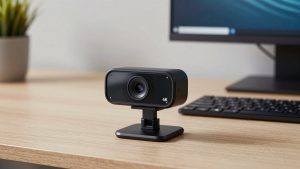
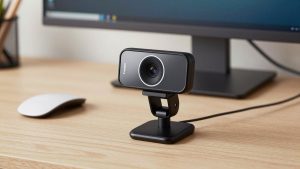
If your calls are mostly internal and your room has even a window or a cheap desk lamp, don’t overthink it. A simple 1080p USB webcam for laptop will be a clear step up from a 5-year-old built-in camera, especially on desktop PCs with no camera at all.
Who it suits: hybrid workers doing 1-2 hours of calls, job seekers on a budget, kids for school. Who should skip it: if your office is dark in the back of the house, or you move around while talking. Those models tend to hunt for focus with a clicking sound and go grainy after 5pm.
Failure modes to expect: over-sharpened face, washed-out background if a window is behind you, and a mount that won’t grip a thin MacBook lid. Fix the window problem by facing the window, not sitting with it behind you. Use the privacy shutter – most cheap ones have a flimsy slider that breaks after a year, so don’t force it.
Best for home office: 1080p with real autofocus and better mics
This is the sweet spot if you live on video. You want hardware autofocus, auto light correction, and a 78- to 84-degree lens. That combination keeps you sharp when you lean in to share a screen and then lean back, and it doesn’t turn you into a ghost when your overhead light is on.
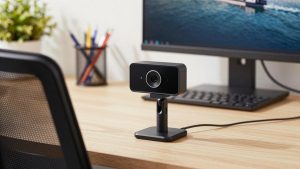
A mid-range business webcam with autofocus and noise reduction microphone is what I recommend to most remote workers. 60fps is nice but not essential – 30fps looks fine on Teams. More important is plug-and-play UVC support so Windows and macOS see it with no driver.
Trade-off: you pay roughly twice the basic price for maybe 20 percent better image, mostly in bad light. Worth it if you teach, manage, or sell over video. Not worth it if you are almost always off-camera or use a headset mic anyway. The built-in mics on these are okay for quiet rooms but still pick up keyboard clatter and HVAC hum.
When 4K makes sense – and when it doesn’t
4K helps if you record tutorials, coach, or crop in to frame yourself tighter without losing detail. On a live Zoom call, no one will see that 4K. The benefit is for recorded video and for digital zoom features that follow you.
The downside is real: 4K needs more light, more USB bandwidth, and more CPU. On an older laptop or a MacBook Air running on battery with three apps open, a 4K feed can stutter or run hot. If you buy 4K, plug it directly into the laptop, not a cheap hub, and be prepared to run it in 1080p mode for calls. Buy it for recording quality, not to look better on a Tuesday standup.
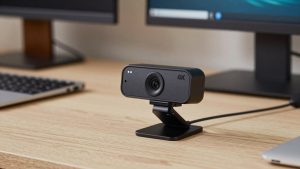
If you present to clients daily and want that cleaner look, look at a 4K webcam for home office with auto-framing, but only if your computer is less than about 3 years old and you have decent lighting.
For laptops and Macs specifically
Laptop users have two practical issues: mount and ports. Thin lids and USB-C-only Macs cause most headaches. Choose a webcam with a flat, weighted clip that sits over the lid without pinching the screen, not a tall screw-clamp meant for a desktop monitor. You will need USB-C either native or via a short adapter – long cheap adapters cause disconnects mid-call.
On Macs, avoid anything that requires a Windows-only app for basic focus and exposure. Look for UVC-compliant in the specs; that means FaceTime, Zoom, Teams, and Photo Booth will see it immediately. Extra features like background blur and auto-framing may need the vendor app, and Mac support for those apps is often months behind Windows. If you use Continuity Camera with an iPhone, that is actually good for occasional use, but it drains battery and overheats on long calls – a dedicated USB camera is more reliable for all-day work.
Setup mistakes that make any webcam look bad
Most bad webcam image is not the camera. Put the camera at eye level, about arm’s length away, and put a soft light source in front of you. A $20 daylight LED lamp bounced off a wall beats upgrading from 1080p to 4K. Close blinds behind you. Wipe the lens – office dust softens everything. In Teams or Zoom, turn off “touch up” and auto low-light boost at first, then add them back only if you need them; they often add lag and waxy skin.
FAQ
Do I need 4K for Zoom or Teams?
No, for live calls. Both platforms compress video heavily, so 1080p looks the same to other people. Buy 4K only if you record video and want to crop or need sharper archival footage.
Will a USB webcam work with MacBook?
Yes, if it is UVC plug-and-play, which most modern ones are. It should appear in Zoom, Teams, Meet, and FaceTime without drivers. Advanced features like auto-framing may need the maker’s app, which sometimes is Windows-only.
Why do I still look dark and grainy with an HD webcam?
Usually backlight or low light. Face your main light source, don’t sit with a bright window behind you, and add a lamp in front of you. Also plug into a direct USB port – underpowered hubs can cause flicker and dropped frames.
Should I just use my laptop’s built-in camera?
If you have a recent MacBook or high-end Windows laptop and only do occasional internal calls in a bright room, yes, save your money. Get an external camera if your built-in is 720p, your room is dim, you need a wider or adjustable angle, or you use a desktop monitor with the laptop closed.