Last Updated: October 18, 2026
If you spend all day on Zoom, Teams, or Meet, a 4K webcam sounds like an easy upgrade. Sharper image, more professional look, done. In practice, 4K helps in specific situations and does almost nothing in others. Most conferencing apps compress you down to 1080p or 720p anyway, and a poorly lit 4K sensor can look worse than a good 1080p one.
That does not mean 4K is pointless. The real benefit is not that your coworkers see every pore. It is digital zoom without mush, better framing options, and cleaner downscaled 1080p. If you present, teach, demo products, or sit back from the desk, that matters. If you just do close-up head-and-shoulders calls from a laptop distance, save your money.
📄 In This Review
When 4K is worth it for work calls
4K pays off when you crop. Many work-focused 4K webcams use the extra pixels to offer 2x zoom, auto-framing, or presenter tracking while still outputting a sharp 1080p feed. That is useful if you share a whiteboard, move around, or want a wider shot that can punch in without turning blocky.
It also helps if you record locally. If you record training videos, interviews, or client walkthroughs in OBS, QuickTime, or Camtasia while also joining a live call, the local 4K file will be noticeably cleaner than what the meeting app shows. For live-only calls on a congested office network, expect little visible difference.
Do not buy 4K to fix bad lighting, a dark home office, or choppy Wi-Fi. Those will still make you look bad. A $60 light and moving your desk to face a window will do more for image quality than jumping from 1080p to 4K.
What matters more than the 4K badge
See also: Best Monitor for MacBook Air: Two USB-C 4K Screens and Six Adapter-Dependent Alternatives • Best Monitor for MacBook Pro: Eight Listings Sorted by Cable, Sharpness and Scaling
For video conferencing, prioritize these in order: lens and sensor size, autofocus behavior, exposure handling, field of view control, and mic quality as a backup. A large-sensor 4K webcam with good auto-exposure will handle mixed backlight from a window far better than a cheap small-sensor 4K webcam that blows out your face.
Watch for common failure modes. Cheap 4K models often hunt for focus during calls, pump exposure up and down when you move your hands, overheat after 40-60 minutes and drop frames, or demand too much USB bandwidth and stutter when plugged into a dock. On Macs, check for macOS compatibility specifically: some Windows-first cameras lose AI framing, background blur, or firmware updates on macOS, and Apple Silicon machines can be picky about USB hubs.
Also be realistic about audio. Even good webcam mics pick up keyboard noise and room echo. They are fine as a backup, but if you do client-facing calls daily, a $30-50 USB headset or desktop mic beats any built-in webcam mic.
Quick comparison by work use case
The 4K webcam market splits cleanly by how you work. Use this to narrow it down before you shop:
| Type | Best for | Strength | Trade-off |
|---|---|---|---|
| Fixed-focus 4K business webcam | Desk workers, all-day Zoom / Teams | Reliable, no focus hunting, low CPU load | No tracking, narrower framing options |
| Autofocus 4K webcam with wide FOV | Presenters, small huddle rooms | Can show more of room, good for demos | Edge distortion, more background clutter |
| AI-tracking 4K webcam | Teachers, coaches, standing presenters | Follows you, digital zoom stays sharp | Can be jerky, needs good light, costs more |
| Good 1080p work webcam | Laptops, bad office light, weak PCs | Cheaper, smoother, better low light per dollar | No clean zoom crop for recording |
What to buy for video conferencing
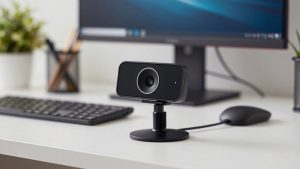
For most home offices, a mid-range fixed-focus 4K webcam for video conferencing is the sweet spot. You get plug-and-play UVC support for Mac and Windows, stable 30 fps without taxing an older laptop, and a natural 70-80 degree field of view that does not show your whole messy room. Who it suits: individual contributors, managers, and freelancers doing 3-6 hours of calls per day. Failure mode to know: fixed focus means you need to sit 2-4 feet away. Too close and you will look soft.
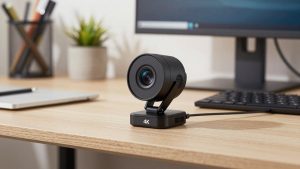
If you stand, pace, or teach, step up to an AI tracking 4K webcam for teaching. These crop into the 4K sensor to follow you and keep you centered. It feels polished for workshops and demos. Who it suits: trainers, sellers doing live demos, and creators who record while presenting. Trade-off: tracking can overcorrect in low light or when someone walks behind you. Turn sensitivity down and lock framing when you want stability. These also run warmer and work best plugged directly into the computer, not a cheap hub.
Be honest with yourself if a cheaper option is fine. If your calls are mostly 1:1s from a laptop in a dim bedroom office, a quality 1080p work webcam plus a small key light will look better and run smoother than a budget 4K camera in the same light. Budget 4K sensors get noisy fast under warm indoor bulbs, and that noise survives compression as smudgy, waxy skin. Only go 4K if you have decent light, a relatively modern laptop from the last 4-5 years, and a reason to zoom or record.
Setup tips that matter more than specs
Mount the camera at eye level. Stacking it on a monitor that is too low gives you the looming nostril shot no sensor can fix. If you use an external monitor, put the webcam on the screen you look at most, not off to the side.
Plug 4K webcams directly into a USB 3.0 port on the computer when possible. Docks, long extension cables, and USB 2.0 ports are the top cause of stutter, green screens, or the camera mysteriously dropping to 720p mid-call. If you must use a dock for your MacBook or work laptop, test a full 45-minute call before an important meeting.
Set the output to 1080p for live meetings and reserve 4K for local recording. You will get smoother frame rates, less fan noise on thin laptops, and fewer Teams or Zoom hiccups. If your camera software offers background blur or auto-framing, test it with your actual app: browser-based Meet and virtual desktop setups can disable those features or add lag. For shared desks, a simple webcam with privacy shutter and tripod mount is worth seeking out so you can cap the lens between calls and mount it higher for better eye contact.
FAQ
Will my coworkers actually see 4K?
Usually no. Zoom, Teams, and Meet typically show you at 1080p or lower depending on bandwidth, grid view, and admin settings. You benefit indirectly through sharper downscaled video and cleaner zoom, but do not expect them to see full 4K detail live.
Does 4K work well on Macs?
Yes if you buy a UVC-compliant camera, which most work-focused models are. Just avoid cameras where key features require Windows-only software. Check that field of view, zoom, and firmware updates are adjustable on macOS or stored on-device.
Why does my 4K webcam look grainy?
Almost always low light. Small sensors boost gain indoors and create noise. Add a soft light in front of you, turn off bright lights behind you, and drop the output to 1080p. If it is still grainy, your room is too dark for that sensor.
Is 4K harder on my laptop?
Yes. 4K capture uses more CPU, USB bandwidth, and heat. Older ultrabooks and fanless laptops may drop frames or spin up fans. For long meetings, run the camera at 1080p30 to stay smooth.