Last Updated: October 18, 2026
If you spend your day on Zoom, Teams, or Google Meet, you do not need a $150 webcam. A good budget camera in the $25 to $60 range looks sharp in normal home office light, sounds acceptable, and just works when you plug it in. The differences at this price are not about marketing specs. They are about focus type, low-light noise, microphone pickup, and whether the clip actually stays on your monitor.
I have tested cheap webcams in real work setups: backlit spare bedrooms, dim apartments at 5pm, MacBook Airs, old Windows laptops, and monitors with thin bezels. Here is what is worth buying, and where the cheapest option starts to cause problems.
📄 In This Review
What a budget webcam actually gets you
Most budget webcams top out at 1080p at 30fps. That is fine. For work calls, 1080p with clean exposure beats a noisy, oversharpened “2K” image every time. Do not chase 4K under $60. Those sensors are small, the lenses are cheap, and the image usually looks softer once video compression kicks in.
What you do get for $35 to $50 versus $20 to $25 is better auto-exposure, less grain in warm indoor light, and a microphone that does not make you sound like you are in a bathroom. Fixed-focus models are sharper if you sit still 2 to 3 feet away. Autofocus models are better if you move, lean back, hold papers up to the camera, or share a desk.
The honest truth: if you have decent light facing you and you sit still, the cheapest decent 1080p camera is fine. Spend more only if your room is dark, you move around, or you use background blur every day.
Quick comparison
See also: Best Monitor for MacBook Air: Two USB-C 4K Screens and Six Adapter-Dependent Alternatives • Best Monitor for MacBook Pro: Eight Listings Sorted by Cable, Sharpness and Scaling
Shop by use case, not megapixels. These three categories cover 90 percent of home office buyers:
| Type | Typical price | Focus | Low light | Best for |
|---|---|---|---|---|
| Basic 1080p fixed-focus | $25-$35 | Fixed, ~2-4 ft | Okay with a window or lamp in front | Daily standups, quiet home office |
| 1080p with autofocus | $35-$55 | Autofocus | Better, less hunting in mixed light | Moving around, whiteboards, shared desk |
| Budget 2K wide-angle | $45-$65 | Autofocus | Varies widely, check reviews | Small group calls, Mac users who want wider framing |
Best for most people: basic 1080p fixed-focus
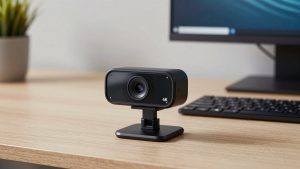
If you sit at a desk all day and your face is lit by a window or a cheap desk lamp, buy the simplest option. A basic 1080p webcam for laptop with fixed focus will look sharper than you expect because there are no moving focus parts to hunt or misfire.
Trade-offs: fixed focus means you have a sweet spot. Too close and your face softens. Lean back more than 4 feet and text you hold up will be unreadable. Background blur in Teams and Zoom also cuts off ears and glasses more often on these models because edge detection has less detail to work with.
Failure modes I see often: harsh backlight from a window behind you turns your face dark, and cheap mics pick up keyboard clatter and fan noise. Fix the first with a $15 lamp in front of you, not a new camera. Fix the second with wired earbuds for calls.
Who it suits: remote workers with a dedicated desk, students on laptops, anyone replacing a grainy 720p built-in camera.
Best if you move: budget 1080p with autofocus
If you stand up, roll your chair back, show products, or share the camera with another person, get autofocus. A mid-range autofocus 1080p webcam for work keeps you sharp from about 1.5 feet to 6 feet, and it handles held-up documents much better.
Trade-offs: cheap autofocus can pulse. You will see it breathe in and out when you have a bright window, a ceiling fan, or high-contrast patterns behind you. Microphones are usually a step up, but still thin compared to a headset. Privacy shutters are common here, but many are loose plastic caps that fall off in a laptop bag.
Failure modes: in very dim rooms, autofocus hunts and never locks. If your calls are mostly after sunset with only a ceiling light, add light first. Also check the field of view. Many autofocus models default to 90 degrees, which shows your whole messy room. Look for 75 to 80 degrees if you want a tighter, more professional crop.
Who it suits: teachers, sales calls, customer support, anyone who gestures or moves during calls.
Best for small rooms and Mac setups: budget wide-angle 2K
Need to fit two people in frame, or want a wider view of a small home office? A budget wide-angle camera makes sense. Look for a wide angle webcam for Mac home office with 95 to 100 degree field of view and physical USB-A or USB-C plug-and-play support.
Trade-offs: wide angle makes everything look smaller, including your face. Text and facial expressions get less clear than a normal 78-degree camera at the same distance. Many “2K” budget models also downscale to 1080p in Zoom and Teams anyway, so you pay for sharpness you will never send.
Failure modes: distortion at the edges, overexposure from overhead lights, and Mac-specific quirks. Some cheap cameras default to the wrong white balance on macOS and look orange until you open Photo Booth or FaceTime to reset exposure. If you use a MacBook with only USB-C, factor in a solid adapter or dock, not a wobbly $5 dongle.
Who it suits: couples sharing a desk, small huddle spaces, Mac mini or Studio setups where the built-in camera does not exist.
Laptop and Mac notes that actually matter
Almost all budget webcams are UVC plug-and-play. That means no driver install on Windows 10/11 and macOS Ventura and later. Plug it directly into the laptop, not into a cheap USB hub, for the first test. Underpowered hubs cause freezing, black screens, and robotic audio.
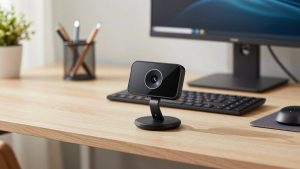
On laptops, the clip matters more than specs. Thin-bezel laptops and MacBooks do not hold heavy cameras well. Look for a foldable clip with rubber feet and a tripod thread underneath. If the camera tips forward every time you type, it is unusable no matter how good the sensor is.
For Teams and Meet, set the camera to 1080p in app settings and turn off “HD” if your upload is under 5 Mbps. A stable 720p feed looks more professional than a stuttering 1080p feed. If you use background blur or replace, give your computer more light. Blur fails first in dark rooms.
What to avoid under $60
Avoid no-name cameras that list 4K, 8MP, and autofocus for $22. They usually have fixed focus, fake interpolated resolution, and microphones that hiss. Avoid cameras without a standard USB connection that require their own app to get 1080p. That app often stops being updated after a year.
Also avoid ring-light combo webcams. The built-in light is too close to the lens, creates shiny skin and glasses glare, and cannot be moved. A separate window or lamp 2 feet in front of you does far more for image quality than any spec bump.
If your built-in laptop camera is from the last 2 years and you have good light, try that first with an external mic or earbuds. Buy an external webcam when you need better framing, a wider angle, or consistent color, not just because the box says 1080p.
FAQ
Is 1080p enough for work calls?
Yes. Most meeting apps compress video to 720p to 1080p anyway. Clean exposure and good light matter more than higher resolution at budget prices.
Do I need autofocus?
Only if you move, lean back often, or show objects to the camera. If you sit still at a desk, fixed focus is often sharper and has fewer focus-hunting problems.
Why do I look dark even with a new webcam?
Usually backlight. A bright window or lamp behind you forces the camera to darken your face. Put light in front of you, close blinds behind you, and move the camera slightly below eye level.
Will a budget webcam work with Mac?
Most do with no software needed. Plug directly into a USB-C port or powered dock, test in FaceTime first, and avoid models that require a Windows-only app for full resolution.