Last Updated: October 18, 2026
Macs make webcams both easier and more frustrating. Easier because macOS handles most USB webcams with no drivers, and Zoom, Teams, Meet, and FaceTime will usually see a new camera immediately. More frustrating because MacBook built-ins are still only 1080p or 12MP Center Stage on newer models, color processing is aggressive, and a lot of Windows-first webcam software simply does not exist on Mac.
If you do video calls all day from a MacBook, iMac, or Mac mini, an external camera is still the fastest visual upgrade you can make. You do not need to overspend to get it.
📄 In This Review
What actually matters on Mac
Forget spec-sheet resolution for a minute. What separates a good Mac webcam is plug-and-play support, lens quality, and how it handles your office light. Look for UVC compliance, which means it works over standard USB video without a driver app. Almost all current mainstream webcams are UVC, but some 4K models hide features like background blur, zoom presets, or HDR behind Windows-only apps. On Mac you get the base image, which is often fine, but you cannot tweak it later.
Second is connection. MacBooks only have USB-C / Thunderbolt. A webcam with a fixed USB-A cable will work, but you will live on a dongle or dock. A detachable USB-C cable is much better for Mac desks because you can run one clean cable and avoid adapter wobble. Powered USB-C hubs usually work fine, but cheap bus-powered adapters are a common failure point: camera freezes, goes black in Teams, or drops to low resolution.
Third is focus and exposure behavior. For desk work at 2 to 4 feet, you want fast autofocus that does not hunt during a call, and auto-exposure that does not blow out your face when a window is behind you. Larger sensor 2K and 4K cameras do better here, but only if you have decent light. In a dim room, a basic 1080p camera with a wide aperture can look cleaner than a cheap 4K sensor pushed too hard.
Compare your real options
See also: Best Monitor for MacBook Air: Two USB-C 4K Screens and Six Adapter-Dependent Alternatives • Best Monitor for MacBook Pro: Eight Listings Sorted by Cable, Sharpness and Scaling
| Option | Typical image | Setup on Mac | Best for | Main drawback |
|---|---|---|---|---|
| Built-in MacBook / iMac camera | Decent 1080p, heavy noise in low light | None | Travel, quick calls | Fixed angle, looks up your nose on desks, no framing control |
| Basic 1080p USB webcam | Sharper than older MacBooks, soft in dim rooms | Plug in, select in app | Home office workers who just want to look clear | Narrow dynamic range, weak mics |
| Mid-range 2K / 4K USB webcam | Noticeably sharper, better color, usable digital zoom | Plug in; advanced settings may need Windows | Client calls, teaching, managers on video all day | More heat, needs good USB port, costs more |
| iPhone as Continuity Camera | Best image quality for the money | Wireless or USB, macOS Ventura or later | Mac desktop setups, presentations | Mount fiddling, battery drain, mic handoff quirks |
For most Mac workers: get a good 1080p camera
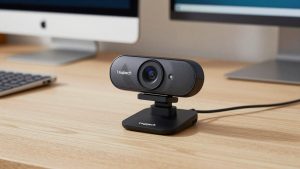
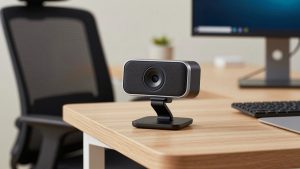
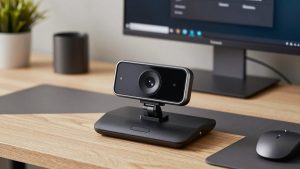
If your calls are internal standups, job interviews, or telehealth check-ins, a basic 1080p webcam for Mac is enough and honestly the most reliable choice. It draws little power, stays cool through an 8-hour Teams day, and macOS will remember it as your default in most apps. Image difference versus a MacBook Air camera is not huge in perfect light, but it is big in practice because you can put it at eye level on an external monitor.
Failure mode to know: fixed-focus cheap models. They are sharp at exactly one distance and soft everywhere else. If you lean back and forward, you will drift in and out of focus. Spend a little extra for autofocus and a built-in privacy shutter. Do not rely on the built-in mics for work. Even good ones pick up keyboard clatter and room echo. Use AirPods, wired earbuds, or a cheap USB mic instead and set it as the input in System Settings – Sound.
When a 2K or 4K camera is worth it
Upgrade if other people see you in large windows: sales, consulting, teaching, YouTube, or leading meetings. A mid-range 4K webcam for Mac gives you headroom to crop to 1080p without turning mushy, and skin tones and backlight handling are usually a step better. On a 27-inch Studio Display or 4K monitor, you will notice it.
Trade-offs are real. These cameras run warmer, some will soft-reboot after sleep and need to be unplugged once, and full 4K often only works in one app at a time or drops frames on an older Intel Mac or overloaded hub. Most people should run them at 1080p or 2K for calls and save full 4K for recording. That still looks better than a native 1080p camera because of downsampling. Also check mount weight. Heavier glass on a thin laptop lid will tilt the screen back. A monitor mount or small tripod solves it.
The free option many Mac users should try first: iPhone
If you own a recent iPhone and run macOS Ventura or later, try Continuity Camera before you buy anything. Mount the iPhone on top of your display, choose it as the camera in FaceTime, Zoom, or Teams, and you get a far better sensor, proper Portrait blur, Center Stage follow, and Desk View for demos than any sub-$200 webcam.
It suits Mac mini and Mac Studio owners especially, who have no built-in camera at all. The failure modes are workflow ones: the phone gets hot on long wireless calls, notifications vibrate through the mount, and if someone calls you mid-meeting the video can drop. Use a USB cable for day-long use, turn on Do Not Disturb, and buy a solid MagSafe monitor mount rather than a clip that slowly slides. If that fuss bothers you, a dedicated USB-C webcam with monitor mount you can leave plugged in will feel calmer.
Setup tips that matter more than specs
Put the camera at eye level, about an arm’s length away. Raise your external monitor, do not tilt a laptop camera up at your chin. Face a window or a cheap LED panel; do not sit with a bright window behind you unless your webcam has strong HDR. In System Settings – Privacy and Security – Camera, confirm Zoom and Teams have permission after macOS updates, which silently revoke it. And in Teams especially, set the exact camera and mic in device settings rather than leaving it on Default, or macOS will switch back to the built-in after a reboot.
If the image is dark, stuttery, or limited to 720p, suspect the port first. Plug directly into the Mac or into a powered dock, not a passive USB-A to USB-C nub. Close the other app using the camera. On Intel Macs, quit background camera utilities you installed for Windows features you cannot use anyway.
FAQ
Do Macs need drivers for USB webcams?
Usually no. Most modern webcams use the UVC standard and work instantly on macOS. You only miss out on vendor tuning apps, which are often Windows-only. If a listing says driver download required for 4K, assume those extras will not work on Mac.
Why does my new webcam look worse on my Mac than expected?
Almost always light and bandwidth. Add frontal light, plug into a direct USB-C port or powered hub, and set the call app to HD. Teams and Zoom will drop you to 720p or lower on weak Wi-Fi regardless of camera.
Will a webcam work through my Mac dock or monitor hub?
Usually yes if the dock is powered and USB 3.0 or better. If you get black screens, freezing, or the mic disappears, test the camera plugged straight into the Mac. If that fixes it, replace the adapter, not the camera.
Should I just use my iPhone instead of buying a webcam?
For image quality alone, yes. An iPhone 12 or newer beats most standalone webcams. Buy a dedicated webcam if you want an always-ready setup, do back-to-back calls without draining your phone, or share the desk with others.