Last Updated: October 18, 2026
📄 In This Review
What Teams actually needs from a camera
Microsoft Teams is not demanding about resolution, but it is unforgiving about bad light, bad focus, and bad framing. Teams will compress a 4K feed down to 1080p or 720p for most calls anyway, especially in gallery view with 5+ people. What your coworkers notice is whether your face is bright enough to read, whether you stay in focus when you lean back, and whether your image stutters when you move.
That changes what to pay for. For Teams, reliable autofocus, decent low-light handling, and a sensible field of view matter more than 4K on the box. A stable 1080p at 30fps with clean color looks better in Teams than a cheap 4K sensor that hunts for focus and drops frames in a dim home office.
Also consider how Teams handles cameras on work laptops. Many corporate laptops lock down USB drivers, background effects, and virtual camera software. A camera that works as a standard UVC device with no driver install will save you a help-desk ticket. If your IT department manages your machine, plug-and-play matters more than companion apps with beauty filters and AI framing.
When your laptop camera is enough
See also: Best Monitor for MacBook Air: Two USB-C 4K Screens and Six Adapter-Dependent Alternatives • Best Monitor for MacBook Pro: Eight Listings Sorted by Cable, Sharpness and Scaling
If you take two to three internal calls a day from a bright room and you mostly listen, the built-in laptop camera is fine. Newer business laptops with 1080p webcams are noticeably better than the old 720p ones, particularly on MacBooks and recent Intel and AMD business ultrabooks.
The failure mode is predictable: backlighting and angle. A laptop on a desk points up your nose, and if you sit with a window behind you, Teams will expose for the window and turn you into a silhouette. Before buying anything, try this: raise the laptop on a stand so the lens is near eye level, face the window instead of sitting with your back to it, and turn on a desk lamp in front of you. For a lot of people, that fixes 70% of the problem for free.
Upgrade when you present, interview, teach, or meet clients. That is when focus hunting, grain, and washed-out color start costing you credibility. If people regularly say you look blurry, dark, or frozen when you move, an external camera will help more than a new headset or faster internet.
The three practical options for Teams
Most Teams users land in one of three buckets. Pick the bucket first, then worry about specs.
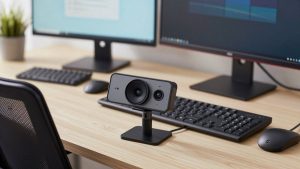
1. Basic 1080p business webcam. This is the sweet spot for most home offices. You get fixed or simple autofocus, a 78- to 90-degree lens, dual mics, and a privacy shutter. Look for a model that explicitly lists Windows Hello support if you log in with your face, and a standard clip that fits a monitor without wobbling. A well-reviewed 1080p business webcam is enough for daily standups, 1:1s, and screen-share walkthroughs.
Trade-offs: fixed-focus models are sharp at desk distance but soft if you stand up at a whiteboard. Budget autofocus can pulse in low light, visibly breathing in and out during a call. Cheap mics also pick up keyboard clatter. Plan to use earbuds or a headset mic and treat the webcam mic as backup.
2. Better 1080p or 1440p webcam with strong autofocus and low-light correction. This suits managers, salespeople, recruiters, teachers, and anyone on camera four-plus hours a day. You pay for a larger sensor, faster autofocus, and better auto-exposure that does not blow out your face when you share slides with a bright screen. The difference shows up in evening calls, basements, and rooms with mixed overhead and window light.
Failure mode here is over-processing. Some midrange cameras over-sharpen or over-brighten to look good in product photos, which makes skin look waxy in Teams. If you buy in this tier, turn off auto beauty, set exposure manually if the app allows it, and test in an actual Teams call, not just the preview window.
3. 4K webcam for cropping and presenting. 4K helps in two specific cases: you want to crop in for a tighter headshot without losing sharpness, or you use digital zoom, auto-framing, or whiteboard modes. For normal head-and-shoulders Teams calls, your viewers will rarely see the extra pixels. Consider a 4K autofocus webcam for video conferencing only if you sit farther back, record clips for SharePoint or Stream, or present standing up.
Trade-offs are real: 4K needs more light and more USB bandwidth. On older laptops and crowded USB hubs, 4K cameras will drop to 1080p or stutter unless plugged directly into a USB 3.0 port. They also run warmer and cost more for mounts and cables that actually sustain the signal. Do not buy 4K expecting Teams to look four times sharper. It will not.
Quick comparison
| Use case | What to buy | Field of view | Watch out for |
|---|---|---|---|
| Daily internal Teams calls, bright room | Built-in 1080p laptop camera or basic external 1080p | 70-80 degrees | Backlighting, low camera angle |
| Client-facing, interviews, teaching | Mid-tier 1080p/1440p with good autofocus | 78-90 degrees | Over-sharpening, focus pulsing in low light |
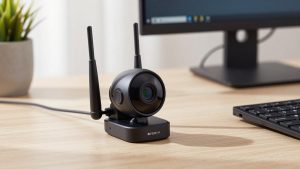
| Small huddle room, 2-4 people | Wider 90-110 degree webcam with auto-framing | 90-110 degrees | Edge distortion, people too small in frame |
| Presenter who moves or crops in | 4K with autofocus and zoom | 75-90 degrees + digital zoom | Needs USB 3.0 direct plug, needs good light |
Field of view and placement matter more than specs
For a solo desk, stay around 75 to 90 degrees. That frames head and shoulders without showing your whole room. Wider than 95 degrees is useful only if two people share one camera. In a huddle space, a wide lens helps, but people at the edges stretch and look small in Teams gallery view. In that case a camera with auto-framing that follows the speaker is more useful than raw resolution.
Mount it at or slightly above eye level, about arm’s length away. Clamp it to the monitor you look at during calls, not the side monitor. If you use a laptop docked to a big display, do not leave the laptop camera on while looking at the big display — your eyes will look off to the side the whole call. Move the external camera to the display you actually face.
Privacy shutters and mute behavior are practical Teams concerns. Teams shows when your camera is on, but a physical shutter avoids the “am I actually off?” moment. If you join sensitive calls, that slider is worth more than HDR.
Laptops, Macs, and work-IT limits
On Windows business laptops, most webcams work without drivers, but features like background blur, auto-framing, and noise removal may require a companion app that IT blocks. Check whether background effects are handled by Teams itself — Teams has built-in blur and virtual backgrounds that work with any camera, so you do not need camera-level effects.
On Macs, the issue is usually USB-C hubs and continuity quirks. Run the webcam straight into the Mac or a powered Thunderbolt dock if you see flicker or disconnects. If you plan to use an iPhone as a webcam for Teams on Mac, test it for a full 45-minute call first. It can look excellent, but some setups overheat, drain battery, or drop when a notification takes focus. A dedicated external webcam is more boring and more reliable.
For shared desks, buy the boring, sturdy clip. Thin travel cameras with tiny fold-out feet slide off curved ultrawide monitors. If your monitor is thick or has no bezel lip, you may need a small tripod or monitor mount. That unglamorous accessory prevents the slow tilt-down that leaves coworkers staring at your forehead halfway through a meeting.
If your room is dim, fix light before buying up. A simple daylight-balanced desk lamp in front of you will improve a $60 camera more than moving from a $60 to a $150 camera in a dark room. For users in a basement or evening-heavy schedule, browse a webcam with privacy shutter and light combo, but keep the ring light low and diffused — a harsh light right behind the lens causes glare on glasses.
What to skip for Teams
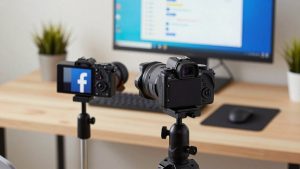
Skip 60fps as a buying reason. Teams rarely preserves it, and 30fps looks perfectly natural for talking heads. Skip heavy wide-angle “action” looks, cartoon filters, and pro DSLR setups unless you already own the gear. A mirrorless camera as a webcam looks great, but adds batteries, HDMI capture, cleanup loops, and another failure point ten minutes before a client call.
Also be skeptical of microphone claims. Even good webcam mics sit three feet from your mouth and pick up room echo. For Teams, audio clarity affects comprehension far more than video sharpness. Use wired earbuds, a headset, or a desk mic, and mute aggressively in group calls.
FAQ
Do I need 4K for Teams meetings?
No, for most people. Teams compresses video, especially in large meetings. A good 1080p camera with solid focus and low-light performance looks better than a cheap 4K camera. Buy 4K only if you crop, zoom, or record.
Why do I look blurry only in Teams?
Usually low light or weak upload causing Teams to lower quality. Add front light, plug into USB 3.0 directly instead of an unpowered hub, close large uploads during calls, and turn off HD background effects. If the preview is sharp but Teams is soft, it is bandwidth, not the lens.
What field of view is best for a home office?
75 to 90 degrees for one person at a desk. Wider is better only for two or more people on one camera, but faces get smaller and edges distort.
Will any webcam work with Mac and Windows laptops?
Almost all modern USB webcams work as plug-and-play UVC devices on both. Extra features like auto-framing controls may need an app that works better on one platform, so check that if you need those specific modes for work.