Last Updated: October 18, 2026
📄 In This Review
What actually matters on conference calls
For conference calls, resolution is not the deciding factor. What your coworkers notice is exposure stability, focus stability, framing, and whether your audio drops out when two people talk at once. A webcam that holds 1080p at 30fps without hunting for focus in a dim home office will look better on Zoom, Teams, and Meet than a cheap 4K sensor that over-sharpens, blows out your face near a window, and stutters when the CPU is busy.
Most problems I see in real calls are predictable. Autofocus that pumps every time you lean forward. Auto-exposure that turns you into a silhouette when there is a bright window behind you. A narrow 65-degree lens that cuts off a second person. Or a mic that sounds fine when the room is quiet but picks up keyboard clatter, HVAC hum, and echo once a meeting runs over 30 minutes. Buy to avoid those failure modes, not to chase the highest number on the box.
When your laptop camera is enough, and when it is not
See also: Best Monitor for MacBook Air: Two USB-C 4K Screens and Six Adapter-Dependent Alternatives • Best Monitor for MacBook Pro: Eight Listings Sorted by Cable, Sharpness and Scaling
Newer MacBooks and higher-end Windows laptops have genuinely usable 1080p built-in cameras. If you take one or two calls a day, sit facing a window or a lamp, and use AirPods or a headset mic, the cheaper option is fine. Do not buy an external webcam just for sharpness. You will not see a big difference on a 6-person grid view where your tile is 400 pixels wide.
Buy external when you have a specific problem: you work late in a dark room and look grainy, you present and need to stay in focus while moving, you sit 3-4 feet from a large monitor, or you run a small group call from one laptop and need a wider shot. In those cases a dedicated camera with a larger lens, real autofocus, and backlight correction pays off immediately. It also helps if your work machine locks camera settings; an external camera with its own app lets you set exposure, white balance, and field of view once and forget it.
The three setups that cover most people
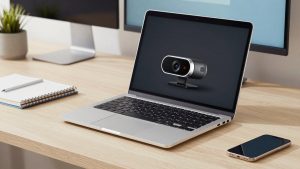
First is the basic 1080p workhorse. Fixed or simple autofocus, 78- to 90-degree field of view, dual mics, USB-A plug and play. This suits individual contributors who sit at a desk 2 feet from the screen and use Teams or Zoom all day. Trade-off: low-light performance is average, colors can look flat, and digital zoom looks mushy. Failure mode: cheap models with no privacy shutter and aggressive noise reduction that makes your face look waxy. If you use a separate USB mic or headset, this category is usually all you need, and you can find a solid 1080p webcam with autofocus and dual mics without paying for 4K.
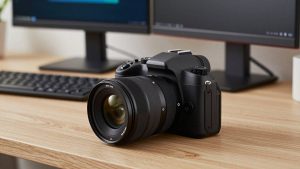
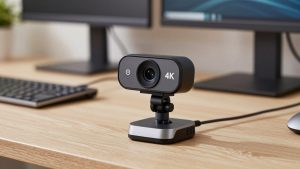
Second is the sharp midrange 1440p or 4K camera with a better lens and larger sensor. Ignore the pixel count and look for light correction, 60fps at 1080p option, adjustable field of view, and tripod thread. This suits managers, sales, teachers, and anyone who presents, records Loom-style updates, or sits in a mixed-light home office. Trade-off: it needs more USB bandwidth and CPU, and on older laptops 4K can cause fan noise or dropped frames in OBS or Teams. Most people should run it at 1080p and let the downsampling do the work. Failure mode: leaving it at ultra-wide 95-110 degrees at arm’s length, which makes you look distant and curves bookshelves. Set it to 78-90 degrees for solo calls. A well-reviewed 4K webcam for conference calls with autofocus is worth it only if you keep calls at 1080p and buy it for the optics, not the label.
Third is the small-room conference setup: a wide-angle camera with a built-in speakerphone, or a separate webcam plus speaker puck. This suits 2-5 people around a table, hybrid teams, and huddle rooms. Trade-off: all-in-one bars are easy to deploy but the mic range is honest at about 8-12 feet in a quiet room, less with air conditioning or glass walls. Failure mode: echo and people at the far end sounding distant because the unit is 10 feet from the talker behind a laptop. Put the unit in the middle of the table, not on the TV, and turn on noise suppression in Zoom or Teams. For that use case, search for a wide-angle conference webcam with speakerphone rather than trying to stretch a desk webcam to cover a room.
Quick comparison
| Setup | Typical view | Audio reality | Best for | Skip if |
|---|---|---|---|---|
| Built-in laptop 1080p + headset | 70-75 degrees, soft in low light | Headset carries the call, camera mic unused | 1-2 calls per day, travel, tight desk | You look dark on evening calls or share your screen while talking |
| Basic external 1080p | 78-90 degrees, stable focus | OK to 3 feet, harsh keyboard noise | Daily desk work, customer support, admin | You present often or sit far from monitor |
| Midrange 1440p / 4K | Adjustable 65-95 degrees, better low light | Better, still use headset for long calls | Presenters, managers, creators, dark offices | Laptop is 5+ years old or USB dock is flaky |
| Huddle wide-angle + speakerphone | 100-120 degrees, auto-framing | Good to 8-12 feet if centered | 2-5 people in one room | Glass room or noisy open office |
Setup matters more than price
Before returning a webcam, fix placement. Put the lens at eye level on top of the monitor, about arm’s length away. Face a soft light source; do not sit with a window directly behind you unless the camera has strong backlight compensation. If you wear glasses, angle a desk lamp up at a wall instead of pointing it at your face to avoid a white reflection. In the app, turn off auto-framing for solo calls, lock white balance if your lamp flickers, and set exposure to manual minus one notch if your forehead blows out.
For audio, the webcam mic is a backup, not a plan. For solo calls longer than 20 minutes, a $30 wired earbud mic will beat any webcam mic for intelligibility. For rooms, mute when not talking and enable the platform’s noise removal, not the webcam’s plus the platform’s at the same time, which can create a robotic gate effect. Test in a real meeting recording, not just the preview window, because Teams, Meet, and Zoom all apply their own processing.
Mac and laptop compatibility notes
On Macs, especially with only USB-C ports, check cable and hub behavior. Some 4K cameras will drop to 1080p or flicker through a cheap USB-C dock but work fine plugged directly into the Mac or through a powered dock. If you use Continuity Camera with an iPhone, it can look excellent in good light, but it heats the phone, drains battery, and mounts awkwardly on an external monitor. A dedicated webcam is more reliable for back-to-back calls.
On Windows laptops for work, IT policies often block camera utilities. If you cannot install software, choose a camera with physical controls or on-device presets and a privacy shutter, and set Teams to 1080p in settings. If your laptop defaults to power-saving USB, a camera that randomly disconnects mid-call is usually a hub power issue, not a broken camera. Try a direct port first.
FAQ
Is 4K worth it for Zoom and Teams?
Usually no, if you mean actual 4K streaming. Most conference platforms deliver you at 720p to 1080p. Buy a 4K-class camera for its better lens and low-light handling, then run it at 1080p for smoother, cooler, more stable calls.
Why do I look blurry when I move?
That is slow autofocus or low shutter speed in dim light. Add light in front of you, move closer to 2-3 feet, turn off beauty filters, and if the camera has it, switch to 1080p60. If it still hunts, use manual focus locked at your chair position.
Can one webcam cover our 4-person meeting room?
A desk webcam cannot. You need a 100-degree or wider camera placed centrally plus a table mic or speakerphone within 6-8 feet of talkers. In echoey rooms, no mic upgrade fully fixes poor acoustics; keep the door closed, add soft furnishings if possible, and have remote folks confirm levels.
Do I need a separate microphone?
For daily solo calls, yes if you want to sound consistently clear. Webcam mics are fine for short check-ins in a quiet room, but a headset or USB mic reduces room echo and keyboard noise dramatically and matters more for how professional you sound than camera resolution.