Last Updated: October 18, 2026
- What 4K actually gets you on a laptop
- What to check before you buy
- Quick comparison by laptop use case
- Best all-around 4K for a work laptop
- If you work in bad light, buy the sensor not the zoom
- For MacBook and travel: weight and USB-C matter more
- When the cheaper option is fine
- Setup mistakes that ruin 4K
- FAQ
If you take calls from a laptop all day, the built-in camera is usually the weakest link. It is small, noisy in office light, and stuck at a bad upward angle. An external 4K webcam fixes most of that, but not for the reason people think. You will rarely send true 4K in Zoom or Teams – those apps compress to 1080p or 720p anyway. What you get is a sharper, cleaner 1080p image with better color, better low-light handling, and room to crop without turning to mush.
That also means not every laptop user should pay for 4K. If your calls are 30 minutes a day from a bright room, a good 1080p camera is fine and cheaper. Buy 4K if you present, record, teach, coach, or sit in mixed light where cheaper sensors fall apart.
📄 In This Review
- What 4K actually gets you on a laptop
- What to check before you buy
- Quick comparison by laptop use case
- Best all-around 4K for a work laptop
- If you work in bad light, buy the sensor not the zoom
- For MacBook and travel: weight and USB-C matter more
- When the cheaper option is fine
- Setup mistakes that ruin 4K
- FAQ
What 4K actually gets you on a laptop
Three practical benefits. First, oversampling: a 4K sensor downscaled to 1080p looks cleaner than a native 1080p sensor, especially around hair, glasses frames, and text on a whiteboard. Second, digital zoom and framing: many 4K cameras let you crop to head-and-shoulders without the softness you get from cropping 1080p. Third, better components: 4K models tend to ship with larger sensors, better autofocus, and better auto-exposure, which matters more than pixel count.
The failure mode is assuming 4K equals sharp. On a thin laptop lid, a heavy 4K camera can tilt forward, vibrate when you type, or slip off if the mount is shallow. USB bandwidth is another trap. Some laptops, especially older USB-A ports and cheap hubs, cannot sustain 4K at 30fps and will drop to 1080p, freeze, or stutter. If you plan to record in full 4K, plug directly into the laptop, not a dock, and expect your fan to spin up.
What to check before you buy
See also: Best Monitor for MacBook Air: Two USB-C 4K Screens and Six Adapter-Dependent Alternatives • Best Monitor for MacBook Pro: Eight Listings Sorted by Cable, Sharpness and Scaling
Start with sensor size and lens, not the 4K badge. A larger sensor with f/2.0 or brighter and a field of view around 75 to 90 degrees will beat a tiny-sensor 4K camera in a dim home office every time. Autofocus matters if you move, lean in to point at documents, or stand at a whiteboard. Fixed focus is fine if you sit still 2 feet away, and it hunts less, but it will blur anything you hold up close.
For laptops specifically, check mount, weight, and cable. A wide, rubberized clip with a tripod thread is worth more than extra features. Top-heavy cameras wobble on MacBook Air and XPS-style lids. Look for a short, flexible cable or a USB-C connection in the box. Many cameras still ship USB-A only, which means a dongle on modern Macs. Also check software: auto-framing, background blur, and manual exposure are often controlled in the vendor app on Windows, with fewer controls on macOS.
Quick comparison by laptop use case
There are really three tiers of 4K right now. This is more useful than comparing spec sheets, because the sensor and software matter more than claimed resolution.
| Type | Best for | Strengths | Trade-offs |
|---|---|---|---|
| Flagship large-sensor 4K | Presenting, recording, YouTube, coaching | Clean low light, natural skin tones, usable digital zoom | Expensive, heavier on thin lids, needs good USB port |
| Mainstream autofocus 4K | Daily Zoom / Teams on Windows or Mac | Sharp 1080p output, reliable autofocus, lighter clip | Noisy in dim rooms, digital zoom softens fast |
| Compact budget 4K | Students, second desk, travel | Cheap, small, big upgrade over built-in | Poor low light, narrow software controls, fixed focus on some |
| Good 1080p alternative | Bright office, short calls | Cheapest, works through hubs, less CPU load | No crop headroom, softer detail |
Best all-around 4K for a work laptop
For most people, the sweet spot is a mainstream autofocus 4K camera with a 1/2-inch-class sensor or better, dual noise-reducing mics, and a real privacy shutter. You will use it at 1080p in calls and let the extra pixels clean up the image. Look for face-based auto-exposure that does not blow out your face when a window is behind you, and a 78 to 90 degree field of view so you do not show your whole room.
This suits Windows laptops and Intel / Apple Silicon Macs used for 4 to 6 hours of calls a day. The common failure is heat and fan noise: long 4K sessions make some laptops warm, and the webcam mics pick up the fan. Use the webcam for video and a headset or USB mic for audio if you talk for a living. If you browse 4K webcam with autofocus for laptop you will see this category dominates, and that is fine – it is the right default.
If you work in bad light, buy the sensor not the zoom
Dim apartments, basement offices, and late calls are where cheap 4K falls apart. The image looks sharp in the thumbnail but full-screen your face is grainy and waxy from noise reduction. A flagship large-sensor camera holds color and keeps your background from pulsing. You also get more natural blur if you stand 3 to 4 feet back.
Trade-offs are real. These cameras are bigger, heavier, and more likely to droop on a thin lid unless the clamp is deep. They also cost twice as much for maybe a 20 percent better Zoom image, though the gap is much larger if you record locally for courses or demos. This is the one case where searching for a large sensor 4K webcam makes sense, especially if you never want to think about a key light.
For MacBook and travel: weight and USB-C matter more
On a MacBook Air or thin ultrabook, mount stability beats specs. A compact 4K camera under 150 grams with a low-profile clip will stay put when you adjust the screen. Check that USB-C to USB-C at 1080p works without a driver, because macOS support for vendor effects is often limited to basic exposure and white balance. Auto-framing that follows you can be jumpy on Mac; many people turn it off after a week.
If you move between desks, get a camera with a built-in shutter and a cable you can leave plugged into your travel hub. Test it once through that hub. If it stutters at 4K, lock the app to 1080p. You will look better with stable 1080p than stuttering 4K. A lightweight compact 4K webcam with USB-C for laptop is usually the least annoying option here.
When the cheaper option is fine
Be honest about your room. If you face a window or have a $30 LED panel, and your calls are mostly internal check-ins, a well-reviewed 1080p camera or a budget 4K locked to 1080p will look identical to a flagship once Teams compresses it. Spend the savings on light and audio. A $25 light and sitting with the window in front of you, not behind, does more than any sensor upgrade.
Also skip 4K if your laptop is 5+ years old, you live on a USB 2.0 dock, or IT locks down background apps. You will end up running at 1080p anyway and carrying extra weight. Upgrade when you upgrade the laptop.
Setup mistakes that ruin 4K
Most bad 4K images are setup, not hardware. Put the camera at eye level, about arm’s length away. Stack the laptop on books or use a stand so you are not looking up nostrils. Turn off overhead-only lighting that casts shadows; add a soft source in front. In the app, disable auto low-light boost if your face looks smeary – it trades shutter speed for brightness. Set exposure for your face, lock white balance if the wall color keeps shifting, and keep digital zoom under 2x.
Privacy and CPU load matter too. Use the physical shutter between calls, quit the vendor control app after applying settings if your fan ramps, and if you use background replacement, do it in Zoom or Teams, not in two apps at once.
FAQ
Will my laptop run a 4K webcam at full 4K?
Often no in live calls. Zoom, Meet, and Teams usually receive 1080p or lower. Full 4K works best for local recording in OBS or the camera app, plugged directly into a USB 3.0 or USB-C port. Through an old dock or hub, expect 1080p.
Is 4K better than 1080p for Zoom?
Yes, but modestly. You get a cleaner 1080p picture and room to crop. In good light the difference is small on the other person’s screen. In dim light, a good sensor helps more than the 4K label.
Do 4K webcams work with Mac?
Basic video works plug-and-play on Mac. Advanced features like auto-framing, gesture zoom, and firmware updates may need Windows or be limited. If you use a MacBook, favor a light camera with USB-C and a physical shutter over software tricks.
Do I need a new mic if I buy a 4K webcam?
Not for short calls, but webcam mics pick up typing, fans, and room echo. If you present or talk for hours, a headset or desk USB mic is a bigger upgrade than any camera step-up.
Related Reviews & Guides
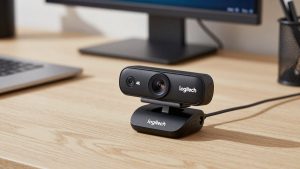
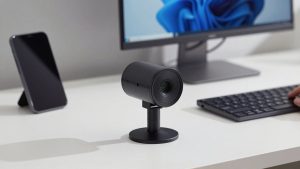
The Best Web Camera

6 Best Adjustable Laptop Computer Stands 2026