Last Updated: October 18, 2026
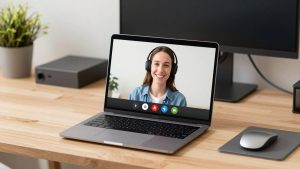
The MacBook Air M1 is still a great work laptop, but its built-in camera is its weakest point for video calls. Apple improved image processing, but the hardware is still a 720p sensor. That means soft detail, noisy video in dim rooms, and no depth when you crop in on Zoom or Teams. If you take calls daily, an external webcam is one of the cheapest visible upgrades you can make.
The good news: the M1 Air is easy to shop for. You do not need drivers, capture cards, or a powerful GPU. You need a USB webcam that works natively with macOS, handles your lighting, and sits stably on a thin lid or external monitor. You do not need to overspend to get there.
📄 In This Review
What actually matters on the M1 Air
Forget spec sheets for a minute. For the M1 Air, three things decide call quality: lens and sensor size, autofocus behavior, and how it handles backlight. A basic 1080p webcam with a decent lens will look sharper than the built-in camera on day one, but cheap models fall apart in a dim home office. Faces go grainy, backgrounds smear, and auto-exposure blows out if you sit in front of a window.
Connectivity is the second gotcha. The M1 Air has only two USB-C ports. Most webcams still ship with USB-A cables. That is fine, but budget for a direct USB-C adapter or a powered dock. Running a webcam through a cheap unpowered hub alongside an external SSD and a mic is a classic failure mode: frozen frames, disconnects, or the mic cutting out mid-call. Plug the camera straight into the Mac or into a powered dock when you can.
Software support is the third issue. On Apple Silicon, you want UVC-compliant plug-and-play. That means Zoom, Teams, Meet, FaceTime, and QuickTime see it without installing a kernel extension. Some premium features like AI framing, background blur, or manual controls may require a vendor app, and not all vendor apps are equal on Mac. Check that the Mac version exists before you buy if you care about those extras.
When the cheaper option is fine
See also: Best Monitor for MacBook Air: Two USB-C 4K Screens and Six Adapter-Dependent Alternatives • Best Monitor for MacBook Pro: Eight Listings Sorted by Cable, Sharpness and Scaling
If your calls are mostly internal check-ins with good overhead light, you do not need 4K. A simple 1080p fixed-focus webcam will beat the M1 Air camera for sharpness and color, and it will be lighter on CPU and bandwidth. Fixed focus is actually a plus if you sit at a desk and do not move around — there is no autofocus hunting when you lean forward or hold up a document.
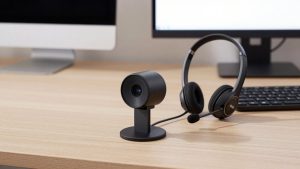
Where cheap falls short is low light, dynamic range, and microphones. Sub-$50 cameras tend to over-sharpen, struggle with mixed lamp + window light, and pick up keyboard clatter. If that describes your room, step up one tier rather than buying a second cheap camera later. For microphones, plan to use AirPods, a USB headset, or the MacBook mic instead of any webcam mic for important calls.
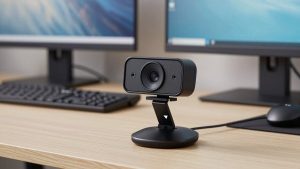
A practical starting point is to browse a 1080p webcam for MacBook Air and filter for macOS support, tripod thread, and a physical privacy shutter. Those three details matter more day-to-day than digital zoom numbers.
What to buy for different setups
Best for most M1 Air owners: mid-range 1080p with autofocus. This is the sweet spot for home office work. You get 1080p/30, faster autofocus that does not pulse, better noise reduction, and dual mics that are usable as a backup. Look for a 78-90 degree field of view. Wider than that and a small apartment becomes the star of the call; narrower and you will feel cramped if you use an external monitor arm. These cameras usually include a solid clip that grips both the thin Air lid and a thicker Dell/LG monitor.
Best for bad lighting: 1080p with a larger sensor and good auto-exposure. If you work in a basement, north-facing room, or evening hours, prioritize low-light performance over resolution. A camera that holds exposure on your face without turning the background to white mush is worth more than 4K on paper. Pair it with a $20 bias light or a window shade. No webcam fixes strong backlight alone — if your window is behind you, you will still look like a silhouette.
Best for presentations and detail: 4K. 4K helps if you crop, use digital zoom to frame whiteboards, or record training videos you will edit later. For live calls, most platforms compress to 720p or 1080p anyway, so your viewers will not see full 4K. Trade-offs are real: higher price, larger files, more heat, and more load on upload bandwidth. Only buy 4K if you record locally or you specifically want auto-framing that crops without turning to mush. A good search term is 4K webcam with Mac-compatible auto-framing.
Best portable / no-extra-gear option: use your iPhone. If you have an iPhone XR or later with macOS Ventura or newer, Continuity Camera turns your phone into a wireless or wired webcam. Image quality often beats a budget webcam, especially in low light. Downsides: battery drain, heat on long calls, notifications popping up, and fiddly mounts. It is excellent as a backup or for travel, but for a permanent desk, a dedicated USB camera is less fuss. If you go this route, get a sturdy MagSafe or lid mount — a wobbly phone is worse than 720p.
Quick comparison
| Setup | Who it suits | Strengths | Watch out for |
|---|---|---|---|
| Basic 1080p fixed-focus | Internal calls, bright room, tight budget | Cheap, sharp vs. built-in, no focus hunting, low CPU load | Noisy in dim light, weak mics, narrow exposure range |
| Mid-range 1080p autofocus | Daily Zoom/Teams from home office | Balanced sharpness and low light, stable clip, privacy shutter | Needs decent USB power; vendor Mac app may be limited |
| 4K with auto-framing | Creators, trainers, large monitor setups | Crop without blur, better LinkedIn-style framing, good for recording | Overkill for compressed calls, costs more, needs upload bandwidth |
| iPhone as webcam | Travel, temporary desk, low-light rooms | Excellent sensor, no extra camera to buy, Desk View option | Battery drain, mount wobble, call/text interruptions |
Setting it up on the M1 Air without headaches
Mounting matters more than people expect. The M1 Air lid is thin and light. A heavy webcam with a stiff cable will tilt the screen back or pull the camera down. Route the cable with slack and use the camera’s folding clip fully. If you use an external monitor, mount the camera centered on that monitor — looking at the laptop to the side while the camera is front-on is what creates that distracted look.
In macOS, select the camera inside each app, not just System Settings. Zoom and Teams remember separate camera and mic inputs. Test in Photo Booth or QuickTime Player first: New Movie Recording, then click the dropdown arrow to pick the USB camera. If video stutters, unplug other USB devices, switch to a USB-C to USB-A adapter plugged directly into the Mac, and close Chrome tabs using the camera. On Wi-Fi calls, 1080p needs roughly 2-3 Mbps stable upload; 4K recording to disk is fine, but do not stream 4K over weak Wi-Fi.
For audio, keep it separate when quality matters. Even good webcam mics sit three feet away and echo in hard rooms. A wired earbud mic will beat any webcam in a noisy house. If you must use the webcam mic, turn off keyboard-heavy typing, move the camera closer, and enable noise removal in Zoom/Teams.
If you are building a permanent desk around the Air in clamshell mode, look at a USB-C webcam mount and MacBook dock setup together, not separately. A powered dock solves the M1’s two-port limit and gives the camera stable power, while a small tripod or monitor mount prevents lid wobble. This is where most disconnect issues disappear.
FAQ
Do I need special drivers for M1 Macs?
No, for basic video. Choose a UVC plug-and-play camera and it will work in Zoom, Teams, Meet, and FaceTime without drivers. You only need vendor software for extras like background replacement, firmware updates, or manual focus control.
Is 4K worth it on a MacBook Air M1?
Usually not for live calls, because Zoom and Meet compress video heavily. Buy 4K if you record videos locally, present documents with digital zoom, or want auto-framing that stays sharp when cropped. Otherwise a good 1080p camera in good light looks identical to viewers.
Why does my external webcam freeze or disconnect?
Almost always power or bandwidth. Avoid cheap unpowered hubs, use a short quality cable, plug directly into the Air or a powered dock, and unplug unused USB devices during calls. Also close other apps that are holding the camera open.
Can I just use my iPhone instead of buying a webcam?
Yes. With macOS Ventura or later, Continuity Camera works well and often looks better than a budget webcam. It is best for travel or occasional calls. For all-day desk use, a dedicated USB webcam is more reliable and does not drain your phone.