Last Updated: October 18, 2026
Macs have good screens, decent speakers, and webcams that are just okay. The built-in FaceTime camera on a MacBook Air or iMac is fine for a quick check-in, but it falls apart in a dim home office, washes out with a window behind you, and locks you to one angle. If you take video calls all day, an external webcam is one of the cheapest upgrades that actually matters.
Good news: Mac compatibility is simpler than it used to be. You do not need special Mac drivers for most modern webcams. If it is UVC-compliant and USB, macOS Sonoma and later will usually recognize it instantly in Zoom, Teams, Meet, FaceTime and QuickTime. The problems happen around power, focus software, and microphones – not basic compatibility.
📄 In This Review
What Mac compatibility really means
Look for three things. First, plug-and-play UVC support with no driver download required. Any webcam that requires a Windows .exe to enable 4K, noise removal, or auto-framing will only give you basic video on a Mac. Second, USB-C or a USB-A cable that works through your dock. Many disconnects on MacBook Pro setups are not the camera, they are an underpowered USB hub. Third, check the companion app. Some brands offer full settings on Windows and only a viewer on macOS. You want exposure, white balance, and focus controls that actually save on the camera or work in the Mac app.
In practice, test this right away: plug directly into the Mac, open Photo Booth or FaceTime, then open Zoom and Teams and switch cameras in Settings. Grant camera and microphone permission in System Settings > Privacy & Security when prompted. If macOS asks twice, allow it twice – Teams especially will show a black screen until you do.
Which type should you buy?
See also: Best Monitor for MacBook Air: Two USB-C 4K Screens and Six Adapter-Dependent Alternatives • Best Monitor for MacBook Pro: Eight Listings Sorted by Cable, Sharpness and Scaling
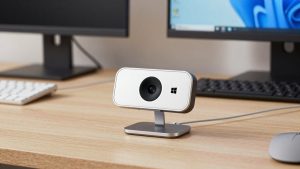
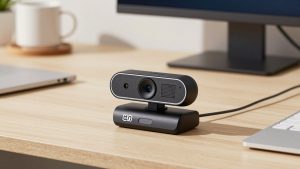
For most home office workers on a Mac, a basic 1080p USB webcam for Mac is enough. It fixes the two biggest flaws of the built-in camera: poor low light and a too-wide, soft image. You get sharper text on a whiteboard behind you, less grain at 7am, and a physical shutter for privacy. It is also the most reliable option because there is no tracking motor, no 4K heat, and no extra software to break after a macOS update.
Step up to 1440p or 4K only if you crop, present, or record. If you sit 3-4 feet back and want a head-and-shoulders crop without mush, extra resolution helps. The trade-off is real: 4K over USB runs hot, needs more light to avoid noise, and can stutter on older Intel Macs or through a cheap dock. For Zoom and Meet, you will be sending 720p or 1080p anyway. Buy 4K for flexibility in framing and recording, not because calls will look 4x better.
The third option is not a webcam at all. Apple Continuity Camera lets you use a recent iPhone as your Mac webcam, wirelessly or wired. Image quality beats almost every sub-$200 webcam, especially in low light. The failure mode is workflow: mounting and unmounting the phone, battery drain on long calls, and calls dropping to the front camera if the mount slips. It is excellent as a second camera for demos or if you already own a good iPhone. It is annoying as your only daily driver if you also need your phone for notes and two-factor logins.
Comparison: four practical setups
| Setup | Best for | Strengths on Mac | Watch out for |
|---|---|---|---|
| Basic 1080p USB webcam | Daily Zoom / Teams workers | Plug-and-play, low CPU load, privacy shutter, works through most docks | Narrower dynamic range; cheap models hunt for focus |
| Mid-range 1440p / 4K fixed webcam | Presenters, coaches, creators | Sharper crop, better lens, tripod thread for monitor arm or tripod | Needs good light; companion Mac app may lack tracking controls |
| Auto-framing / tracking webcam | Standing desks, pacing presenters | Keeps you centered if you stand and move | Can reframe at wrong moment; often Windows-first software |
| iPhone via Continuity Camera | MacBook users who want best image free | Excellent low light, Center Stage, Desk View, no extra purchase with mount | Mount hassle, battery drain, phone unavailable during calls |
For work calls: prioritize mic, light, and mounting
On calls, people notice audio and lighting before they notice 1080p versus 4K. Most webcam mics sound thin and pick up keyboard clatter. If you are on calls 4+ hours a day, plan on AirPods, wired earbuds, or a USB mic and set it as the input in macOS Sound settings. Do not assume the webcam mic will be selected correctly after sleep and reconnect – check it.
Lighting matters more than resolution. A $60 webcam with a $25 LED panel facing you will beat a $180 4K webcam backlit by a window. Face the window if you can, or put a soft light behind the monitor. Avoid overhead-only lighting, which hollows eyes on every camera.
Mounting matters for laptops. Clipping a heavy webcam to a thin MacBook Air lid makes the lid wobble every time you type. If your desk shakes, use a small tripod or a monitor mount behind the laptop and raise the camera to eye level. Your neck and your framing both improve.
Home office failure modes on Mac
These are the issues I see repeatedly. Black screen in one app but not another: usually macOS Privacy permission or another app holding the camera. Quit Zoom, Teams, and Chrome completely, then reopen only one. Flicker under LED lights: switch from 60fps to 30fps if the app allows it, and turn off auto-exposure hunting if the Mac utility supports it. Soft focus: cheap autofocus locks onto background bookshelves – sit 2-3 feet away, add light on your face, and use manual focus if available. Disconnects when using a dock: plug the camera directly into the Mac to test; if that fixes it, your hub is underpowered or sharing bandwidth with an SSD.
Intel Mac owners should stay conservative. Stick to 1080p30 or 1440p30 unless you have verified 4K works in your exact apps. Apple Silicon Macs handle 4K much better, but Teams and Chrome can still throttle it to save CPU. Record locally in QuickTime or Photo Booth to see what the sensor actually delivers before blaming the network.
When the cheaper option is fine
If your calls are mostly internal, your room has decent light, and you use headphones, do not overspend. A simple 1080p camera with dual mics and a shutter covers 80% of needs. Spend the difference on light and a stable mount.
Pay more only for a specific reason: you record Loom videos or classes and need a clean crop, you stand and move and need auto-framing, or you need a wider field of view for two people in frame. A 4K webcam with autofocus for MacBook makes sense for creators who reframe in editing, but it will not make a dark spare bedroom look bright.
If you go the iPhone route, buy a solid MagSafe tripod mount for Continuity Camera rather than a flimsy lid clip. The camera quality is wasted if it vibrates or points at your chin. Keep a USB-C to Lightning or USB-C cable on the desk for long calls to avoid wireless lag and battery anxiety.
Five-minute Mac setup that prevents headaches
Plug in directly, set camera and mic in each app separately, and lock exposure if faces look washed out. In Zoom, turn off “adjust for low light” auto and test HD on Apple Silicon. In Teams, disable background blur for a week to confirm stability before adding effects. Store the webcam utility in Applications and check after major macOS upgrades – that is when custom settings most often reset.
FAQ
Do I need drivers to use a webcam on Mac?
Usually no. Choose a UVC plug-and-play model and it should work in FaceTime, Zoom, Teams, and Meet without drivers. You only need software if you want advanced controls like manual focus, zoom presets, or tracking.
Why does my webcam work in Zoom but not Teams?
Almost always a permission or device lock issue. Check System Settings > Privacy & Security > Camera and Microphone, quit other apps that may hold the camera, then reselect the camera inside Teams Settings > Devices.
Is 4K worth it for video calls?
Not for call quality alone, since most calls transmit at 720p to 1080p. 4K is worth it if you crop, record, or want sharper digital zoom. Otherwise a well-lit 1080p camera looks better than a starved 4K sensor.
Should I just use my iPhone as a Mac webcam?
If you already own a recent iPhone, try it first – especially for recording or important presentations. For all-day use, a dedicated USB webcam is less fiddly because your phone stays free and you avoid mounts, heat, and battery drain.