Last Updated: October 18, 2026
📄 In This Review
What Zoom Actually Needs From a Webcam
Zoom is less demanding than YouTube or streaming, but it punishes different things. Your image is small, often in a grid of 6 to 12 faces, compressed, and viewed on laptops. Zoom cares about stable exposure, natural skin tones, reliable autofocus, and a microphone that doesn’t make you sound like you’re in a tunnel. Resolution beyond 1080p rarely matters to the other side, because Zoom will compress it anyway.
Where cheap laptop cameras fail is not resolution. It’s dynamic range and auto-exposure. If you sit near a window, a bad webcam will either blow out the window to white and keep your face dark, or expose for the window and turn you into a silhouette. A good work webcam holds your face correctly exposed even when the background is bright, and doesn’t hunt for focus every time you lean forward.
What to Look For Before You Buy
See also: Best Monitor for MacBook Air: Two USB-C 4K Screens and Six Adapter-Dependent Alternatives • Best Monitor for MacBook Pro: Eight Listings Sorted by Cable, Sharpness and Scaling
Resolution: 1080p is enough for Zoom. 4K looks sharper locally but Zoom downscales it to 720p or 1080p in most meetings. Buy 4K only if you crop or want to use digital zoom without getting soft, not because attendees will see 4K.
Autofocus vs. fixed focus: Fixed focus is fine if you sit at a fixed distance, about 60-90cm from the desk. It’s actually more stable because it never hunts. Autofocus is better if you move, stand up, hold up products, or share a whiteboard. Cheap autofocus is the worst of both worlds – slow, noisy, and pulsing in and out.
Field of view: 65-78 degrees is ideal for one person at a desk. It frames your head and shoulders without showing your entire room. Wider 90-degree lenses are useful for two people sharing a desk or a small huddle room, but they distort faces at the edges and make you look small in the frame.
Low-light performance: This is the biggest difference between a $40 and an $85 webcam. A larger sensor and better processing keeps noise down when your home office isn’t perfectly lit. If your room has only one overhead light and no window light, prioritize this over 4K.
Microphone and privacy: Every webcam mic will pick up keyboard clicks and room echo. For daily Zoom calls, a webcam with dual mics and noise reduction is usable, but a dedicated USB mic or your headset will still be clearer. A physical privacy shutter matters more than you think if you work from home – it’s faster and more reliable than remembering to click Leave Camera Off.
Mount and compatibility: Check the clip. A thin clip that can’t grip a laptop lid or an ultrawide monitor will droop mid-call. On Macs, especially with Apple Silicon, look for UVC-compliant webcams that need no driver. Most modern webcams are plug-and-play on macOS and Windows, but proprietary software for background blur or auto-framing is often Windows-only.
Our Picks by Budget and Use Case
Budget 1080p fixed-focus – best when price matters: If your Zoom calls are mostly internal standups and you have decent light, a basic 1080p webcam for Zoom is honestly fine. You get a big jump over any laptop camera from 2019-2022, which are usually 720p with terrible low-light handling. The trade-off is that colors can look flat, low light gets grainy, and you need to stay at a consistent distance. Failure mode: fixed-focus budget models get soft if you sit too close, under 45cm.
Mid-range 1080p/1440p with autofocus – the sweet spot for most people: This is where you see real gains for Zoom. Better auto-exposure, faster autofocus that doesn’t pulse, and more accurate white balance. Many models in this range also add a decent privacy cover and dual noise-reducing mics. If you present to clients, interview, or teach, this tier is worth it. Look for an autofocus webcam with microphone for Zoom that supports 30fps at full resolution – 60fps is irrelevant for meetings and often forces lower exposure.
Premium 4K with auto-framing and correction – for daily heavy Zoom users: You pay for processing, not just pixels. AI framing that keeps you centered if you shift, better HDR to handle bright windows, and glass that stays sharp to the edges. Useful if you are on Zoom 3-5 hours a day, lead meetings, or record them. The trade-off is price and resource use – 4K webcams use more USB bandwidth and CPU, and can run warm. On an older laptop or a hub with many devices, they may stutter unless you drop to 1080p mode. If you sit alone at a desk in a well-lit room, you won’t look dramatically better on Zoom than with a good mid-range 1080p.
Wide-angle for two people or small rooms: If two of you share an office or you do group standups from one desk, get a 90-degree webcam or one with a switchable field of view. For solo work, avoid it.
| Category | Best For | Strengths on Zoom | Trade-offs |
|---|---|---|---|
| Budget 1080p, Fixed Focus | Cost-sensitive, good lighting, one user | Big upgrade over laptop cam, stable image, simple | Soft up close, noisy in low light, basic color |
| Mid-Range 1080p/1440p, Autofocus | Most home offices, client calls | Reliable autofocus, better exposure, usable mics | More expensive, cheap autofocus can hunt |
| Premium 4K, Auto-Framing | All-day Zoom, recording, bright/difficult rooms | HDR, sharp crop, keeps you centered | Higher price, uses more bandwidth/CPU, runs warm |
| Wide-Angle 90° | Two people, huddle spaces | Fits everyone without moving camera | Distorts solo framing, shows more background |
Setup Mistakes That Make Any Webcam Look Bad
Before blaming the camera, fix these. They account for 80% of bad Zoom image quality.
Light placement: Face a window or put a cheap desk lamp behind your monitor, at eye level. Light from above or behind you causes dark faces and shiny foreheads. Don’t sit with a bright window directly behind you unless your webcam has strong HDR – even then, closing blinds halfway helps.
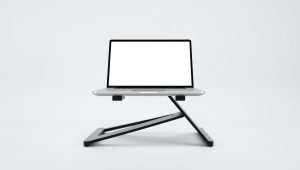
Camera height: Put the camera at eye level. A webcam sitting on a laptop looking up your nose is unflattering and makes eye contact impossible. A small stack of books or a monitor riser fixes it.
Zoom settings: In Zoom, turn off “Mirror my video” if you want text to read correctly, and turn on “Adjust for low light – Auto” only if your room is dim. Leave “HD” checked, but know Zoom will still deliver 720p in gallery view to save bandwidth. Virtual backgrounds are harder on image quality than blur – they create halos around hair and glasses.
Connection: Use a direct USB port, not a cheap unpowered hub, especially for 4K. If your image stutters, set the webcam to 1080p in its app. For audio, if you use the webcam mic, keep 60-70cm distance and clacky keyboards away from the mic path.
Mac and Laptop Notes
MacBooks have improved cameras since 2021, but they are still 1080p with small sensors. An external webcam is still noticeably better in mixed light. On macOS, avoid webcams that require a driver for basic function – you want UVC. Features like AI framing or background replacement may need the vendor app, which is sometimes Windows-only. Check support before you buy if you need those.
On Windows laptops with privacy shutters or camera kill switches, make sure the system isn’t disabling the external webcam. In Device Manager, the external camera should appear as USB Video Device. If Zoom shows black, another app – Teams, browser, camera app – is often holding the camera.
If you travel and use a laptop lid as your mount, weight matters. A light compact webcam for laptop Zoom meetings with a strong clip beats a heavy 4K brick that tugs the lid back or blocks the screen.
FAQ
Do I need 4K for Zoom meetings?
No, not for how Zoom sends video. Most Zoom calls are 720p in gallery view and up to 1080p in full-screen or recorded. A good 1080p webcam with better low-light and exposure will look better on Zoom than a cheap 4K. Get 4K only if you want to crop, digitally zoom, or future-proof recording.
Is the webcam microphone good enough for Zoom?
For short internal calls, yes. For interviews, client presentations, or noisy rooms, no. Webcam mics pick up room echo and keyboard noise. A $30-50 USB headset or even wired earbuds with a mic will beat any webcam mic for clarity.
Why does my image look grainy or dark on Zoom?
Usually low light, not resolution. Zoom also applies noise reduction and compression. Add light in front of you, turn off strong backlighting, and in Zoom check Video settings for “Adjust for low light.” If that doesn’t help, a mid-range webcam with a larger sensor handles dim rooms better than adding a 4K sensor.
Will a webcam work with Zoom on Mac without installing software?
Yes, if it’s UVC-compliant, which almost all current webcams are. Plug it in, select it in Zoom under Video – Camera. Vendor software is optional and mostly adds framing, filters, and firmware updates. On Mac, some advanced features may not be available, so check compatibility if you need them.
Related Reviews & Guides

Best Monitor for Video Editing: Eight Listings Sorted by Colour Claims, Resolution and Inputs
Best Canon for Webcam