Last Updated: October 18, 2026
📄 In This Review
Why 1080p is still enough for work
For Zoom, Teams, Meet, and Webex, 1080p remains the sweet spot in 2026. Most meeting platforms compress your video heavily anyway, especially in gallery view or on weak office Wi-Fi. A clean, well-exposed 1080p image with good autofocus and noise handling looks better to coworkers than a soft 4K image that stutters.
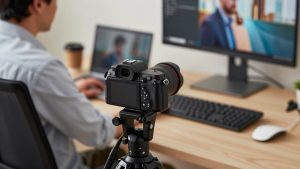
4K only makes sense if you regularly crop in for whiteboard demos, you want to use digital zoom without looking blurry, or you record local video for YouTube or training courses. For 9-to-5 calls from a laptop or home office desk, a good 1080p sensor with a decent lens will be sharper where it counts: your face at 2-3 feet. It also uses less CPU, runs cooler, and works more reliably on older MacBooks and work laptops locked down by IT.
The honest truth: lighting and placement matter more than resolution. A $40 1080p webcam at eye level with a window in front of you will beat a $150 camera pointed up your nose in a dark room.
What actually matters in a 1080p webcam
See also: Best Monitor for MacBook Air: Two USB-C 4K Screens and Six Adapter-Dependent Alternatives • Best Monitor for MacBook Pro: Eight Listings Sorted by Cable, Sharpness and Scaling
Resolution is printed on the box, but these are the specs that decide whether you look clear or washed out. First is focus type. Fixed-focus is fine if you sit still at a desk. Autofocus is better if you lean in and out, hold up documents, or pace a bit on calls. Cheap autofocus hunts and pulses, which is distracting. Look for reviews that mention focus stability, not just speed.
Second is field of view. For a solo home office, 75 to 90 degrees is ideal. It frames head and shoulders without showing your whole messy room. Anything over 95 degrees is for two people sharing a desk or a small huddle space, but it will make you look small and bent at the edges if you sit close.
Third is low-light correction and exposure. Most home offices are backlit or have one harsh overhead light. A good 1080p webcam should hold your face bright without blowing out a window behind you. No webcam fixes strong backlight completely, but better models handle it with less grain.
For Mac users, check plug-and-play UVC support. You want no driver install. On macOS Sonoma and Sequoia, most 1080p webcams work instantly in FaceTime, Zoom, and Teams, but features like background blur, manual focus, and auto-framing often require the vendor’s app, which is usually Windows-only. If you need to adjust zoom or turn off auto-exposure on a Mac, confirm the settings stick or can be controlled via OBS or Photo Booth.
Quick comparison by use case
Do not buy on megapixels alone. Buy for how you sit and where you call from:
| Type | Focus | Field of view | Audio / Mount | Best for |
|---|---|---|---|---|
| Basic fixed-focus 1080p | Fixed, ~2-4 ft sharp zone | 75-80 degrees | Single mic, clip mount | Laptop upgrade, quiet room |
| Midrange autofocus 1080p | Autofocus | 78-90 degrees | Dual mics, privacy shutter | Daily Teams / Zoom, home office |
| Wide-angle 1080p conference cam | Autofocus | 95-110 degrees | Dual mics, tripod thread | Two people, shared desk |
| Compact 1080p for MacBook / travel | Fixed or autofocus | 75-82 degrees | Short cable, small clip | Hot-desking, coworking |
What to buy for each setup
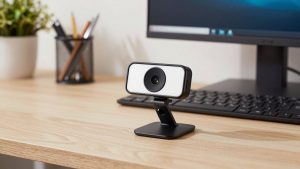
1. If you just need to look better than a laptop camera: get a basic fixed-focus model. This is the cheaper option, and for most office workers it is fine. Your built-in laptop camera is usually 720p or a grainy 1080p with a tiny sensor. A simple external basic 1080p fixed-focus webcam on top of your monitor gives you a bigger lens, better color, and a higher mounting angle.
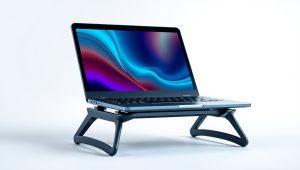
Trade-offs: fixed focus means if you lean way back, you soften. The built-in mic is usable for quiet calls but picks up keyboard clatter. Failure mode we see a lot: people mount it too low on a laptop screen and get an up-the-nose angle. Put the external camera at eye level with a stand or monitor riser. Who it suits: students, admins, anyone doing 2-3 calls a day in a quiet room who already uses earbuds or a headset for audio.
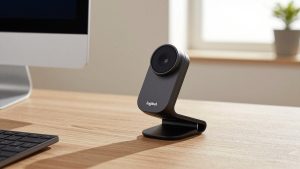
2. If you are on calls all day: get a midrange autofocus 1080p with dual mics and a shutter. This is our default recommendation for home offices. Autofocus keeps product labels, notebooks, and your face sharp when you move. Dual noise-reducing mics handle echo better than single-mic sticks, and a physical privacy shutter saves you from taping over the lens.
Look for a standard midrange 1080p autofocus webcam with privacy shutter that supports 30fps at full 1080p, not 1080p at 15fps. Many cheap listings advertise 1080p but drop to choppy frame rates in low light. Real 30fps matters more for natural motion than extra pixels. Failure mode: aggressive noise reduction that makes you look waxy, and autofocus that breathes during screen shares. If yours does that, lock focus and exposure in the app or OBS, then leave it.
Who it suits: managers, teachers, therapists doing telehealth intake, sales reps. If you share a Mac with a Studio Display or use a dock, confirm the camera can mount on a thick monitor bezel and that the USB-A cable reaches your hub. A USB-C adapter in the box is a plus.
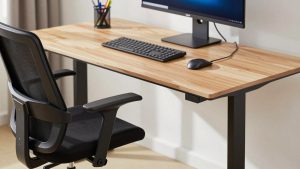
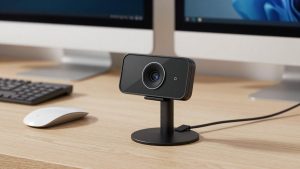
3. If two people share a desk or you use a standing desk: get a wide-angle model with a tripod thread. A normal 78-degree camera will cut off the second person. A 100-degree camera fits both, but only if you pull it back 3-4 feet. Do not sit 18 inches from a wide-angle lens unless you want distortion.
The practical pick here is a wide-angle 1080p conference webcam on a small tripod behind your monitor. Trade-off: wider view means smaller faces and more background visible. You will need to tidy up or use background blur, which taxes older laptops. Failure mode: auto-framing that zooms in and out mid-sentence. Turn it off for work calls. Who it suits: couples sharing a home office, co-founders, front-desk check-in laptops.
Setup mistakes that ruin even a good webcam
Most bad webcam video is not the camera. It is backlight from a window behind you, a camera 8 inches below eye level, and Teams set to 360p to save bandwidth. Fix those first. Face a window or put a $20 LED panel behind your monitor at 4000-5000K. Raise the camera to eye level. In Zoom and Teams, check Settings > Video and turn on HD if your admin allows it.
For audio, do not rely on a webcam mic in a noisy kitchen or open office. It will hear everything. Use wired earbuds or a USB headset. If you must use the webcam mic, keep it within 3 feet, close other tabs that trigger fans, and turn on noise suppression in the meeting app, not just in the camera software.
On Macs, if your external camera looks dark in only one app, check that app’s auto-adjust setting. Teams and Zoom apply their own low-light boost and can fight the camera’s exposure. Pick one to control brightness, not both. Restart the app after plugging in a new camera so it re-enumerates correctly.
FAQ
Is 1080p enough for job interviews and client calls?
Yes. Interviewers care about clear audio, eye contact, and stable framing. A sharp 1080p feed at 30fps with good light looks professional. Spend extra on a headset and lighting before you spend it on 4K.
Why does my 1080p webcam look blurry on Mac?
Usually low light forcing a slow shutter, a plastic film still on the lens, fixed focus set for the wrong distance, or the meeting app downscaling to 720p. Remove the film, add front light, sit 2-3 feet back, and enable HD in the app settings.
Do I need autofocus or is fixed focus fine?
If you sit at one desk distance all day, fixed focus is fine and often more stable. Choose autofocus if you move, demo products, or share the camera between near and far seating.
When should I skip 1080p and get 4K?
Only if you record local video and want to crop, you present whiteboards from across the room, or you want digital zoom without softness. For live calls, 4K rarely survives platform compression.