Last Updated: October 18, 2026
Putting a webcam on a TV sounds simple until you try it. Most TVs don’t accept a USB webcam the way a laptop does, the couch is 8 to 10 feet away, and the built-in mics on cheap webcams fall apart at that distance. If you want living-room video calls that don’t look and sound terrible, you have to work around those three problems.
For work and home-office use, the best approach for most people is not a “TV webcam” at all. It’s using the TV as a big monitor for a laptop, mini PC, or dedicated video bar, with a wide-angle camera mounted on top and a separate mic strategy for distance.
📄 In This Review
Why a TV setup is different from a desk setup
On a desk, you sit 2 feet from the camera and mic. On a couch, you sit 6 to 12 feet away. That changes everything. A narrow 78-degree webcam will crop out half the couch. A basic dual-mic array will pick up room echo, TV speakers, and kitchen noise while making your voice sound thin.
Compatibility is the other issue. Samsung, LG, Sony, Fire TV, Roku, and Apple TV generally do not support plug-and-play USB webcams for Zoom or Teams. A few had Skype or Google Duo TV apps years ago, but those are mostly dead. In practice, you need something to actually run the call: a laptop plugged into the TV via HDMI, a mini PC stuck behind the TV, or an all-in-one meeting bar that runs Android TV / Google TV.
Don’t buy a camera until you know which of those three will run your calls. That decision determines what camera will even work.
First pick your setup type
See also: Best Monitor for MacBook Air: Two USB-C 4K Screens and Six Adapter-Dependent Alternatives • Best Monitor for MacBook Pro: Eight Listings Sorted by Cable, Sharpness and Scaling
There are three setups that actually work in 2026 for work calls from the living room:
1. TV as monitor + laptop. You plug your work laptop into the TV with HDMI, set the TV to that input, and join from the laptop. This is the most reliable for work because IT policies, VPNs, and Teams/Zoom/Meet just work. Downside: you need to run a USB cable from the camera to the laptop, and you need somewhere to put the laptop where its mic can help.
2. Mini PC behind the TV. Same as above, but always ready. Good if this is a shared family TV used for weekly calls with grandparents or remote team standups. Downside: more setup, updates, and cost up front.
3. All-in-one video bar. A wide soundbar-style device with camera, mics, and speakers built in that plugs into HDMI and runs calls itself. Easiest for non-technical users once installed. Downside: more expensive, app support varies, and you are locked into what it supports.
If this is mainly for work and you already have a work laptop, option 1 is the cheapest and least frustrating. If it’s for family members who won’t fiddle with HDMI inputs, option 3 is worth the premium.
What matters in a webcam for TV use
Field of view: For one person on a couch, 90 degrees is enough. For two to four people, look for 100 to 120 degrees. Wider than 120 degrees starts to look fisheyed and makes faces at the edges stretch.
Autoframing: This is genuinely useful on a TV. The camera digitally crops and follows whoever is talking so you don’t look tiny in a big empty living room. The trade-off is a slight loss in sharpness when it zooms. For family calls, leave it on. For job interviews, turn it off and sit closer.
Microphones: This is where most TV setups fail. A standard webcam mic is tuned for 3 feet, not 9 feet. At couch distance you need either a mic array with noise reduction and echo cancellation, or you need to cheat by putting a second mic closer to you. A cheap USB webcam on top of a 65-inch TV with no other mic will sound distant no matter what the box claims.
Mounting: Most webcams come with a clip meant for a 1-inch monitor, not a thin TV. On many modern TVs it wobbles or blocks the IR sensor for the remote. Look for a model with a standard tripod thread so you can use a small TV-top shelf or universal mount. Test your TV remote after mounting – a blocked sensor is a common annoyance.
Lighting: Living rooms are backlit and dim in the evening. A camera with good low-light performance matters more than 4K resolution here. You will look better with a $70 webcam and a floor lamp turned on than with a 4K webcam in a dark room with a bright window behind you.
The practical picks by use case
Best for work calls from the couch: wide-angle 4K webcam with autofocus. Use your laptop for the call, put the TV in Extend or Mirror mode, and mount a wide-angle webcam for TV centered on top. Set it to 1080p, not 4K, if your laptop struggles – 4K helps with digital zoom and autoframing, but it taxes older MacBooks and work laptops. This suits one or two people doing Teams, Zoom, or Meet once or twice a week.
Failure mode: long USB cable runs. Most webcams get flaky past 10 feet on cheap passive extension cables. If your laptop sits across the room, use an active USB extension cable or move the laptop closer to the TV. Also mute the TV speakers and use a soundbar or the laptop speakers carefully to avoid echo – test this before an important call.
Best for groups and family: living-room video bar with remote. If you want grandparents or kids to press one button on a remote, a dedicated all-in-one video bar for TV with built-in beamforming mics is easier than juggling laptop inputs. These usually have better echo cancellation because the speakers and mics are designed together. They suit a fixed TV that doubles as a meeting spot.
Trade-off: you pay 3-4x more than a USB webcam, and you need to check that it actually runs the app you need. Some support Zoom and Teams natively, others only work as a USB peripheral anyway, which defeats the purpose. Read the app list carefully, not just the resolution.
Best on a budget: reuse what you have. If you only do TV calls monthly, don’t buy a new system. Plug your existing laptop into the TV via HDMI for video, and set the laptop on the coffee table closer to you for mics. Clip your current webcam to the top of the TV for a better angle. The cheaper option is fine here – a new camera won’t fix bad audio if you’re still 10 feet away.
For audio on a budget, a simple USB speakerphone for living room placed on the coffee table beats any webcam mic at distance. It is the single biggest upgrade for intelligibility, especially for Mac users where Teams echo can be harsh through TV speakers.
Quick comparison
| Setup | Best for | Audio at 8-10 ft | Hassle factor | Cost |
|---|---|---|---|---|
| USB wide-angle webcam + laptop via HDMI | Work calls, 1-2 people | Fair unless you add table mic | Medium – cables and input switching | Low |
| Mini PC + webcam behind TV | Always-ready family / team room | Fair to good with speakerphone | High upfront, low later | Medium |
| All-in-one video bar | Groups, non-technical users | Good – mics and speakers matched | Low after install | High |
| Phone as camera via casting | Occasional calls | Poor to fair | Low, but unreliable for work | Free |
Setup tips that matter more than specs
Mount the camera at eye level when seated, not high above looking down. On a wall-mounted TV that is often slightly too high – tilt it down a few degrees. Center it. Off-center cameras make eye contact feel wrong.
Turn off overhead motion smoothing and set the TV to Game or PC mode for the HDMI input you use for calls. It cuts lip-sync delay noticeably. Then do a 2-minute test call and record it. Check two things: can the other person hear you clearly when the AC or TV fan is on, and are you washed out by a window behind the couch? Close blinds or add a lamp in front of you, not behind.
For Macs, remember that macOS handles webcam control and echo differently than Windows. Bring the mic closer to you, select the correct input in Zoom/Teams settings manually, and keep MacOS Ventura or later updated – older versions had more issues with ultrawide modes reverting to cropped view mid-call.
Finally, secure the cables. A webcam perched on a TV with a taut USB cable is one excited dog away from falling. A small adhesive cable clip and a little slack solves it.
What to avoid
Avoid buying a random 4K webcam assuming you can plug it directly into your smart TV’s USB port. In most cases the TV will see it as storage or ignore it. Avoid super-cheap no-name 120-degree cameras with fixed focus – at couch distance faces go soft and low-light noise is severe.
Also avoid using TV built-in speakers at full volume with a distant webcam mic. That loop is the number one cause of “we can hear ourselves echo” complaints. Lower TV volume, move the mic closer, or use a speakerphone.
FAQ
Can I plug a webcam directly into my TV?
Usually no. Most Samsung, LG, Roku, Fire TV, and Apple TV models don’t run Zoom or Teams from a USB webcam. You need a laptop, mini PC, or video bar to run the call, with the TV acting as the display.
What field of view do I need for a couch?
For one person, 90 degrees is fine. For two to three people on a couch 8 feet back, aim for 100 to 110 degrees. Wider is better for groups but distorts faces at the edges.
Why do I sound so far away on TV calls?
Distance and echo. Webcam mics are designed for desk range. Put a USB speakerphone or your laptop on the coffee table closer to you, lower TV volume, and turn on noise suppression in Zoom or Teams.
Is 4K worth it for a TV webcam?
Sometimes. 4K helps when the camera needs to crop in for autoframing without looking blurry, but good 1080p with strong low-light performance often looks better in a dim living room and is easier on older laptops and Macs.
Related Reviews & Guides

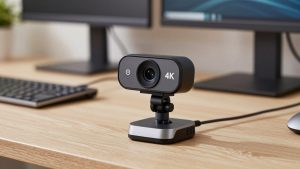
Best 4K Webcam with Microphone
Best EcoTank Printer for Home Office (2026 Buying Guide)