Last Updated: October 18, 2026
If you use a desktop PC for work, you probably need a USB camera. Most desktop monitors do not have one built in, and the ones built into cheap laptops are usually grainy, fixed-focus, and terrible in low light. A good USB webcam fixes that in about two minutes: plug it in, select it in Zoom or Teams, and you are done.
The hard part is that almost every USB camera for PC claims 1080p or 4K on the box, and most of them do not look the same in a real home office. Here is what actually makes a difference for daily video calls, and which type to buy.
📄 In This Review
What actually matters on a PC
Resolution is the least useful spec. A clean 1080p sensor with good auto-exposure will look better than a cheap 4K sensor in the same room. What you notice on calls is exposure stability, focus behavior, microphone pickup, and how the camera handles backlight from a window.
For Windows 10 and 11, stick to UVC-compliant cameras. That means plug-and-play with no driver install. Windows will see it as USB Video Device and it will work in Zoom, Teams, Meet, Slack, and OBS without extra software. Avoid anything that requires its own driver or control app just to get 1080p. Those utilities often break after a Windows update.
Cable and mount matter more than people expect. A short, stiff cable pulls lightweight cameras off the top of a monitor. A camera with a standard tripod thread and a wide clip will sit stable on a thick gaming monitor, a thin office monitor, or a laptop lid. If you use a monitor light bar, check clearance: some wide-base webcams will not sit flat behind it.
Quick comparison: which type suits you
See also: Best Monitor for MacBook Air: Two USB-C 4K Screens and Six Adapter-Dependent Alternatives • Best Monitor for MacBook Pro: Eight Listings Sorted by Cable, Sharpness and Scaling
Most PC users fall into one of three groups: everyday office calls, client-facing calls where you want to look sharp, or streaming and recording where you want manual control.
| Type | Best for | Strengths | Trade-offs |
|---|---|---|---|
| Basic 1080p fixed-focus | Internal Teams / Zoom, students | Cheap, reliable, no focus hunting | Softer image, weak low light, narrow audio pickup |
| Mid-range 1080p / 2K autofocus | Home office, managers, teachers | Better low light, dual mics, privacy shutter | Autofocus can pulse if you move a lot; costs more |
| 4K autofocus with software | Client calls, creators, large monitors | Sharpest still image, digital zoom, framing modes | Needs good light to show benefit; heavier CPU / USB load |
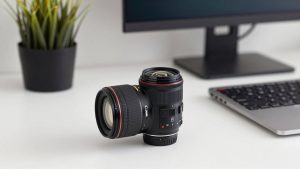
| Camcorder-style / interchangeable lens via USB capture | Streaming, YouTube, training videos | Best depth of field and manual control | Complex, expensive, overkill for meetings |
For everyday work calls: basic 1080p is fine
If your day is internal standups, check-ins, and school calls, do not overbuy. A simple 1080p business webcam with fixed focus and a built-in shutter is enough. Fixed focus is actually an advantage here: you stay sharp from about 40 cm to 2 meters and the lens never hunts when you lean forward to type.
Failure mode to know: cheap fixed-focus cameras usually have small sensors. In a dim spare bedroom at 7 a.m., you will look noisy and dark. The fix is not a more expensive camera, it is light. A $20 desk lamp bounced off a wall in front of you does more than jumping from 1080p to 4K.
Who it suits: office workers, support staff, students, anyone on a laptop dock where the laptop lid is closed. Keep the built-in mic as a backup, but plan on a headset for long calls. The mics on budget cameras pick up keyboard clatter and room echo.
For home office regulars: the sweet spot
If you are on camera 3-6 hours a day, step up to a mid-range 1080p or 1440p autofocus camera with dual noise-reducing mics and a physical privacy shutter. Look for 60 fps if you present and move around, and a field of view around 78 to 90 degrees. Wider than that and a small home office looks cavernous; narrower and you will feel cramped if you use a whiteboard behind you.
This is where software matters. The better cameras in this class offer a simple Windows app for firmware updates, field-of-view adjustment, and turning off auto white-balance flicker under LED lights. You do not need beauty filters or auto-framing, and you should turn auto-framing off for normal meetings. It crops the image and often adds a slight lag that people read as a bad connection.
Concrete trade-off: autofocus versus fixed focus. Autofocus looks sharper if you hold up documents or move closer, but cheap autofocus will breathe in and out during a call. If you mostly sit still, fixed focus is more stable. If you demo products at your desk, get autofocus.
For client-facing work and large screens: when 4K is worth it
A good 4K webcam for PC earns its keep in two situations: you are on a 27-inch or larger monitor where the other person pins your video, or you want to crop in without going soft. You can set a 2x digital zoom for a head-and-shoulders framing and still deliver a clean 1080p feed.
Do not buy 4K for low light alone. Most 4K webcams need more light to hit that detail, and on a typical office USB 2.0 port or long extension, Windows may drop them to 1080p anyway. Use the USB 3.0 port directly on the back of a desktop if you can, not a front-panel hub shared with a keyboard, headset, and external drive.
Failure modes we see often: overheating on long calls, which shows up as stutter after 45-60 minutes, and aggressive noise reduction that makes faces look waxy. Both are worse on no-name 4K models. If you record training or do live demos, read reviews specifically about sustained 30-minute+ calls, not 2-minute unboxings.
PC setup that avoids headaches
On Windows, plug the camera in first, then open Settings – Bluetooth and devices – Camera and confirm it previews. Then set it inside Zoom or Teams, not just Windows. Teams in particular will hold onto the last camera after you dock and undock. If colleagues see black, it is almost always Teams still pointing to the disconnected laptop camera.
If the image is dark, turn off HDR in the camera app if it has one, set exposure to auto with a limit of 1/30, and face a window or lamp. Keep bright windows behind you closed or use a sheer curtain. No USB webcam can handle you as a silhouette against a sunny window without blowing out the background.
For audio, a separate USB headset for video calls will beat any webcam mic for clarity, especially in echoey rooms with hard floors. Use the webcam mics only when you need to let two people in the same room talk, and sit within 1.5 meters of the camera.
FAQ
Do I need a driver for a USB camera on Windows?
No, in most cases. Choose a camera labeled UVC / plug-and-play. Windows 10 and 11 install it automatically. If a listing requires a driver CD or a specific driver download for basic video, skip it.
Will a USB webcam work if my laptop lid is closed?
Yes, if you use an external monitor, keyboard, and power. Set the PC to Do nothing when the lid is closed in Control Panel power options, then select the USB camera in your meeting app.
Why does my 4K camera only show 1080p in Zoom?
Zoom and Teams often cap incoming video to 1080p or 720p to save bandwidth, and some PCs drop to lower resolution on USB 2.0 or busy hubs. The 4K sensor still helps because the crop and downscale looks cleaner, but you will not send full 4K to most meeting guests.
Is a cheap webcam fine for job interviews?
Yes, if lighting and audio are good. Sit facing soft light, raise the camera to eye level with a monitor stand or books, and use a wired headset. Interviewers notice stutter, echo, and dark exposure far more than extra pixels.