Last Updated: October 18, 2026
If you spend your day on Zoom, Teams, or Google Meet, your webcam matters more than your laptop’s processor. For 2026, the good news is you don’t need to spend much to look professional. The bad news is specs on the box still lie, especially about “4K” and “noise-canceling mics.”
I test webcams the way you’ll actually use them: in a home office with mixed window light, on a laptop dock, with a Mac and a Windows machine. What separates a good webcam from a frustrating one isn’t resolution. It’s exposure control, autofocus behavior, and how it handles backlight at 9 a.m.
📄 In This Review
What actually matters in 2026
Resolution is the least useful number. A clean 1080p sensor with good auto-exposure will look better than a cheap 4K sensor that hunts for focus and blows out your face. Look for these three things instead: autofocus that locks and stays, auto white balance that doesn’t turn you orange under warm bulbs, and a field of view around 78 to 90 degrees. Wider than 95 degrees makes a home office look messy and pushes you too small in the frame.
Audio is the second trap. Every webcam has dual mics now, but none of them replace a headset or USB mic in a noisy room. If you take calls with a fan, keyboard, or kids in the background, plan on a separate mic. Don’t pay extra for a webcam just because it claims AI noise removal.
Quick comparison: which type fits you
See also: Best Monitor for MacBook Air: Two USB-C 4K Screens and Six Adapter-Dependent Alternatives • Best Monitor for MacBook Pro: Eight Listings Sorted by Cable, Sharpness and Scaling
| Type | Typical price | Best for | Watch out for |
|---|---|---|---|
| Basic 1080p, fixed focus | $35-$60 | Laptop workers, students, second camera | Fixed focus soft beyond 4 ft; poor low light |
| Midrange 1080p/1440p with autofocus | $70-$130 | Daily Meet/Teams users, home office | Some models over-sharpen; check Mac compatibility |
| 4K with large sensor | $150-$220 | Presenters, coaches, content + calls | Needs good USB port and light; mics still mediocre |
| Mac / laptop dock setup | $80-$180 | MacBook Air/Pro, USB-C docks | USB-C hub bandwidth issues; firmware updates Windows-only |
If you just need to look clear: basic 1080p
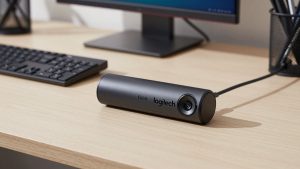
For most office workers, the cheaper option is fine. A basic 1080p webcam from a known accessory brand will beat any built-in laptop camera, especially older 720p ones still found on budget laptops. You get a wider, cleaner image and you can place it at eye level on a monitor instead of staring down at a laptop.
Trade-offs are real. Fixed-focus models are sharpest at 2 to 4 feet. Move back to a whiteboard and text goes soft. Low-light performance is also weak — in a dim room at night you’ll look grainy no matter the settings. And the clip mounts on cheap models fatigue fast; if you move it between laptop and monitor daily, the hinge loosens within months.
Who suits this: if you do 3-5 calls a day, sit at a desk, and have a window or lamp in front of you, stop here. Browse a budget 1080p webcam for laptop work and pick one with a physical privacy shutter and tripod thread. Don’t pay extra for beauty filters or 60fps at this price — they usually add lag.
Daily driver for home office: 1440p or good 1080p with autofocus
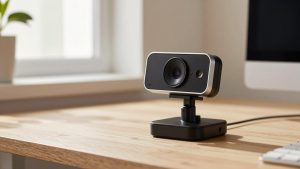
This is the sweet spot for 2026. Midrange cameras use better lenses and smarter exposure. The difference shows when you have a bright window behind you. A cheap cam turns you into a silhouette. A good midrange cam holds your face without blowing out the background completely.
Autofocus is the key upgrade, but also the main failure mode. Good ones lock in under a second and ignore hand gestures. Bad ones pulse every time you lean forward or hold up paper. If you demo products on camera, look for face-priority AF and turn off continuous AF if the software allows it. Also check for usable Windows/Mac software — some brands only allow exposure and zoom tweaks on Windows.
Who suits this: managers, teachers, therapists, and anyone on camera 4+ hours a day. A 1440p autofocus webcam for home office gives you headroom to crop to 1080p in Zoom without looking soft, and handles mixed lighting better. Skip this tier if your internet upload is under 5 Mbps — Zoom will compress it to 720p anyway.
When 4K is worth it — and when it isn’t
True 4K webcams can look excellent, but only in the right setup. You need decent front light, a USB 3.0 port directly on the computer (not a cheap hub), and meeting software that actually passes through higher resolution. In standard Zoom gallery view, no one will see the difference between 4K and good 1080p.
Where 4K pays: if you record training videos, stream, or present to large groups where you’re pinned full-screen. The larger sensor gives cleaner digital zoom, so you can frame head-and-shoulders without pixelation. Where it fails: low light. Many small-sensor 4K cams look noisier than good 1080p cams at night because they cram more pixels onto the same chip.
If you go this route, treat the built-in mic as backup only. And budget for light — even a $25 LED panel in front of you does more than jumping from $120 to $200 on the camera. If you present often, look at a 4K webcam for streaming and video calls with a large sensor and manual exposure control, not just the highest megapixel count.
Laptop and Mac users: read this before buying
Mac compatibility is still the biggest headache. Most webcams are plug-and-play on macOS for video, but advanced features — background blur without Teams/Zoom, auto-framing, firmware updates — often require a Windows app. If you use a MacBook with a USB-C dock, test the camera through the dock on day one. Underpowered docks cause freezing, flicker, or the camera dropping to low resolution.
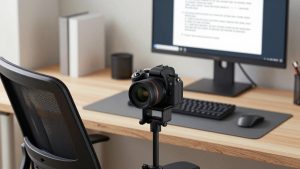
Laptop users should also think about mounting. A heavy 4K camera will tip a thin laptop screen backward. For a MacBook Air or ultralight, choose a lighter midrange model or mount the camera on a separate mini tripod behind the laptop at eye level. That angle looks far better than looking up your nose from a low laptop on a desk.
Practical tip: on both Mac and Windows, turn off “auto low-light boost” if people say you look blurry. That setting trades shutter speed for brightness and creates motion smear. Add light instead. A webcam with privacy shutter for MacBook that explicitly lists macOS support will save you return hassle.
What to skip
Skip gimmicks: gesture control, built-in ring lights, and 60fps at 4K over USB 2.0. The tiny ring light on a webcam is too close to the lens to flatter anyone and causes glasses glare. Skip ultra-wide 110-degree “conference” bars unless you’re fitting 3 people on a couch — for solo work they make you look distant and show your whole room.
Also skip replacing your whole setup if the problem is network or light. If colleagues say you freeze, that’s Wi-Fi or CPU, not megapixels. If you look dark, move a lamp in front of you, not to the ceiling behind you. No webcam fixes backlight from a window directly behind your chair.
FAQ
Is 1080p enough for work in 2026?
Yes, for 90% of workers. Teams, Zoom, and Meet compress video heavily. Good exposure and a stable image at 1080p looks better than noisy 4K. Only upgrade to 1440p or 4K if you’re pinned full-screen, record video, or need digital zoom.
Why do I look worse on my new webcam than my old laptop camera?
Usually auto-exposure or too-wide framing. New cameras show more of the room and react more to windows. Move to face a light source, set the camera at eye level 2-3 feet away, and turn off auto-framing if it keeps zooming out.
Do I need a separate mic?
If you take calls in a quiet room, a midrange webcam mic is okay. If there’s echo, keyboard clatter, or other people nearby, a $30 wired headset will improve clarity more than any camera upgrade. Webcam mics pick up the whole room by design.
Will any USB webcam work with Mac?
Basic video, yes. But check that the brand lists macOS for its settings app. Some auto-focus, zoom, and privacy modes can’t be adjusted on Mac, and firmware fixes may need a Windows PC to install.