Last Updated: October 18, 2026
📄 In This Review
The short answer for meeting-heavy work
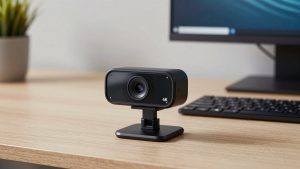
If you sit in Zoom, Teams, or Meet all day, you do not need 4K. What you need is reliable 1080p, good auto-exposure for mixed home lighting, a mic that does not pick up your keyboard, and a mount that stays put on your monitor. For most home offices, a basic 1080p webcam for meetings is fine and will beat almost any built-in laptop camera.
Upgrade only for a reason: you present to clients, you sit far from the camera in a larger room, or your room has harsh backlight you cannot fix with a lamp or curtain. Otherwise, spend the difference on light and audio. A $40 webcam with a $25 light looks better on a call than a $150 webcam in a dark room.
What actually matters in meetings
See also: Best Monitor for MacBook Air: Two USB-C 4K Screens and Six Adapter-Dependent Alternatives • Best Monitor for MacBook Pro: Eight Listings Sorted by Cable, Sharpness and Scaling
Resolution is oversold. Teams and Zoom usually compress you to 720p or 1080p anyway, and sometimes lower if your connection dips. Lens quality, exposure, and focus behavior matter more. A cheap sensor with aggressive sharpening looks crunchy and makes text behind you shimmer.
Look for these four things. First, auto-exposure that handles faces, not windows. A lot of budget webcams blow out your face if you have a window behind you. Second, focus type. Fixed-focus is actually good if you sit 2-3 feet away and never move – there is nothing to hunt and blur. Autofocus is better if you lean in, stand up at a desk, or show products. Third, field of view. For solo calls, 65 to 78 degrees keeps you framed without showing your whole room. Wider than 90 degrees is for two people or a huddle space, but it makes you look small. Fourth, microphone pickup pattern. Dual mics with noise reduction help with fan hum and typing, but they will not save you in an echoey kitchen.
The common failure mode I see: a webcam that looks great for 10 seconds, then pulses brighter and darker as you move your hands, or hunts focus every time you lean back. That is distracting for everyone else. For daily meetings, stability beats sharpness.
The main options, compared
There are really three tiers for meeting work. I have tested all three in home offices with overhead lights, side windows, and late-evening calls.
| Type | Typical image | Audio | Best for | Watch out for |
|---|---|---|---|---|
| Basic 1080p fixed-focus webcam | Clean in good light, soft in low light | Single or basic dual mic, okay for quiet room | Daily standups, 1:1s, laptop upgrade | Struggles in dark rooms, no background blur control |
| Mid-range 1080p / 2K autofocus with dual mics | Sharper, better exposure, steadier in mixed light | Better noise reduction, less keyboard clack | Client calls, managers, teachers, all-day talkers | Autofocus can hunt, privacy shutter varies |
| 4K autofocus webcam | Very detailed, often with auto-framing and wider view | Usually best-in-class mics, sometimes over-processed | Presenters, group framing, cropping to 1080p | Needs good light and USB bandwidth, heavier CPU use |
If you are unsure, start in the middle. That segment is where you get reliable autofocus, a physical shutter, and usable mics without paying for 4K you will rarely send at full quality.
What to buy for different meeting styles
For the everyday remote worker: Get a simple 1080p webcam with fixed or gentle autofocus, a clip that fits a monitor or laptop lid, and a privacy shutter. This is the cheaper option that is genuinely fine for 90% of internal meetings. Image will be a clear step up from a 3-year-old laptop, especially if you add a small desk lamp in front of you. It suits people who sit in the same spot and want plug-and-play. Failure mode: in a dim basement office, faces go muddy and mics sound hollow. Fix the light first before you blame the camera.
For client-facing calls and managers: Step up to a mid-range autofocus model with larger sensor, better low-light handling, and dual noise-reducing mics. Look for a autofocus webcam with dual mic and privacy shutter if you move around, use gestures, or switch between sitting and standing. These handle backlight better and keep your face exposed correctly when you share a bright screen. Who it suits: sales, recruiters, consultants, anyone where first impressions matter. Trade-off: you pay more for software features like auto-framing and background blur. If your company locks down installs, you may not be able to use the companion app at all, so make sure the defaults are good without it.
For presenters, small rooms, and Mac users who crop: A 4K webcam makes sense when you want to crop in or use digital zoom without turning to mush, or when two people share one camera. A 4K webcam for conference rooms with auto-framing can follow you slightly and keep you centered during a workshop. Trade-offs are real: 4K needs more light to look clean, more USB bandwidth, and more CPU for background effects. On older laptops you may get dropped frames if you run 4K plus blur plus screen share. Most people should run these cameras at 1080p output and let the extra pixels improve the crop. Failure mode: overheating on long calls and fans kicking on. If your calls run 4+ hours, 1080p mode runs cooler.
Laptop and Mac notes
Built-in laptop cameras have improved, especially on newer MacBooks, but they still suffer in low light because the lens and sensor are tiny. An external webcam helps most if your laptop sits low on a desk and gives everyone a view up your nose. Put the external camera at eye level on your monitor.
For Macs, check three things: USB-C compatibility without a flaky adapter, UVC compliance so it works in FaceTime, Zoom, and Teams with no driver, and mic behavior in macOS. Some cameras default to aggressive noise suppression that clips the start of sentences. If you use a separate USB mic or headset, set that as the input in your meeting app and let the webcam handle video only. That combination usually sounds far better than any built-in webcam mic.
Windows laptop users: if IT manages your machine, prefer a camera with on-device controls – shutter, tilt, fixed field of view – over one that requires an app to turn off auto-framing. You will save yourself a helpdesk ticket.
Setup mistakes that ruin even a good camera
Backlight is the biggest one. If your window is behind you, no webcam can fix it. Turn to face the window, or close the blind and use a soft lamp at 45 degrees. Second is distance. Sitting 4-5 feet away makes even 4K look distant and makes mics sound roomy. Get within 2-3 feet. Third is mounting wobble. Clips on thin laptop lids vibrate when you type. If you type hard, use a separate monitor mount or a small tripod behind your keyboard.
Also test before an important call. Record a 30-second clip in your actual meeting app, with screen share running. That is when focus hunting, exposure pulsing, and CPU stutters show up. Turn off beauty filters and auto-framing unless you need them – each layer adds lag and artifacts.
FAQ
Is 4K worth it for Zoom and Teams?
Usually no. Most meetings compress video, so colleagues will see 720p or 1080p at best. Buy 4K only if you want to crop, zoom, or future-proof a shared room. For solo calls, a good 1080p camera with better low light will look more natural.
Do I need a separate microphone?
Not for internal meetings in a quiet room. Webcam mics are fine within 3 feet. If your room echoes, you have a loud keyboard, or you present to clients, a headset or USB mic is a bigger upgrade than a pricier camera.
Why does my video look worse than in the store demo?
Light and bandwidth. Demo footage uses studio light and local recording. At home, dim overheads force high ISO and noise, and meeting apps lower resolution when Wi-Fi dips. Add front light, plug in Ethernet or sit closer to your router, and set your app to HD if your plan allows it.
Will any webcam work with Mac and Chromebook?
Most modern USB webcams use the UVC standard and work without drivers on Mac, Windows, and ChromeOS. What sometimes does not work is the vendor app for firmware updates and fancy effects. If you need auto-framing or background blur, confirm it works on-device or in your browser, not just in a Windows-only app.
Related Reviews & Guides
Best Ergonomic Office Chair for Writers
Best 1080p Webcam for Mac